
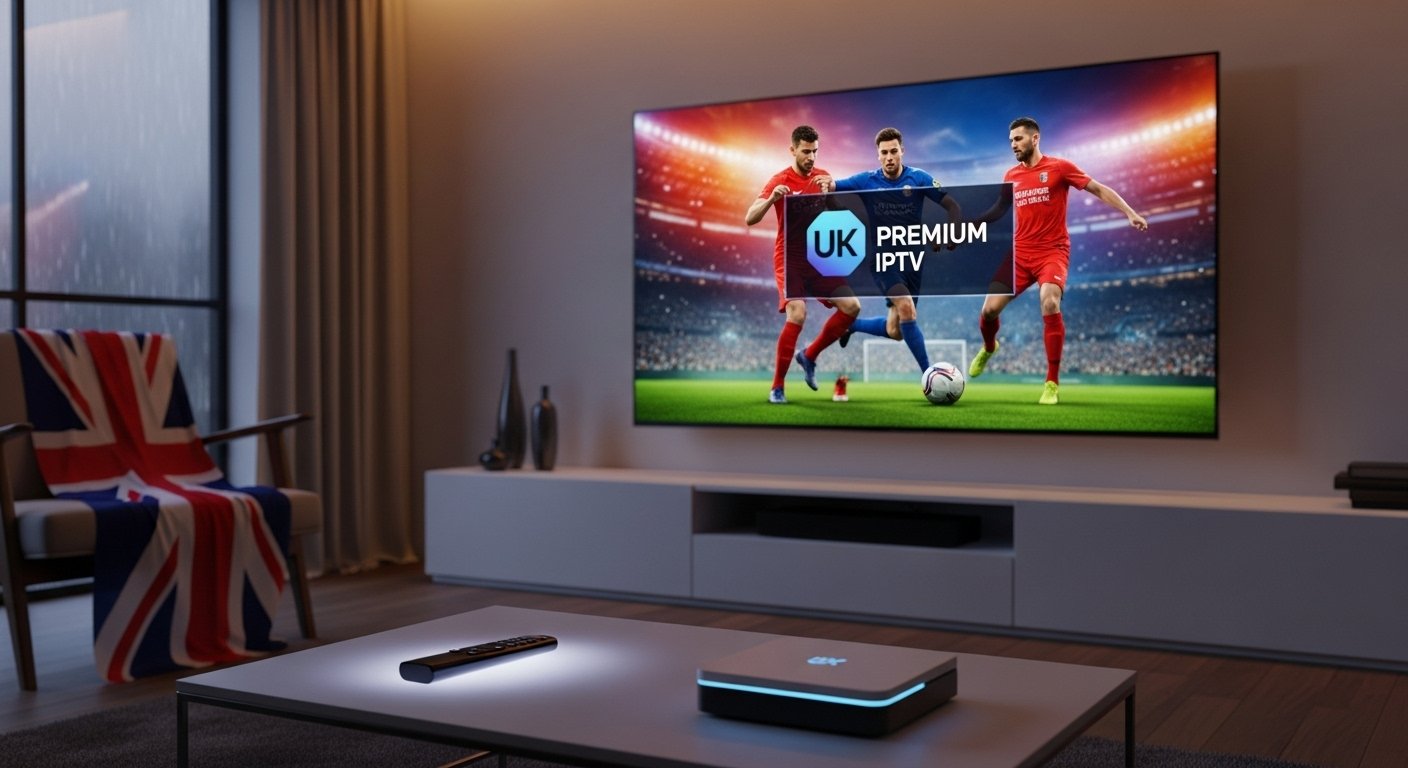
“4K and HD IPTV in the UK: Getting the Best Quality for Your Money”

Why 4K matters — and when HD is still perfectly fine

4K (Ultra HD) offers roughly four times the pixel count of 1080p HD. Premium UK IPTV Quality. The differences:

  • Resolution: 3840×2160 (4K) vs 1920×1080 (Full HD).
  • Detail: crisper textures, better upscaling, more immersive sports and nature footage.
  • Bandwidth: 4K consumes much more data and requires better network conditions.
  • Viewing distance & screen size: 4K payoff increases on large screens (55″+) or close viewing distances.

However, HD remains excellent for many UK households because:

  • Many channels and live sports are still distributed in HD.
  • On smaller TVs (under ~50″), difference is subtle.
  • HD requires less bandwidth and cheaper hardware, so it often gives better reliability for the money.

If you’re shopping for best iptv service in the united kingdom iptv market, consider whether you truly need 4K, or whether robust HD with good reliability is better value. Premium UK IPTV Quality.

What affects picture quality on IPTV?

  1. Source stream quality from the provider — the single most important factor. A cheap iptv subscription that rebroadcasts low-bitrate streams will look poor even if your TV is top tier.
  2. Encoding (codec) — H.265/HEVC or AV1 provide better compression for 4K, reducing required bandwidth. Providers still using old codecs can force higher bandwidth for the same quality.
  3. Bandwidth and latency — more on this below.
  4. Home network — Wi-Fi congestion, poor router, or long coax/ethernet runs matter.
  5. Player software and buffering — apps like IPTV Smarters Pro or hardware players behave differently.
  6. TV settings and HDMI — set TV to the correct HDMI input settings, enable UHD deep color, and use HDMI 2.0/2.1 for 4K60.
  7. Device decode capability — hardware must support the codec used (HEVC/AV1).

Bandwidth and data: what you need for HD and 4K IPTV

Estimate (general guidance):

  • SD: 1.5–3 Mbps
  • HD (720p/1080p): 4–8 Mbps stable per stream
  • 1080p high-bitrate sports: 8–12 Mbps
  • 4K (HEVC): 15–25 Mbps steady per stream
  • 4K (low compression or older codecs): 25–50+ Mbps

For a household using IPTV subscriptions, plan for multiple concurrent streams. Example: two 4K streams + one HD stream ≈ 40–60 Mbps recommended.

Note: ISP throughput must be consistent. Peak throughput is not enough — sustained throughput matters. If you’re hunting a good iptv provider in the UK, test using an iptv uk free trial while running a sustained speed test. Premium UK IPTV Quality.

Picking the right IPTV provider in the UK

When choosing a UK service or iptv provider, evaluate these factors:

  1. Legitimacy & rights — prefer licensed services. “Too good to be true” channel lists often signal illicit streams that are unstable or shut down.
  2. 4K availability — is true 4K offered or upscaled HD branded as 4K?
  3. Codec & bitrate transparency — ask if channels use HEVC/AV1 and published bitrates.
  4. Device support — Android TV, Fire TV, MAG boxes, Smart TV, iOS/Android, or web players. If you plan to use IPTV Smarters Pro or other apps, make sure provider supplies compatible playlists or portal URLs.
  5. Free trials — many legitimate providers have iptv uk free trial or short trial periods. Use them to check real-world performance.
  6. Customer support — live chat, response times, and replacement stream policies.
  7. Concurrent streams — how many simultaneous devices are allowed?
  8. Price vs channels vs reliability — cheaper = often less reliable; balance cost and quality.
  9. Reviews and uptime reports — user forums and social proof (but be wary of fake reviews).

Search for “best iptv 2025” or best iptv service but prioritize recent user experiences over marketing claims.

Devices and apps: what to buy and why

Smart TVs (Google TV, Android TV, LG, Samsung)

  • Convenient but app support differs. Android TV has largest app ecosystem; Samsung/LG may require vendor-specific apps or webOS apps.

Streaming sticks and boxes

  • Amazon Fire TV Stick 4K Max, NVIDIA Shield (older but very capable), or Android TV boxes handle 4K and HEVC (check model specifics).
  • Cheaper generic Android boxes can work but may lack HEVC or stable networking.

Dedicated IPTV set-top boxes

  • MAG, Formuler and other set-top boxes are popular in IPTV circles; choose models with HEVC/AV1 and gigabit Ethernet.

Mobile devices and tablets

  • Good for portability, but small screen makes 4K irrelevant.

Important: IPTV Smarters / IPTV Smarters Pro

  • Popular middleware/player app; many UK users use IPTV Smarters Pro or similar players to load M3U playlists or Xtream Codes portals.
  • Pros: flexible, multi-platform.
  • Cons: depends on playlist/provider quality; keep apps updated.

Cabling & HDMI

  • For 4K60 HDR, use HDMI 2.0 minimum (HDMI 2.1 for higher refresh rates, VRR, or advanced HDR settings). Premium UK IPTV Quality.

Network best practices for consistent 4K/HD streaming

  1. Use wired Ethernet where possible — gigabit Ethernet to your TV or set-top ensures the most stable experience.
  2. If using Wi-Fi, use 5 GHz and a modern router — Wi-Fi 6 is preferable for households heavy with concurrent traffic.
  3. Quality of Service (QoS) — prioritize streaming devices to reduce buffering during heavy use.
  4. Separate SSIDs for guests — isolate bandwidth-hogs.
  5. Router placement and interference — keep routers central and away from microwaves, thick walls, etc.
  6. Use adaptive bitrate but monitor bitrate ceilings — if your provider clamps bitrate, it will cap quality.
  7. Check DNS and MTU — occasional throttling can be bypassed by alternate DNS or adjusted MTU, but do this only if you know what you’re doing. Premium UK IPTV Quality.

Picture settings & TV calibration for best results

  • Set TV input to the correct HDMI mode (enable UHD/Deep Color).
  • Turn on game mode only if you need low latency (temporary) but disable features that add noise reduction for sports.
  • Disable aggressive motion smoothing for films unless you like the effect.
  • Calibrate brightness/contrast and color profile (Cinema/Natural for movies).
  • Ensure HDR is enabled for HDR streams.

Troubleshooting common issues

Buffering or stuttering

  • Check bandwidth and concurrent streams.
  • Switch to wired Ethernet.
  • Lower resolution in player settings (switch HD→SD temporarily).
  • Try a different DNS.

Blocky or washed-out picture

  • Provider bitrate too low or wrong colour space (YUV vs RGB).
  • Player or TV not using correct HDR profile.

4K not showing even when provider claims 4K

  • Check HDMI cable spec and TV input settings.
  • Verify the player supports the codec (HEVC/AV1).
  • Confirm portal/playlist points to true 4K stream — sometimes labeled 4K but is upscaled.

Legal and safety considerations (UK)

  • Only use providers with legitimate rights to the content. Illicit IPTV services can be taken down, sold off, or fail without refund.
  • Using unauthorized streams may have legal and security risks.
  • If you want robust, legal British IPTV options, check established, licensed services and broadcasters in the United Kingdom IPTV ecosphere. Premium UK IPTV Quality.

Price vs quality: value checklists

When comparing iptv subscriptions and iptv services, use these quick checks:

  • Bandwidth & bitrate: does the provider publish sample bitrates for channels?
  • Trial policy: is there an iptv free trial or money-back window?
  • Uptime stats: do they publish or have verifiable uptime?
  • Device compat: are there apps for your devices (Android TV, Fire TV, MAG)?
  • Concurrent streams and account sharing policy.
  • Update frequency and support responsiveness.

Sometimes it’s better to pay a bit more for a trustworthy iptv provider than to save on a service that stutters during the game.

800-word step-by-step technical guide: every step explained in detail

Below is a focused, step-by-step technical walkthrough to get a 4K IPTV stream working at the best quality in a typical UK home.

  1. Choose and verify a provider (10–15 minutes)
    • Pick a provider that explicitly lists 4K channels and codec info. Sign up for an iptv uk free trial if available. During the trial, log into their portal on the device you will use (Smart TV, Fire TV, Android box, etc.). Confirm they provide a sample 4K stream file or channel. Ask support to provide the exact stream URL or sample M3U entry if you can — this helps test with network tools.
  2. Verify device codec and hardware decode capability
    • On your device, check the specs: does it list HEVC (H.265) hardware decode or AV1? For 4K60 HEVC decode is essential. Older devices only decode H.264 and will struggle. If the device lacks HEVC, you will need a newer box or streaming stick.
  3. Prepare your network: wired first
    • If possible, run a Gigabit Ethernet cable from your router to the streaming device. This eliminates Wi-Fi variability. If wiring isn’t feasible, place the device within strong 5 GHz Wi-Fi range of your router or use a Wi-Fi 6 access point/repeater set to the same SSID.
  4. Check bandwidth with sustained tests
    • Use a laptop on the same network to run a sustained speed test (e.g., 60-second download test) to confirm sustained throughput of at least 25–30 Mbps for a single 4K stream. Remember peaks aren’t enough — sustained throughput matters. For multiple streams multiply accordingly. Premium UK IPTV Quality.

Comparing top device + provider combos (practical examples)

  • Budget (reliable HD) — Fire TV Stick (non-max) + stable HD-focused provider. Good for ≤50″ TVs; cheaper.
  • Balanced (HD + occasional 4K) — Fire TV Stick 4K Max or modern Android TV box + midrange provider with selective 4K channels.
  • Enthusiast (true 4K) — NVIDIA Shield Pro or high-end Android TV box + provider that publishes HEVC/AV1 4K streams + gigabit wired network.

Buying checklist

  • Does the provider offer an iptv uk free trial?
  • Are there published bitrates and codecs (HEVC/AV1)?
  • Device supports HEVC/AV1 and HDMI 2.0/2.1?
  • Home broadband plan supports sustained 25+ Mbps per 4K stream?
  • Does the service allow required concurrent streams?
  • Are legal rights or licensing clear?

Closing — final recommendations

  1. Start with a trial. Use an iptv uk free trial to check real performance on your devices and network.
  2. Prioritize device and codec compatibility — HEVC/AV1 decode is essential for efficient 4K. If your TV or device lacks it, buy one that supports it.
  3. Use wired Ethernet for the best 4K experience. If you can’t, invest in a modern Wi-Fi 6 router or good 5 GHz coverage.
  4. Balance cost vs reliability — cheap iptv subscriptions often skimp on bitrate and support.
  5. For long-term peace of mind, prefer licensed providers in the UK to avoid interruptions and legal risk. Premium UK IPTV Quality.

Top 4K IPTV Setups for UK Homes

1. Why 4K matters for IPTV in the UK

4K (3840×2160) is now mainstream: bigger TVs, better cameras and more 4K content make upgrading attractive. For IPTV UK viewers, 4K delivers sharper sports, films and nature documentaries. But 4K isn’t just resolution — it’s higher bitrates, more demanding codecs (HEVC/H.265, AV1), and stricter DRM in official apps. A good 4K IPTV setup balances device decoding, network bandwidth and legal 4K sources (Netflix 4K, Prime Video, NOW/We TV sports, and licensed IPTV providers offering 4K channels). Best 4K IPTV Systems.

2. What “4K IPTV” actually means

IPTV = video over IP. 4K IPTV = streaming 4K/Ultra HD channels or VOD via the internet to your TV. There are three realistic sources:

  • Official 4K apps (Netflix 4K, Amazon Prime Video, Apple TV+) — easiest and legal.
  • Rights-holder 4K streams (some sports/events or broadcaster 4K channels via official apps).
  • Licensed IPTV providers that supply 4K-capable streams to subscribers (rare — check provider claims).

Players like IPTV Smarters Pro and TiviMate are front-ends — they don’t create streams. Use them only with licensed iptv subscription feeds.

3. Must-have home network specs for 4K IPTV

For reliable 4K IPTV in the United Kingdom:

  • Minimum bandwidth: 25 Mbps per 4K stream (allow >30 Mbps headroom).
  • Recommended household broadband: 100 Mbps+ if multiple devices stream simultaneously.
  • Wired Ethernet: strongly recommended for the main TV (Gigabit Ethernet).
  • Wi-Fi: use 5GHz or Wi-Fi 6 (802.11ax) access points; mesh if coverage is large.
  • Router features: QoS, MU-MIMO, and support for IPv6 and gigabit WAN.
  • Latency/Jitter: keep ping <30 ms and jitter low for live sports.

If you’re relying on a wireless link, use a Wi -Fi 6 router and connect the streaming device to the closest node.

4. Top devices for 4K IPTV (budget → premium)

  • Budget stick: Amazon Fire TV Stick 4K Max — great value, HEVC support, broad app store.
  • Mid-range: Chromecast with Google TV (4K) — simple UI, good performance.
  • Power user: NVIDIA Shield TV Pro — hardware decoding (HEVC/AV1 in newer models), best for advanced players and Plex.
  • Apple fans: Apple TV 4K — best for Apple ecosystem, Dolby Vision and Dolby Atmos.
  • Smart TVs: modern Samsung/LG/Sony with built-in apps and AV1/HEVC support (preferred for simplicity).

Pick a device that supports hardware decoding for HEVC/AV1 to avoid stutters and reduce CPU load. Best 4K IPTV Systems.

5. Choosing the right TV for 4K IPTV

Key TV features to look for:

  • 4K panel (OLED, QLED, or quality LED).
  • HDR support — Dolby Vision, HDR10+ for improved contrast.
  • AV1/HEVC decoding built into the TV or the set-top device.
  • HDMI 2.1 ports if you plan high frame rates (120Hz) or next-gen game consoles.
  • Smart TV OS compatibility for Netflix, Prime, Apple TV and broadcaster apps — native apps are often required for 4K DRM playback.

For many UK households a 55–65″ 4K TV with HDR and integrated apps is the best balance.

6. Best 4K-capable streaming sticks & boxes

  • Fire TV Stick 4K Max: HEVC, HDR10+, Dolby Vision support; excellent app catalogue.
  • Chromecast with Google TV: native Google Play apps, easy casting from phone.
  • NVIDIA Shield TV (2019 / 2023 models): best for AV1/HEVC hardware decode, Plex server, 4K HDR with strong app support.
  • Apple TV 4K: premium, great for Apple ecosystem and Dolby Vision/Atmos support.

If you need reliable 4K IPTV Smarters Pro or TiviMate with large M3U playlists, prefer Android TV / Shield-level performance. Best 4K IPTV Systems.

7. AV and sound: match the picture with audio

4K viewing benefits from better audio:

  • Soundbar with Dolby Atmos for cinematic sound.
  • AV receiver + speakers for full home cinema.
  • ARC/eARC capable HDMI ports (on TV and receiver) for lossless audio passthrough.

Many streaming apps support Dolby Atmos on compatible devices — ensure your player and TV support Atmos passthrough over eARC.

8. Best IPTV players and apps (legal, practical)

  • Native apps: Netflix, Amazon Prime Video, Disney+, Apple TV, BBC iPlayer, ITVX, NOW/Channel apps — best for 4K and DRM.
  • TiviMate: polished IPTV front-end on Android TV — EPG, favourites, playlists (use with licensed iptv subscription).
  • IPTV Smarters Pro: popular on Fire/Android — supports Xtream Codes API, M3U, portals. Use only with licensed providers.
  • Kodi: powerful but needs legal add-ons; avoid pirate repos.
  • Plex: for personal libraries; Plex Pass users get hardware-accelerated streams on Shield.

Important: for 4K official DRM (Widevine L1 or PlayReady) is often required — native apps usually meet DRM; some players may not. Best 4K IPTV Systems.

9. Four recommended 4K IPTV setups

 A — Starter (small flat, budget)

  • Fire TV Stick 4K Max
  • 55″ affordable 4K TV (HDR10)
  • Broadband 100 Mbps
  • Use Netflix 4K, Prime Video, BBC iPlayer (for catch-up), occasional iptv uk free trial for testing.

 B — Living Room (family)

  • 65″ QLED 4K TV (HDR10+ / Dolby Vision)
  • Chromecast with Google TV or Fire TV Stick 4K Max
  • Soundbar (Dolby Atmos)
  • Router Wi-Fi 6 + Ethernet to TV
  • Subscriptions: Netflix, Prime, Disney+, NOW passes for sport + licensed iptv subscription for extra channels via TiviMate or IPTV Smarters Pro (only if provider is licensed).

 C — Multi-room Family

  • Main: NVIDIA Shield TV Pro + 75″ OLED
  • Secondary rooms: Fire TV Sticks (4K)
  • Mesh Wi-Fi 6 system & gigabit router
  • NAS or Plex server for local 4K content
  • Use licensed iptv providers for channel bundles; centralised EPG via TiviMate.

 D — Premium Home Cinema / Power User

  • OLED 83″ or projector 4K + eARC AVR + 7.1 speakers
  • NVIDIA Shield TV Pro (AV1/HEVC decoding), Apple TV 4K (for Apple content)
  • Wired 10GbE backbone (if available) or gigabit wiring + dedicated VLAN for streaming
  • Plex Media Server with local 4K library, licensed 4K iptv feeds, advanced TiviMate front-end.

10. Build a 4K IPTV Living-Room Rig

This is the practical heart — follow this sequence to go from box to pixel-perfect 4K viewing.

Step 1 — Plan & buy

Decide your priorities: live sport, movies, or both. For sports and frequent channel switching, get a Shield/Fire TV 4K Max plus a TV with native apps. Choose an ISP plan (100–200 Mbps recommended if household streams concurrently). Order a gigabit switch/Ethernet cable for the main TV. Best 4K IPTV Systems.

Step 2 — Unbox and position equipment

Place the TV where glare is minimal. Put the streaming device close to HDMI and power. If using a soundbar or AVR, place them per the manufacturer’s guidelines (soundbar below screen; AVR in equipment rack). Route an Ethernet cable from your router to the TV or Shield — avoid running cables through high-traffic areas.

Step 3 — Network baseline

Power on router and run a speed test at the TV location (use Speedtest or Fast). If speeds are far below expected, troubleshoot the router placement or upgrade to a mesh satellite. Set a static IP for the TV in the router DHCP table so you can prioritise it via QoS.

Step 4 — Install device and apps

Plug in the Shield / Fire Stick into HDMI and power. For Shield, connect via Ethernet. Walk through onboarding, sign in to Google/Amazon accounts. Install native apps first (Netflix, Prime, BBC iPlayer). For IPTV front-ends (TiviMate/IPTV Smarters Pro), install from Play Store or sideload if needed (only on reputable sources).

Step 5 — Authenticate subscriptions and confirm 4K tokens

Log into streaming services and verify 4K entitlement: Netflix Premium, Prime Video 4K enabled, Apple TV settings. Some services require specific device DRM levels (Widevine L1). Test a 4K title to confirm it streams in Ultra HD and HDR.

Step 6 — Configure device settings

On Shield/Fire Stick: enable hardware acceleration and HDR passthrough. Set HDMI color space to Auto. In the IPTV player (TiviMate), set default resolution to Auto and enable hardware decoding. If your app allows buffer tuning, set moderate buffer (few seconds) to balance latency and resilience.

Step 7 — Audio configuration

Connect TV eARC to AVR for Dolby Atmos passthrough. In device audio settings set Dolby Digital+ or passthrough as appropriate. Test a movie with Atmos to confirm multichannel playback.

Step 8 — Test live streams & local 4K files

Before hosting a live event, play a 4K HDR demo from Netflix or a local 4K file. Check picture stability, color (HDR), audio sanity, and latency. If you have an iptv subscription with 4K channels, test them during peak times to ensure streams hold up. Best 4K IPTV Systems.

Step 9 — Tweak and secure

Set automatic updates for apps. Create user profiles. Secure accounts with 2FA. On the router, enable QoS prioritising the TV’s IP and mark streaming traffic as high priority. Disable unnecessary background downloads on the network during matches.

Step 10 — Match-day checklist

Restart router and Shield to clear caches. Ensure other heavy downloads are paused. Open the channel 10–15 minutes early to stabilise the buffer. Have backup devices (phone or tablet with the app) in case of issues.

Following these steps yields a resilient living-room 4K IPTV setup ready for movies and live sport. Take notes of working settings so you can replicate them after firmware updates. Best 4K IPTV Systems.

11. Optimising for low latency and zero buffering

  • Ethernet is king: wired connections beat Wi-Fi for 4K.
  • Router QoS: assign streaming device priority.
  • Split your network: put streaming devices on a dedicated VLAN or SSID to avoid interference.
  • Adjust buffer: small buffer reduces latency (good for live sport); slightly larger buffer reduces rebuffer events.
  • Use hardware decode: reduces frame drops.
  • Close background apps on streaming devices.
  • Test during peak hours to get real-world performance.

12. Legal & safety checklist for UK viewers

  • Use licensed iptv providers or official apps (Netflix, Prime, BBC iPlayer).
  • Avoid anonymous “lifetime” offers and pre-loaded sticks sold on marketplaces.
  • Keep receipts and pay via card/PayPal for consumer protection.
  • For BBC iPlayer live viewing, a valid UK TV Licence is required.
  • Don’t use VPNs to bypass geo-blocks in violation of terms — VPNs can also increase latency.

13. Bandwidth, codecs (HEVC / AV1) and future-proofing

  • HEVC/H.265: widely used for 4K — devices must support hardware HEVC decoding.
  • AV1: newer and more efficient; growing in 4K streaming. Choose devices with AV1 hardware support for the longest shelf life (NVIDIA Shield, many new Smart TVs).
  • HDR formats (Dolby Vision / HDR10+): device support matters for best picture.
  • Storage / NAS: for local 4K libraries, fast NAS or SSD storage ensures smooth playback.

14. Troubleshooting common 4K IPTV problems

  • Stuttering: enable hardware acceleration; use Ethernet; reduce resolution to 1080p temporarily.
  • No 4K available: confirm plan tier (e.g., Netflix Premium), and DRM/ Widevine L1 support on device.
  • Audio dropouts: check eARC passthrough and HDMI cables; test direct TV speakers.
  • App crashes: clear cache, reinstall app, check for firmware updates.
  • Buffering during peak: check ISP throttling, run speed tests, escalate to ISP.

15. Conclusion

4K IPTV in UK homes is achievable and hugely rewarding with the right mix of hardware, network, and legal content sources. Prioritise a wired gigabit link for the main TV, choose devices with HEVC/AV1 hardware decode (Shield, modern Smart TVs), use native apps for DRM-heavy 4K sources, and rely on licensed iptv subscription providers if you need channel aggregation. Whether you want a budget flat setup or a premium home cinema, the steps above will guide you to a stable, beautiful 4K viewing experience. Best 4K IPTV Systems.

Top 10 FAQs

  1. Do I need 100 Mbps for one 4K stream?
    No — ~25–30 Mbps is usually enough for one 4K stream, but 100 Mbps gives headroom for multiroom and simultaneous devices.
  2. Will Fire TV Stick 4K Max handle 4K IPTV?
    Yes — for most 4K streaming apps. For heavy custom IPTV playlists and AV1 hardware decode, a Shield may be more robust.
  3. Can TiviMate/IPTV Smarters Pro play 4K streams?
    Yes — if the device and the iptv subscription supply 4K encoded streams and the player supports hardware decode and DRM where needed.
  4. Is AV1 support essential?
    AV1 is increasingly common and more efficient; AV1-capable devices are more future-proof.
  5. Why does Netflix show only HD not 4K?
    Check plan tier (Netflix Premium), device DRM (Widevine L1), and app settings. Also ensure sufficient bandwidth.
  6. Are pre-loaded “IPTV sticks” safe?
    Usually not — they often contain illegal apps and malware. Buy official devices and install apps from app stores.
  7. Will a mesh Wi-Fi system be enough for 4K?
    Modern Wi-Fi 6 mesh can handle 4K if nodes are well placed and backhaul bandwidth is good. Still, Ethernet is preferred.
  8. How to reduce latency for live sports?
    Use wired Ethernet, enable low-latency player modes, and avoid large buffering settings.
  9. Can I record 4K IPTV streams?
    Legally, only if your subscription and app support DVR/recording. Some IPTV setups allow local recording to NAS — check provider terms.
  10. Which is the best 4K IPTV setup for small budgets?
    Fire TV Stick 4K Max + 55″ 4K TV + 100 Mbps broadband + Netflix/Prime + occasional iptv uk free trial for extra channels.

Best Devices for IPTV in the UK: Fire Stick, Roku, and Smart TVs

Introduction:

If you’re reading this, chances are you’re already using or thinking about using IPTV (Internet Protocol Television) in the UK — maybe for live channels, catch-up shows, international content, or simply cutting down on expensive cable/satellite bills. Top UK IPTV Devices. But one key question often comes up: Which device will give me the best experience?

It’s no longer just about “a box” under the TV. Today’s best IPTV experience depends on the device you choose, how it connects to your network, what apps it supports, how future-proof it is, and how well it handles what you watch in your household. In this article I’ll walk you through the top device categories — streaming sticks, streaming boxes, smart TVs — test them against UK use-cases, and help you pick the right one for your living room, spare room or bedroom.

What Makes a Great IPTV Device?

Key specs to look for: HDMI, codec support, Wi-Fi version

When choosing a device for IPTV, here are the technical details you should check:

  • HDMI output: Ensure the device supports HDMI 2.0+ if you plan 4K/HDR playback.
  • Codec support: H.265/HEVC is standard now; AV1 (emerging) is a bonus for future streams.
  • Wi-Fi version: Wi-Fi 5 (802.11ac) is baseline; Wi-Fi 6 (802.11ax) offers better multi-device performance — key in UK homes sharing internet with multiple users.
  • Processor & memory: A quicker interface and smoother navigation matter more than raw specs for everyday use.
  • Remote and OS support: A responsive OS and a good remote (voice, shortcuts) improve the experience.

Platform & App support: UK streaming ecosystem

In the UK you’ll want a device that supports: BBC iPlayer, ITVX, All 4, My5, Netflix, Amazon Prime Video, Disney+, and ideally other niche apps. Some devices may lag in updates or have limited app libraries. Also check whether they support live IPTV services or overlay apps. For example, Amazon press notes show the UK Fire TV Stick includes voice remote and wide app compatibility.

Device Category 1: Streaming Sticks

Amazon Fire TV Stick 4K (and variants)

The Fire TV Stick line from Amazon is widely used in the UK and offers very strong value for IPTV users. For instance, Amazon’s UK press centre mentions the “most affordable 4K streaming device” with Wi-Fi 6 support and smoother performance. Some key features: 4K HDR playback, voice-remote with Alexa, wide app ecosystem, easy setup (plug into HDMI, connect Wi-Fi).

Pros:

  • Relatively low cost compared to full set-top boxes.
  • Wide app support including UK catch-up services.
  • Voice remote and integrated smart-home features (if you use Alexa).
  • Good for living rooms and secondary rooms alike.

Cons:

  • Some models may be outdated — e.g., first-gen versions may lose app support.
  • Slight bias toward Amazon’s ecosystem (though you can still install other apps).
  • For very high-end home cinema (Dolby Atmos, highest HDR formats) you may want a more premium box.

Setup tip: Plug the stick into an HDMI port with good clearance (some TVs have cramped rear ports), connect to your Wi-Fi (preferably 5GHz band), sign in to your Amazon account, install or update apps (BBC iPlayer, ITVX etc), and test streaming quality. Setup can be done in minutes.

Device Category 2: Dedicated Streaming Boxes

Roku Streaming Stick Plus

While Roku is less ubiquitous in the UK than Amazon, the Roku Streaming Stick Plus (2025 version) is worth considering. A UK review notes it delivers 4K HDR, supports all major UK streaming services, and offers a clean, simple interface.

Pros:

  • Excellent simplicity and ease of navigation — ideal if you don’t want to mess with settings.
  • Broad app coverage (Netflix, Prime, Disney+, BBC iPlayer, ITVX).
  • Compact form factor, easy to move between rooms or TVs

Cons:

  • Some reviews cite issues with customer support and UK-specific app updates.
  • Slightly fewer advanced features than premium boxes (e.g., Dolby Atmos or advanced codecs may be limited).
  • Stock availability may vary in the UK.

Who it’s good for: Families wanting a simple streaming device in a bedroom or secondary TV, users who prefer minimal interface clutter and straightforward operation. Top UK IPTV Devices.

Device Category 3: Smart TVs with Built-in IPTV Support

If you’re buying a new TV anyway, choosing a Smart TV with strong streaming/app support can be the most seamless option — no extra stick or box required.

What to look for in Smart TV hardware for streaming

Key features:

  • Latest Smart TV OS (Tizen for Samsung, webOS for LG, Android TV/Google TV for other brands).
  • HDMI-CEC support and multiple HDMI ports (for future expansion).
  • Good remote (voice, dedicated streaming app buttons).
  • Adequate refresh rate, HDR support and codec support if you stream 4K/HDR content.
  • Built-in Wi-Fi (preferably Wi-Fi 5 or 6) and/or Ethernet port for stable connection.

Brands and models popular in the UK for IPTV use

Amazon’s UK press details mention new Fire TV styled TVs (2-Series, 4-Series). Samsung, LG and Sony also offer smart-TVs with built-in app stores and frequently push streaming updates. Top UK IPTV Devices.
Smart TVs are especially good if you want minimal hardware in your living room setup. The downside: if the TV’s OS becomes old or unsupported, you may end up with fewer updates than a standalone box.

Comparison: Fire Stick vs Roku vs Smart TV

Performance and usability comparison

Device Type Strengths Trade-offs
Fire TV Stick Strong app ecosystem, voice remote, frequent updates Requires HDMI port and some setup
Roku Streaming Stick Simplicity, broad app support, easy to share across rooms Slightly less advanced features in some models
Smart TV built-in All-in-one solution, no extra device required TV age may limit future app updates; higher initial cost

Cost comparison and hidden costs

  • A Fire TV Stick may cost £35–£50 in the UK.
  • A Roku Stick may cost around £30–£40 for HD models (or more for 4K versions).
  • Smart TVs can cost hundreds of pounds more initially, though they replace the TV itself.

Hidden costs: consider whether extra HDMI ports, remote replacements, or network upgrades will be needed.

Multi-Room and Household Use: What to Buy for Each Room

In a family household you might want different devices for different rooms:

  • Living Room (main TV): Use the Fire TV Stick 4K or a Smart TV if you’re buying new.
  • Kids’ Room: A cheaper stick (Fire TV Stick Lite or Roku HD) works fine; add parental controls.
  • Guest Room or Bedroom: Consider a compact streaming stick with fewer features, just enough for catch-up and light streaming.
  • Portable/Travel Use: A stick is easy to unplug and take to a second home or holiday.

Ensure your setup supports multiple concurrent streams, and check whether your subscriptions allow multiple devices simultaneously.

Network Considerations: Wi-Fi, Ethernet & Performance

Good devices need good network conditions. Here are key network tips for UK households:

  • Use the 5GHz Wi-Fi band rather than 2.4GHz if possible (better speed, less interference).
  • If your TV or streaming device is near the router: consider Ethernet cable for best stability.
  • If you share the broadband with other heavy users in the house (students, gamers, multiple TVs): aim for at least 100 Mbps broadband to handle multiple streams.
  • If using a Smart TV in an older home with weak Wi-Fi: consider a mesh Wi-Fi system or a Wi-Fi extender.

Device Longevity & Future-Proofing

Codec support (H.265/HEVC, AV1) and future streaming formats

Streaming services increasingly use efficient codecs like HEVC or AV1 to reduce bandwidth for 4K/HDR content. Devices that support these will last longer. Top UK IPTV Devices.
For example, Amazon’s recent Fire TV Stick 4K Max supports Wi-Fi 6E and faster processors, making it more future-ready.
When buying, ask: will this device support the next generation of streaming formats? Will it receive firmware updates for 3–4 years?

Practical Buying Tips in the UK

Where to buy, what deals to look for

  • Amazon UK often has deals on Fire TV devices (especially around Prime Day, Black Friday).
  • Major UK retailers (Currys, Argos, John Lewis) stock streaming sticks and smart TVs.
  • Look for bundle deals: some ISPs may include streaming sticks or smart TV credits when you sign up for full-fibre.
  • Warranty & updates: ensure the device has at least a one-year warranty and check whether the manufacturer frequently updates its software.

Check stock and firmware status

For instance, Reddit users have noted stock shortages for some Roku models in the UK.
Before buying, search for the generation of the device, read recent reviews (especially UK-specific app support), and ensure the device meets your uses (4K, HDMI port, voice remote, etc). Top UK IPTV Devices.

Troubleshooting Common Issues

  • Buffering or poor quality: Check your Wi-Fi or Ethernet connection, ensure other heavy devices aren’t hogging bandwidth, and try lowering stream quality.
  • Apps missing or not working: Ensure your device is within support window; older devices may stop receiving updates (example: older Fire Stick models losing Netflix support).
  • Remote issues or slow navigation: Clear cache/apps if possible, or upgrade to a newer model if your device is lagging.
  • HDMI port limitations: Older TVs may only have HDMI 1.4 or limited ports; ensure the stick/box is connected to an HDMI port capable of 4K if needed.

Accessibility, Profiles & Family Use

  • Most modern devices support multiple user profiles (Netflix, Disney+) so each family member can have their own settings.
  • Check device accessibility features: subtitles, audio description, voice remote/microphone navigation. Fire TV remote with voice (Alexa) offers easy control.
  • For children’s rooms: use parental controls either via the streaming service or via the TV/device settings (time limits, age filters).

Conclusion: Make the Device Work for Your Viewing Habits

There’s no one-size-fits-all best device for IPTV in the UK — it depends on your room, budget, streaming habits, and whether you’re upgrading a TV or just buying a stick. Top UK IPTV Devices. But here’s a practical takeaway:

  • If you watch serious streaming (4K/HDR, family profiles, multiple rooms), aim for a Fire TV Stick 4K or better.
  • If you value simplicity and reliable app support, consider the Roku Streaming Stick Plus.
  • If you’re buying a new TV anyway and want the cleanest solution, go for a Smart TV with strong app support.

Pair your device with a stable broadband connection, the streaming services you use most, and buy a stick or box that’s current (not a legacy model). That way, your IPTV setup will serve you well for years — and you’ll avoid paying for boxes or devices that become obsolete.

Happy streaming!

FAQs

  1. Can I use any streaming stick for UK-based IPTV services?
    Yes — but you should check if the stick supports the apps you use (BBC iPlayer, ITVX, All 4) and if the UK app store is fully supported by the manufacturer.
  2. Is it worth upgrading to a smart TV instead of buying a streaming stick?
    If your TV is older and you’re planning an upgrade anyway, a smart TV may simplify your setup. But if your current TV works fine and you just need better app/access, a streaming stick is much more cost-effective.
  3. Will my streaming device need to be replaced soon?
    If it supports current codecs (H.265/HEVC) and receives firmware updates, it should last 3-5 years. Avoid buying very old sticks — some have already lost app support.
  4. Do I need Ethernet for best performance?
    Not necessarily — Wi-Fi 5 or better is fine for many. But for stability in multi-device families or for 4K streaming with heavy usage, a wired connection is ideal.
  5. How many devices can I stream simultaneously with these sticks/boxes?
    It depends on your streaming service’s plan (Netflix, Disney+, Prime) and your broadband capacity. Many devices can support multiple concurrent streams if your network and subscription plan allow it.                                                                                                                                                                                                                                                IPTV FREE TRIAL