Blog

Live Sports on IPTV UK: How to Watch Premier League & F1 in 4K

1. What is IPTV and Why It’s Changing Sports Viewing in the UK

IPTV (Internet Protocol Television) delivers TV over the internet instead of via satellite (Sky dish) or cable (Virgin). Watch Live Sports IPTV. For sports, this means:

  • You can stream matches on smart TVs, Fire Sticks, consoles, laptops, or phones.
  • Most services offer flexible monthly subscriptions (no 18-month contracts).
  • Many now include 4K Ultra HD streams with HDR (High Dynamic Range).
  • Catch-up, replays, and multi-camera options are often available.

For sports fans, IPTV removes the old frustrations of needing expensive set-top boxes and long-term contracts just to follow your team.

2. Who Holds UK Broadcasting Rights (Premier League & F1)

Understanding rights is crucial — not all IPTV services can legally show live matches. Here’s how things stand for 2025:

⚽ Premier League

  • Sky Sports – Largest share of live games, including “Super Sunday” and Monday Night Football.
  • TNT Sports (formerly BT Sport) – Early Saturday kick-offs and European football.
  • Amazon Prime Video – Select rounds of fixtures (mainly midweek and Christmas matches).
  • BBC (Match of the Day) – Highlights only.

🏎 Formula 1

  • Sky Sports F1 – Exclusive live rights for all races, qualifying, and practice sessions in the UK.
  • Channel 4 – Free-to-air highlights and live coverage of the British Grand Prix only.

📌 This means if you want full Premier League AND F1 in the UK, you need access to Sky Sports.

3. Legal IPTV Services for Sports Fans in the UK (2025)

Here are the main legal IPTV providers offering Premier League and F1 coverage:

 Sky Stream (Sky without a dish)

  • Stream Sky Sports and Sky Sports F1 directly over the internet.
  • Contracts available monthly or 18-month.
  • 4K UHD available on supported devices.
  • Works via Sky Stream puck or app on smart TVs.

 NOW (by Sky)

  • Flexible streaming service offering day/month passes.
  • Sports Membership gives access to all Sky Sports channels.
  • Streams in up to 1080p (NOW Boost add-on improves quality and adds 50fps HD).
  • Great for casual fans who don’t want a long contract.

 Discovery+ (with TNT Sports)

  • Includes TNT Sports channels (Premier League, Champions League, UFC, WWE).
  • Available standalone or as part of EE/BT broadband packages.
  • Streams in HD, with some content in UHD.

 Amazon Prime Video

  • Select Premier League rounds (usually ~20 matches per season).
  • Streams in 4K UHD at no extra cost.
  • Works on almost all devices.

 Channel 4 (All 4 / Channel 4 app)

  • F1 highlights (all races).
  • British GP live coverage.
  • Free with adverts.

4. How to Watch Premier League on IPTV in 2025

1: Sky Stream or NOW Sports

  • Best for fans who want all the big Sky Sports fixtures.
  • NOW Sports is cheaper and more flexible, but limited to 1080p without Boost.
  • Sky Stream delivers better 4K quality for serious fans.

2: Discovery+ with TNT Sports

  • Covers early Saturday games and European football.
  • Available cheaper if bundled with broadband (EE, BT).

3: Amazon Prime

  • Great for midweek fixtures and Christmas schedule.
  • Included with Prime membership (no extra sports charge).

Budget-Friendly Setup Example

  • NOW Sports Month Pass (Sky Sports) – ~£34.99/month.
  • Discovery+ Standard with TNT Sports – ~£30/month standalone (cheaper in bundles).
  • Amazon Prime Video – £8.99/month or £95/year.

This combo ensures full Premier League access without a satellite dish.

5. How to Watch Formula 1 on IPTV in 2025

Since Sky Sports holds exclusive F1 rights, your options are limited:

  • Sky Stream – Best quality and full coverage, including 4K HDR.
  • NOW Sports – All Sky Sports channels, including F1, in flexible monthly packages.
  • Channel 4 app – Free highlights of all races + live British GP.

💡 If you’re an F1-only fan, a NOW Sports pass during race weekends is often the cheapest way. Watch Live Sports IPTV.

6. Watching in 4K UHD – What You Need

If you want to see every blade of grass at Old Trafford or every spark in Monaco in crystal-clear detail, here’s what you need:

 4K-Compatible Streaming Service

  • Sky Stream and Sky Q support 4K HDR.
  • NOW offers only up to 1080p with Boost.
  • Amazon Prime streams football in 4K UHD.

 Devices

  • Smart TVs with 4K HDR (Samsung, LG, Sony).
  • Amazon Fire Stick 4K, Apple TV 4K, Roku Ultra, or Sky Stream puck.
  • Modern gaming consoles (PS5, Xbox Series X) support 4K streaming apps.

 Broadband

  • Minimum 25 Mbps for single 4K stream.
  • At least 50 Mbps+ for households with multiple streams/devices.

7. Risks of Illegal IPTV for Sports

It’s no secret that many websites and resellers advertise “all sports, all channels, cheap IPTV.” But these are illegal in the UK. Here’s why families and fans should avoid them:

  • Legal enforcement: UK police (PIPCU), FACT, and Europol regularly shut down illegal IPTV services and prosecute suppliers. End users risk fines or warnings.
  • Unreliable streams: Buffers, freezes, or complete shutdowns mid-match are common.
  • Security risks: Many pirate apps hide malware or steal personal/banking data.
  • No 4K guarantee: Even if advertised, illegal 4K streams are usually unstable and heavily compressed.

For peace of mind, stick to official services.

8. Comparing IPTV Options for Premier League & F1 (2025)

ServiceSports Covered4K UHD?Price (approx.)Contract
Sky StreamPL + F1 + more✅ Yes~£46+/month18m or monthly
NOW SportsPL + F1 + more❌ (HD only)£34.99/monthMonthly
Discovery+ (TNT)PL (some), UCL, UFCSome UHD£30/monthMonthly
Amazon PrimeSelect PL rounds✅ Yes£8.99/monthMonthly/Yearly
Channel 4F1 highlights + 1 GPHD onlyFreeNone


9. Tips for Saving Money on IPTV Sports

  • Rotate subscriptions – buy NOW Sports only during key football months or F1 races.
  • Use free highlights – BBC Match of the Day (football) and Channel 4 (F1).
  • Bundle smartly – EE/BT often include Discovery+ in broadband deals.
  • Annual vs monthly – Amazon Prime annual plan saves ~£13 vs monthly.
  • Family sharing – many services allow multiple profiles under one account.

10. The Future of IPTV Sports in the UK

Looking ahead:

  • More 4K and HDR: Expect UHD to become the default standard across sports streaming.
  • VR & multi-angle feeds: Already being tested for F1; fans will choose camera views.
  • Dynamic rights: Premier League could sell more digital packages directly in the next rights cycle.
  • Greater flexibility: Pay-per-view or per-match options may expand for casual viewers.

✅ Final Recommendations

  • If you want complete Premier League + F1 in 4K: choose Sky Stream.
  • If you want flexibility on a budget: combine NOW Sports (monthly) + Discovery+ + Amazon Prime.
  • If you’re mainly F1: NOW Sports passes on race weekends are cheapest.
  • If you’re casual football fan: Amazon Prime and BBC/ITVX highlights may be enough.

Closing Thoughts

In 2025, IPTV has firmly overtaken traditional TV as the best way to watch live sports in the UK. With official providers like Sky, NOW, Discovery+, and Prime Video offering flexible subscriptions and reliable 4K streams. Sports fans have more control and better quality than ever before. Just remember: while illegal IPTV may seem cheap. The risks far outweigh the savings. Watch Live Sports IPTV.

The smarter move? Build a legal, flexible package that suits your needs — and enjoy every Premier League goal and F1 overtake in glorious 4K.

IPTV FREE  TRIAL

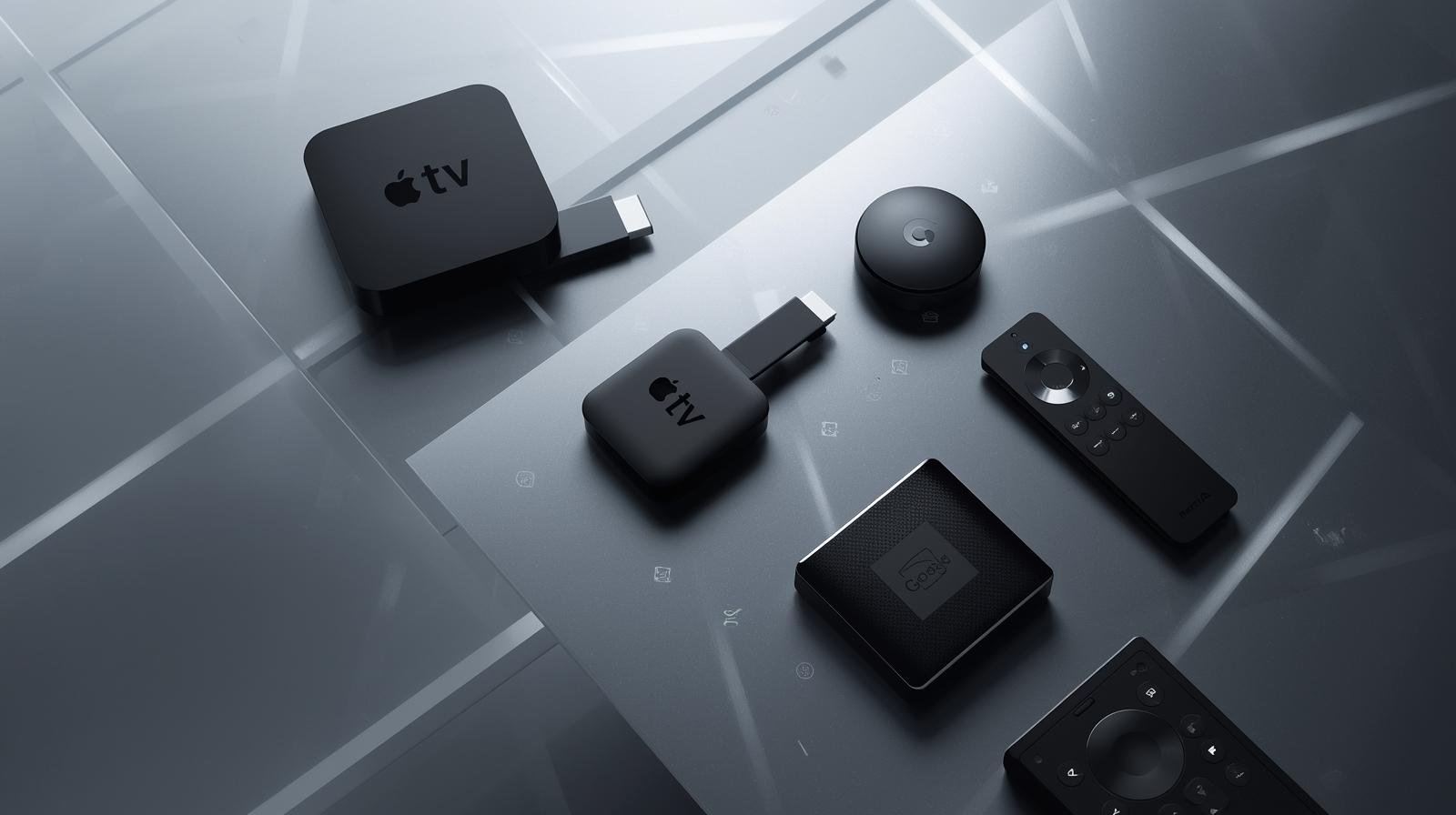
Best IPTV Devices for UK Streaming in 2025—Fire Stick, Apple TV & More Compared

 1. Introduction — why device choice still matters

Streaming is software-heavy, but the device you run that software on still matters. UK IPTV Devices Compared. Why?

  • Hardware decode for modern codecs (AV1/HEVC) dramatically reduces CPU load and bandwidth.
  • Network interfaces (Ethernet vs Wi-Fi 6/6E) affect buffering and 4K stability.
  • HDR/DRM and audio passthrough differences change whether you actually get Dolby Vision, HDR10+, or Dolby Atmos at home.
  • App performance, navigation speed and firmware update longevity determine user experience.

A well-chosen device will make your IPTV subscription feel premium; the wrong one will make it feel clunky and unreliable. This guide helps you pick the right hardware for UK IPTV streaming in 2025. UK IPTV Devices Compared.

2. How to evaluate a streaming device in 2025 — quick checklist

Before diving into models, use this short evaluation checklist:

  • AV1 hardware decode? (essential for efficient 4K streaming).
  • Network connectivity: Ethernet port or USB-to-Ethernet, Wi-Fi 6 or 6E support.
  • HDR & audio support: Dolby Vision, HDR10+, Dolby Atmos, eARC passthrough.
  • App availability: BBC iPlayer, ITVX, Netflix, discovery+, NOW, DAZN, Prime Video.
  • OS updates & app ecosystem longevity.
  • Local media friendliness: Plex/Jellyfin support, USB or NAS compatibility (for enthusiasts).
  • Price & value: hardware cost vs features required.

If a device ticks the first three boxes — AV1, modern Wi-Fi/Ethernet, and HDR/audio — you’re in good shape for 2025-era IPTV.

3. Amazon Fire TV family — best value and wide UK app support

Why Fire TV still leads value

Amazon’s Fire TV platform remains one of the most popular streaming ecosystems in the UK. The Fire TV Stick 4K Max offers a compact form, solid performance and broad app availability across UK services. It supports Dolby Vision, HDR10+, Dolby Atmos, and recent Fire TV models include hardware AV1 decode and Wi-Fi 6/6E on some SKUs — a meaningful future-proofing improvement for 4K IPTV streams.

Pros

  • Excellent value for money.
  • Broad app support (iPlayer, ITVX, NOW, discovery+, Netflix, Prime Video, etc.).
  • Small, unobtrusive form factor for bedrooms or secondary rooms.
  • AV1 hardware in recent models reduces bandwidth needs for 4K.

Cons

  • Fire OS homescreen prioritises Amazon content (tweakable but sometimes intrusive).
  • Some models vary — check the SKU for AV1/Wi-Fi 6E support before buying.

Best for: Value-conscious UK viewers who want 4K HDR streaming and compatibility with major IPTV apps.

4. Apple TV 4K — premium polish, excellent HDR/audio handling

Apple’s Apple TV 4K remains the premium streamer for users who favour polished system integration, consistent updates, and best-in-class HDR/Audio implementation.  Hardware and tvOS deliver excellent Dolby Vision and Atmos support, strong app performance, and deep integration if you’re invested in the Apple ecosystem (iCloud, AirPlay, HomeKit). Apple’s product pages emphasise 4K 60-fps HDR output, eARC support and a focus on crisp AV performance.

Pros

  • Polished UI and reliable app behaviour.
  • Strong HDR/DRM handling for premium VOD and IPTV providers.
  • Great audio features and spatial audio on compatible setups.

Cons

  • Price is higher than sticks.
  • AV1 support can vary by generation/firmware; confirm before purchasing if AV1 is crucial.

Best for: Apple-centric homes, cinephiles, and anyone wanting the smoothest, most consistent 4K/HDR/IPTV experience.

5. Google Chromecast with Google TV — clean UI and wide compatibility

Google’s Chromecast with Google TV (newer models) have matured into strong streamers with attractive UIs, Google search integration, and consistent OS updates. Newer Google TV streamers coming into 2024–25 include AV1 hardware decode on certain SKUs, making them competitive alternatives to Fire and Apple for efficient 4K streaming. They also offer tight Google Assistant integration and Chromecast casting convenience. UK IPTV Devices Compared.

Pros

  • Integrated Google search and watchlist.
  • Clean UI and reliable app support.
  • AV1 support on recent SKUs helps with bandwidth efficiency.

Cons

  • Hardware specs vary by SKU; check for AV1 & Wi-Fi 6.
  • Google’s update cadence is good, but some app behaviour differences exist across platforms.

Best for: Android/Google users who want strong discovery features and broad app compatibility.

6. Roku’s 2025 lineup and the UK launch — a new contender

Roku expanded into the UK market more aggressively in 2025, releasing refreshed streaming sticks with a focus on a neutral, user-friendly UI and lots of free FAST channels. Roku’s official press release confirms new Roku Streaming Stick availability in the UK in June 2025. Roku’s devices are strong on channel breadth, low cost, and a simple remote experience. 

Pros

  • Extremely user-friendly interface and excellent channel discovery.
  • Good price-to-performance (UK deals in 2025 made Roku more competitive).

Cons

  • Hardware features (AV1, Wi-Fi 6E) vary by model; check spec sheets.
  • App availability is good for mainstream apps but sometimes lags in niche app releases compared to Android/Fire.

Best for: UK buyers who want a straightforward, neutral UI with lots of free/FAST channels and good value.

7. NVIDIA Shield — the power user’s classic (still relevant in 2025)

For enthusiasts who run local media servers (Plex, Jellyfin), want advanced features and occasional gaming, NVIDIA Shield TV Pro has been the enthusiast favourite. As of 2025 the Shield remains noted for its local media capabilities and flexibility. Recent community discussion shows expectation for a refreshed Shield, but the existing Shield Pro continues to serve power users well. If AV1 hardware decode is a must for you, check current Shield firmware/spec notes as AV1 support status has been evolving. UK IPTV Devices Compared.

Pros

  • Excellent Plex/Jellyfin and local media performance.
  • Strong remote and ecosystem for tinkerers.
  • Robust hardware for transcoding tasks in home servers.

Cons

  • Older Shield generations may lack AV1 hardware decode (verify model).
  • Pricier than consumer sticks and may feel like overkill for casual streaming.

Best for: Media server enthusiasts, Plex users and people who want a highly configurable streamer.

8. Smart TVs vs external devices — when the TV is enough

Modern smart TVs from LG (webOS), Samsung (Tizen) and Sony (Google TV) include native apps for most IPTV services. For a living room TV bought in the last 2–3 years, the TV’s built-in app may be perfectly adequate. But there are reasons to pick an external device:

  • External devices get more frequent app updates and faster SoCs.
  • Sticks/boxes offer easier migration between TVs and better support for advanced codecs and audio passthrough.
  • If you value cutting-edge features (AV1, Wi-Fi 6E, or latest HDR), a separate streamer is often safer.

Rule of thumb: Use the TV’s native apps for convenience, but add a Fire/Apple/Chromecast stick for the best experience and future-proofing. UK IPTV Devices Compared.

9. Cheap sticks and budget picks that punch above their weight

Not everyone needs premium hardware. Budget sticks like the Fire TV Stick (non-Max) and lower-tier Roku sticks still deliver solid HD/4K experiences for most viewers, especially in secondary rooms. They may lack AV1 or Wi-Fi 6, but if you’re on a stable wired connection or 100+ Mbps fibre, they perform well for mainstream IPTV usage. Always check whether a cheap stick supports the particular IPTV app and required video DRM for 4K. 

Best cheap picks: Fire TV Stick 4K (standard), Roku Streaming Stick 4K (discounts often make these excellent buys).

10. AV1, HDR, Dolby Atmos and other tech you must care about in 2025

AV1: This codec gives better compression than H.264/H.265, reducing bandwidth for equivalent quality. Devices with hardware AV1 decode are preferable for 4K streaming on constrained connections. Amazon’s newer Fire TV models and many Google/Chromecast SKUs list AV1 support and the AV1 device matrix has been evolving.

HDR formats: Dolby Vision and HDR10+ deliver dynamic metadata and better picture on compatible TVs. Apple TV, many Fire TV devices, Roku, and modern TVs support Dolby Vision; confirm on the specific device page.

Audio: Dolby Atmos passthrough and eARC support matter if you use a soundbar or AVR. Apple TV and many premium devices provide mature Atmos handling.

Takeaway: Combine a device with AV1 and HDR/Atmos support, plus a TV that supports those HDR formats, to unlock the best IPTV picture and sound in 2025.

11. Network & router tips tied to device choice (Wi-Fi 6/6E, Ethernet, mesh)

Your device choice interacts with your home network:

  • If you pick a stick with Wi-Fi 6/6E, use a matching router to reduce congestion and latency. Fire TV Stick 4K Max and other new SKUs advertise Wi-Fi 6/6E.
  • Prefer Ethernet for the primary TV to ensure stable 4K streaming. Many sticks support USB-to-Ethernet adapters.
  • Mesh Wi-Fi: For large UK homes, a mesh with wired backhaul gives the best multi-room IPTV experience.
  • QoS on your router helps prioritise a main streaming device during match night.

These network steps—paired with a capable device—are the single most effective way to reduce buffering and improve stream stability. UK IPTV Devices Compared.

12. Device-specific configuration and performance tuning (practical how-tos)

Here are practical steps per device family to maximise IPTV performance.

Fire TV (stick/box)

  • Update Fire OS and apps.
  • Enable Ethernet via USB-C adapter if possible.
  • In settings, enable automatic 4K switching and HDR match where available.
  • Use developer settings sparingly for debugging.

Apple TV 4K

  • Turn on Match Frame Rate and Match Dynamic Range to avoid judder and HDR mismatches.
  • Use wired Ethernet for main TV.
  • Ensure tvOS is current.

Chromecast / Google TV

  • Keep Android TV/Google TV OS updated.
  • Use Google Home/Chromecast settings to prioritise the device on your network.
  • Confirm AV1 enabled on the specific SKU.

Roku

  • Keep apps updated via Roku OS.
  • Use the Roku remote/voice for quick content search if preferred.
  • Check explicit model support for HDR formats if 4K is needed.

NVIDIA Shield

  • Use Shield for Plex/Jellyfin server transcoding — check hardware decode options and set streaming profiles to leverage Shield’s capabilities.

13. Gaming consoles and other unexpected contenders

Consoles like PS5 and Xbox Series X/S are full-featured streamers with powerful CPUs, wide app support, and excellent HDR/4K output. If you already own a console, it’s often the easiest way to enjoy IPTV in the living room — though consoles consume more power and may not be ideal for bedrooms.

Smart Blu-ray players and some set-top boxes can also run IPTV apps; they’re niche but viable if you want fewer devices. UK IPTV Devices Compared.

14. Head-to-head comparisons & decision flowchart (which to buy)

Primary living-room — pick Apple TV 4K if:

  • You want the most polished interface, best HDR/Atmos pass-through and deep Apple ecosystem integration.

 value for most rooms — pick Fire TV Stick 4K Max if:

  • You want 4K HDR, AV1 support on newer SKUs, broad app support, and best-in-class price-to-performance.

 for Android/Google users — pick Chromecast with Google TV if:

  • You want Google’s discovery features and potential AV1 support on current models.

 for enthusiasts / local media servers — pick NVIDIA Shield if:

  • You need Plex/Jellyfin server performance, hardware transcoding, and advanced local media features.

 simple option — pick Roku if you want:

  • A neutral UI, lots of free channels, and easy setup (especially with recent UK availability).

15. Future-proofing: what to look for in 2026 and beyond

When buying, look for:

  • AV1 hardware decode — the single biggest future-proof feature for bandwidth efficiency.
  • Wi-Fi 6/6E support — helps in dense device households.
  • eARC support and Dolby Atmos passthrough — if you use a soundbar/AVR.
  • Regular firmware updates and a healthy app store ecosystem.
  • USB/Ethernet expansion options for wired reliability.

If you tick these boxes, the device will remain relevant for several years. UK IPTV Devices Compared.

16. Final recommendations for UK buyers (short & long lists)

  one solid pick for most people Buy this if you want :

  • Amazon Fire TV Stick 4K Max — best blend of price, app support, 4K/HDR and AV1 on newer SKUs.

the best overall experience buy this if you want:

  • Apple TV 4K (latest model) — premium UX, best HDR/Atmos handling and consistent updates.

if you are an enthusiast or run a local server buy this :

  • NVIDIA Shield TV Pro — powerful local media features and advanced options.

Budget/secondary-room options:

  • Roku Streaming Stick 4K, Chromecast with Google TV, or lower-tier Fire sticks depending on price and availability in the UK.

17. Appendix — Quick spec cheat-sheet & sources

Spec highlights (examples)

  • Fire TV Stick 4K Max: 4K HDR, Dolby Vision, Dolby Atmos, Wi-Fi 6/6E on newer SKUs, AV1 on newer SKUs.
  • Apple TV 4K: 4K 60fps HDR output, Dolby Vision, HDR10+, Dolby Atmos, eARC support, tvOS ecosystem.
  • Chromecast / Google TV: Google TV UI, AV1 on newer models, solid app support.
  • Roku Streaming Stick 4K: UK availability in 2025, solid 4K HDR and value.
  • NVIDIA Shield TV Pro: excellent for Plex/Jellyfin, still popular with enthusiasts; check AV1 status for your model.

Key sources (manufacturer pages & announcements)

  • Amazon Fire TV product pages and retailer listings.
  • Apple TV 4K technical specs and support pages.
  • Roku press release — UK device availability 2025.
  • AV1 device support list and reports.
  • NVIDIA community discussion and reviews on Shield in 2025.

18. FAQs

Q1 — Do I need AV1 support on my streamer right now?
A: If you plan to stream lots of 4K on constrained broadband, AV1 helps reduce data usage and maintain quality. It’s increasingly common in 2024–25 devices, so prefer a model with hardware AV1 if you want future-proofing.

Q2 — Will a cheap Fire Stick stream 4K IPTV reliably in the UK?
A: Yes for most users on decent fibre broadband. For the main living room and competitive live sports, prefer a model with AV1 and wired Ethernet where possible (or use a Fire TV Max with Ethernet adapter).

Q3 — Is Apple TV 4K worth the price premium?
A: If you care about polished UI, best HDR/Atmos handling, and long OS support, Apple TV is worth it. If you just want inexpensive 4K streaming, Fire TV or Chromecast can be better value.

Q4 — Is the NVIDIA Shield still a good buy in 2025?
A: For enthusiasts, yes — particularly for local media server usage. But check whether you need the Shield’s advanced features; for pure IPTV streaming a modern stick might be sufficient.

Q5 — Which device gives the best value for multi-room homes?
A: A mix: premium box (Apple TV or Shield) for the main living room and Fire TV/Chromecast/Roku sticks for bedrooms gives the best price-to-performance balance. Ensure your router/mesh network can handle multiple 4K streams. 

For more info….

A Complete 2025 UK IPTV Free Trials Guide: Try Before You Buy

1 — What is a free trial ?

A free trial gives you temporary access to a streaming/IPTV service at no cost so you can try features, picture quality, device compatibility, parental tools, catalogue and reliability before subscribing. UK IPTV Trials Explained. In 2025, “free trial” still varies widely:

  • True free trials (e.g., a 7–30 day window where you can use the full service without being charged if you cancel on time).
  • Promotional bundles (e.g., an ISP includes a streaming service free for 3 months when you sign up for broadband — this is effectively a trial if you can cancel the add-on before it renews).
  • Short feature trials (e.g., trialling a premium streaming “boost” or cloud recording feature for 7 days).
  • No-trial but easy cancel (some platforms don’t offer trials but allow immediate cancellation before the next billing date with no exit fees — this is functionally similar if you plan to cancel right away).

Free trials matter because they let you check real-world things that reviews don’t always capture: how a service behaves on your router, whether the kids’ profiles actually work, and whether live channels and sport present reliably. They also let you test whether a provider’s mobile/offline downloads or 4K streams function well with your devices. UK IPTV Trials Explained.

2 — Who offers free trials in the UK in 2025? (the quick list)

Below are the most important, up-to-date facts you’ll want to know when planning trials. I’ve cited sources for the most load-bearing claims so you can double-check offers yourself.

  • Amazon Prime Video (Prime)30-day free trial is regularly available in the UK for new members (Prime bundles video, shopping benefits, music etc.). If you haven’t had Prime recently you can usually start a 30-day trial.
  • NOW (Sky’s streaming passes) — Historically offered short trials for add-ons (Boost etc.), but as of 2025 free trials for the main passes are rare or not widely available; check NOW’s membership page and deal trackers for occasional offers.
  • ITVX — ITVX has a free tier with ads; ITVX Premium (ad-free) is a paid tier — sometimes promotions or short trials are offered; check ITVX subscribe info for current terms.
  • Freeview / Freeview Play — Not a trial; Freeview Play is free and provides live + catch-up across major UK broadcasters as a zero-cost baseline. Great for trying IPTV without paying anything.
  • NetflixNo free trial. Netflix stopped offering free trials in many markets, including the UK; you can sign up and cancel at any time, but there’s normally no free trial window.
  • Operator bundles (BT/EE, Sky Stream, TalkTalk) — These ISPs regularly run short promotional offers (e.g., EE/BT TV add-ons for £1/month for the first months, or a few months free). They behave like trials if you can cancel or switch before the promo ends, but watch contract lengths and renewal prices.

Note: offers and promotions rotate fast. Use the provider pages and trusted deal trackers to confirm the current terms before you sign. I cite the official provider pages in this guide so you have a starting point. UK IPTV Trials Explained.

3 — The current (2025) reality: who still gives free trials and how they look

Here’s a bit more context on the major players in the UK streaming/IPTV space in 2025:

Amazon Prime (Prime Video)

  • Trial: 30-day free trial for new Prime members is still the common offering — it bundles Prime Video with shopping and other perks. This is often the easiest “big” trial to use because it gives access to a massive kids’ and family catalogue and offline downloads. UK IPTV Trials Explained.

NOW (Sky)

  • Trial: Historically NOW offered 7-day trials for specific Boost features and occasional promotions. In 2025, main pass free trials are uncommon; the service occasionally runs limited-time deals instead. If you want NOW, expect to use short promotional windows or buy a month and cancel if you’re done. Check NOW’s official membership page and deal aggregators.

ITVX

  • Trial model: ITVX offers a free, ad-supported tier that gives access to a lot of content without any payment. ITVX Premium is the ad-free paid tier (no widespread permanent free trial, but watch for short promos). This makes ITVX one of the cheapest ways to try a lot of UK TV because the free tier is genuinely useful.

Freeview Play / Broadcaster catch-up apps

  • Model: Free. This is not a trial—it’s fully free. Between Freeview Play’s aggregation and BBC iPlayer, All4 and ITVX you can legally watch a huge amount without paying. Great baseline for families.

Netflix

  • Model: No free trial in the UK. Netflix allows you to cancel at any time, but does not generally offer a trial window. If you want to test Netflix, you must sign up and cancel before the first billing date if you don’t want to pay.

Sky / Sky Stream / Sky Glass

  • Model: Sky often uses introductory offers on its broadband/TV bundles (and Sky Stream sometimes has low-cost starter plans) — these are not always “free trials” but can be very cheap for the first months. Watch the contract term (typically 18–24 months) and the post-promo price.

BT / EE TV and TalkTalk

  • Model: ISPs regularly bundle streaming services as promotional extras (for example, EE/BT providing NOW or Netflix for reduced cost for the first months). These offers can be used as trials if you calendarise cancellations or switch before renewal. Keep an eye on long contract commitments.

4 — How to pick which trials to run

If you want to evaluate multiple IPTV services with minimal cost, here’s a step-by-step plan that many families find practical:

  1. Start with zero-cost services (always)

    • Install Freeview Play on your TV or Fire Stick and test BBC iPlayer, All4, ITVX free tier. This gives you a baseline for catch-up and live channels without spending a penny.
  2. Use the biggest free trial next — Amazon Prime (30 days)

    • Sign up for Amazon Prime’s 30-day trial to test downloads, kids’ profiles, streaming quality, and to judge whether the extra shopping/music perks are worth it. Cancel before day 31 if you don’t want to pay.
  3. Slot a NOW month into a holiday period (optional)

    • If you want Sky content (box office family films or certain kids’ shows), pick one month of NOW (buy a monthly pass) and test it during a school holiday. NOW rarely has wide free trials in 2025, so plan a single paid month you’ll cancel.
  4. Use ISP promos as “free trials” if timing allows

    • If you’re moving broadband anyway, time the switch to coincide with ISP trial-like offers (e.g., EE/BT TV £1/month introductory deals). These bundles can include NOW, Netflix or Apple TV+ for months at a reduced rate; they’re practical trials but usually bind you to a contract — treat them carefully.
  5. Test Netflix only if you need it

    • Because Netflix has no trial, test it as the last service and sign up for one month only if its originals or specific catalogue items are make-or-break for you. Cancel before the next billing date if you decide it’s not worth it.

5 — Step-by-step: signing up, testing and cancelling a free trial safely

Before you sign up

  • Check the T&Cs for minimum contract length and the precise trial length (some “30 days” are subject to change if you used another trial in the past).
  • Use a payment method you can easily control (a debit card or a virtual card with single-charge limits) if you’re nervous about accidental renewal.
  • Record the exact date and time you signed up and set two reminders: one for 48 hours before the trial ends and one for the day it ends.
  • Check device compatibility on the provider’s official device list — Smart TV app availability varies by brand and model. For example, NOW, Prime, ITVX and Freeview Play have wide support on Fire TV, Roku, Apple TV and many smart TVs, but older TV models may need a stick.

Signing up (best practice)

  1. Create an account on the service’s official website — avoid third-party resellers for sign-up.
  2. Enter payment details and confirm the trial start date in email confirmation.
  3. Install app(s) immediately on the device(s) you’ll test (Fire TV, Apple TV, Chromecast with Google TV, smart TV, phone/tablet).
  4. Create profiles and set parental controls right away if you have children.

Testing checklist during the trial (what to test)

  • Picture quality: Play the same show at peak times (evening) and off-peak to check consistency. Test HD and (if available) 4K streams.
  • Start-up/latency: How long does the app take to start and resume? Is navigation snappy?
  • Simultaneous streams: Watch on two or more devices to see if streams drop or degrade.
  • Live channels & sport: Test live channel tuning and any time-shift or replay features.
  • Downloads/offline: If a service offers downloads (Prime, sometimes Netflix), try a download to a phone/tablet and play offline.
  • Profiles & parental controls: Create a child profile and test PIN lock and age-based restrictions.
  • Audio & subtitles: Test Dolby/DTS passthrough, subtitle quality and audio sync on different apps/devices.
  • Billing & extras: See whether add-ons (boosts, concurrent streams, UHD packs) are clearly priced and whether they require separate sign-ups.

Cancelling without being charged

  • Use the provider’s web portal to cancel (it’s usually under Account → Manage Subscription). Do not rely on phone support or email as a first option — web cancellation is immediate and leaves an online timestamp.
  • Take screenshots of the cancellation confirmation and the date/time. If you get an email confirmation, keep it.
  • Check your bank statement within 48–72 hours to ensure no charge has appeared. If you’re charged, contact the provider immediately and prepare your cancellation screenshots.
  • For ISP promos: cancellation may require switching service or paying termination fees if you’re in a fixed 18–24 month contract. Don’t treat these as unconditional trials — only use them if you’re happy with longer commitment terms.

6 — Testing tips: judge a service in 7–10 days (what to prioritise)

You don’t need a full month to know if a service will suit you. In 7–10 days you can cover the essentials:

  • Day 1: Install and check navigation, sign into all devices, set up profiles, test parental controls.
  • Day 2-3: Try a mix of on-demand shows (HD), download a kids’ episode and test offline.
  • Day 4-5: Stream live channels and, if it’s a sports month, watch a live sporting event.
  • Day 6-7: Test simultaneous streaming on different devices and check for regional geo-restrictions.
  • Day 8-10: Re-check during peak evening times for buffering or quality drops and confirm billing reminders work.

If a service fails basic navigation, parental controls, or has consistently poor evening performance on your broadband, it’s a red flag.

7 — Operator bundles as trials: pros and cons

Many UK households get IPTV through bundled ISPs (BT/EE, Sky, TalkTalk). These bundles frequently include introductory offers that look like free trials (e.g., cheap months or included streaming passes). Here’s how to treat them:

Pros

  • One bill for broadband and TV — simpler budgeting.
  • Physical set-top boxes with integrated live+on-demand can be more family-friendly (YouView-style, EE TV box, Sky Stream).
  • Promos can be deep (months of Netflix/Now included at heavily discounted prices).

Cons / cautions

  • Contract length — these promotions often require 18–24 month commitments, with steep increases after promos finish. Treat them as trials only if you’re prepared to stay or to switch providers and accept potential exit fees.
  • Bundled complexity — some promos are confusing (e.g., free for 3 months then auto-add charged extras). Read the fine print.
  • Box hardware differences — some set-top boxes are slower, harder to use, or require aerials; test the device during the promo window.

If you decide to use an ISP promo as your “trial”:

  • Mark the end of the promo in your calendar at sign-up.
  • Check whether you’ll be charged for the included streaming service after the promo and how to downgrade.
  • Compare the long-term total cost (post-promo) vs stand-alone subscriptions.

8 — Legal and safety checklist: avoid scams, illegal IPTV and “too good to be true” trials

The IPTV space has a persistent illegal market that sometimes advertises “free tests” or extremely cheap trials. UK IPTV Trials Explained. These are often knock-off or pirate services and carry severe risks:

  • Security risk: unofficial apps or “jailbroken” sticks can contain malware or spyware.
  • Legal risk: using pirated IPTV streams is illegal; enforcement and takedowns are frequent and can lead to prosecution for suppliers and sometimes civil penalties for users.
  • Reliability risk: pirate services can vanish overnight — no refunds or support.
  • Privacy risk: many shoddy services harvest payment and personal data.

Avoid these red flags: unknown sellers on social media offering “lifetime IPTV for £20,” devices that require sideloading APKs from random sites, or “trial” offers that ask you to join a private Telegram or WhatsApp group. Stick to official app stores and verified ISP/provider pages for sign-up. If a “trial” requires downloading an unverified APK, it’s almost certainly unsafe.

9 — Practical examples & screenshots to check during trials (what to screenshot and save)

When you trial a service, keep evidence for billing/account protection. UK IPTV Trials Explained. Take screenshots of:

  1. Signup confirmation email (shows trial length and start date).
  2. Subscription management page within the service (shows next billing date and cancel button).
  3. Cancellation confirmation (timestamped).
  4. Billing statement showing charge (if mistakenly billed).
  5. App performance examples (e.g., buffering indicator, resolution info during playback).

If you are billed incorrectly, provider support teams will normally require account screenshots to reverse charges — keep them.

10 — Comparison: what to expect from major UK players (short mini-reviews for trialers)

These mini-reviews summarise what to test for each service during your trial.

Amazon Prime (30-day trial) — what to test

  • Catalogue breadth (family films, kids’ series).
  • Download feature (works well for travel).
  • Profiles and parental controls.
  • Audio & subtitle options.
    Why try it: Prime’s 30-day trial gives a lot of value beyond just video (shopping/music), making it a compelling single trial for families. UK IPTV Trials Explained.

NOW (monthly passes) — what to test

  • Pass type (Entertainment vs Cinema vs Sports) and whether it includes the shows you want.
  • No long contract — buy one month during a holiday and cancel.
    Why try it: NOW is flexible but rarely offers blanket free trials in 2025 — treat a single month as your “trial month.”

ITVX / ITVX Premium — what to test

  • Free tier’s ad load and catalogue (many shows are available for free).
  • Premium features (ad-free viewing, downloads) vs price
    Why try it: ITVX’s free tier is a great initial test — many users find the free tier sufficient for UK TV.

Freeview Play & broadcaster apps — what to test

  • Ease of navigation across BBC iPlayer, All4 and catch-up.
  • Local channels & kids’ blocks.
    Why try it: It’s free — always install first.

Netflix — what to test (if you pay for your one month)

  • Originals & exclusives that matter to your household.
  • Profile limits & downloads.
    Why try it: No free trial — test only if specific Netflix content is essential.

Sky Stream / Sky bundles — what to test

  • Set-top experience (if included), channel line-up, remote and voice search.
  • Long-term price vs short-term promotion — check renewal costs.

ISP bundle example: EE/BT

  • What’s included: NOW passes, Netflix, Apple TV+ promos — sometimes heavily discounted or included for a few months.
  • Caveat: long contracts and stepped price increases after promo end.

11 — Sample 30-day trial calendar (one-person or family testing plan)

Day 0: Install Freeview Play + BBC iPlayer + All4 + ITVX (free tier).
Day 1: Start Amazon Prime 30-day trial (if eligible). Set two calendar reminders (48 hours before trial end, day of trial end).
>
Day 3: Test Prime downloads and kids’ profile, evening HD streaming.
>
Day 8: Test NOW with a single month if you want Sky content (or wait for a holiday).
>
Day 10: Test live channels on Freeview Play and any ISP-box experience (if you have EE/BT).
>
Day 20: Re-check evening performance for all services; try simultaneous streams.
>
Day 28: Confirm whether you want to keep Prime; cancel if not.
>
Day 30: Confirm cancellations and verify bank statement.

This schedule gives you a practical window to evaluate features and avoid overlapping billed months. UK IPTV Trials Explained.

12 — Frequently asked questions (short answers)

Q: Can I use multiple free trials at once?
A: Yes, technically. But calendarise end dates carefully to avoid overlapping renewal charges if you forget to cancel.

Q: Can I get free trials via ISPs without a long contract?
A: ISP promos often require a long contract. They’re good if you plan to keep the ISP; otherwise, treat them cautiously and read exit fees.

Q: Are “free trials” from unknown sellers safe?
A: No. Avoid trials that require sideloading apps or paying cash to a private seller — these are usually illegal pirate services and risky.

Q: If I cancel mid-trial, do I lose access immediately?
A: That depends on the provider. Some services allow you to continue until the trial end date; others stop access immediately. Take a screenshot of the portal confirmation when you cancel. Always check the T&Cs.

Q: Can I get a refund if I’m charged accidentally after the trial?
A: Yes, in most cases — contact the provider immediately and provide your cancellation screenshot. If you paid by card, your bank may also help if the provider is uncooperative.

13 — Troubleshooting common trial problems

Problem: “I was charged after cancelling.”
Fix: Screenshot of cancellation + email confirmation → contact provider support + show bank statement. If unresolved, raise a formal dispute with your card issuer.

Problem: “App won’t install on my TV.”
Fix: Check official device compatibility pages. Use a Fire TV Stick or Chromecast as a low-cost fallback if your TV is too old.

Problem: “Quality drops in evening.”
Fix: Test broadband speed during evenings (aim 25–50 Mbps for multiple HD streams). Try wired Ethernet or move router; consider ISP-supplied mesh or upgrade broadband. Many streaming issues come from home Wi-Fi, not the service. UK IPTV Trials Explained.

Problem: “I can’t find certain shows.”
Fix: Some content is geo-restricted or rotated. Confirm the specific show’s availability before signing up for a paid month. UK IPTV Trials Explained.

14 — Final checklist before you start any free trial

  • Read the full trial T&Cs (trial length, auto-renew date, cancellation procedure).
  • Use official provider web pages to sign up — avoid third-party signups.
  • Set at least two calendar reminders to cancel 48 hours and 24 hours before the trial ends.
  • Use a payment card you can control; consider a virtual card if available.
  • Install and test the app immediately on the devices you’ll use most.
  • Test parental controls and create profiles before letting kids use the service.
  • Save screenshots of sign-up confirmation and cancellation.
  • Confirm post-promo prices for ISP bundles and whether you’ll be locked to a contract.

15 — Closing recommendations and next steps

  1. Always start with Freeview Play and broadcaster catch-up apps — these are free and often meet most family needs.
  2. Use Amazon Prime’s 30-day trial first if you’re eligible — it gives wide on-demand and download capabilities at no cost for the trial.
  3. Treat NOW as a short paid trial if you want Sky content — buy a month during a holiday rather than rely on scarce free trials.
  4. Be cautious with ISP promos — they can be great value but often include long contracts and stepped price rises. Calendarise renewal dates.
  5. Never trust unknown “free tests” from third parties — they’re often illegal IPTV or introduce malware. Always use official apps and provider portals.

Sources & further reading (official pages I used)

  • NOW (membership & passes): NOW membership page.
  • ITVX subscription page & ITVX Premium details.
  • Freeview / Freeview Play official pages.
  • Netflix free trial status (no free trials).
  • BT/EE TV offers and promotions (example deals and bundle terms).
  • Sky Stream & Sky deals information. 

Top Affordable UK IPTV Packages for Families: Streaming on a Budget

1. What is “IPTV” — and what does “affordable” mean for families?

IPTV stands for Internet Protocol Television: TV channels and on-demand video delivered over your internet connection rather than through traditional terrestrial aerials, satellite dishes or cable networks. In the UK, IPTV covers everything from Freeview Play apps and smart TV services (legal, free or paid) to subscription streaming platforms and operator boxes (e.g., EE TV, Sky Stream). It also — unfortunately — includes illegal, unlicensed services that resell pay channels cheaply. Family IPTV Deals UK.

When I say affordable for families, I mean packages that:

  • Keep monthly costs low (e.g., under ~£15–£30 per month for typical family use),
  • Provide a mixture of live TV and on-demand kids/family content,
  • Offer profiles/parental controls, and
  • Work reliably on low-to-mid broadband (so you don’t need an expensive broadband tier just to stream).

We’ll focus on legal providers and bundles that meet those needs.

2. The legal vs illegal IPTV landscape — why this matters for families

There’s a thriving market for so-called “cheap IPTV” services that promise hundreds or thousands of channels for a tiny fee. These services often lack proper licences. Buying or using them can expose families to:

  • Legal risk: UK enforcement (PIPCU, City of London Police, FACT, Europol) has been actively shutting down illegal operations, arresting suppliers and prosecuting people running services. In some cases, operators and even end users have faced criminal charges and prison sentences.
  • Security & privacy risk: illegal streams are commonly bundled with malware, tracking, and unstable software that can leak personal information and payment details. FACT and police highlight consumer risks including identity theft.
  • Reliability issues: servers and streams can disappear overnight; sport games may be muted or blocked. You’ll also lack customer support.
  • Ethical / industry impact: piracy harms creators and broadcasters, which is why enforcement continues.

Bottom line: for families — especially those with children — the safest, most reliable long-term choice is licensed IPTV and streaming. The savings from illegal services look attractive short-term but carry outsized downside.

3. How families should choose an IPTV package (decision checklist)

Before we list providers, use this short checklist to evaluate what matters to your household:

  1. Total monthly cost — include broadband if there’s a bundle requirement. Use introductory offers but check the renewal price. (Bundles often look cheaper initially.)
  2. Kids & family content — are there reliable kids channels, on-demand box sets and family films?
  3. Parental controls / profiles — can you restrict content by age and set viewing limits?
  4. Device compatibility — does it work with the TV, tablet, phone, games console and device(s) you own (Fire TV, Apple TV, Roku, smart TV, YouView)?
  5. Picture quality & simultaneous streams — do you get HD/4K and enough simultaneous streams for multiple rooms?
  6. Catch-up & record options — ability to pause, record, and use on-demand/timshift features saves frustration.
  7. Customer service & reliability — important if you have kids and need predictable viewing.
  8. Contract length & exit fees — avoid locking in for long periods if price rises scare you.

With that in mind, let’s look at the best affordable and family-friendly IPTV options in the UK.

4. Best free starting points (essential for families on a budget)

Freeview / Freeview Play — the “must-install” free option

Why families love it: Freeview gives access to the majority of UK free-to-air channels (BBC, ITV, Channel 4, Channel 5, E4 etc.) and Freeview Play adds catch-up across big players so kids can watch on demand. It costs nothing monthly (you may need a compatible TV or set-top box). This is the baseline: watch a lot for free, legally.

Pros

  • Zero monthly fee.
  • Huge library of catch-up boxsets via BBC iPlayer, ITVX, All 4 and more.
  • Good for toddlers and school-age kids (lots of kids channels).

Cons

  • Premium content (new Netflix exclusives, Sky/BT sport) is not included.
  • Live sports/first-run movies often require paid add-ons.

Who it’s for: families who want solid daytime kids’ TV and catch-up without paying anything.

5. Low-cost paid streaming services families should consider

These are simple, low-commitment subscriptions that plug into smart TVs or streaming sticks. They’re great if you want specific channels/boxsets without operator boxes or long contracts.

NOW (formerly NOW TV)

What it is: A flexible, no-contract streaming service from Sky that sells “passes” (Entertainment, Cinema, Sports) or monthly subscriptions. NOW is widely available and often bundled by broadband iptv providers. It’s a go-to for families who want Sky content without a full Sky package. Family IPTV Deals UK.

Why it’s family-friendly

  • Entertainment pass gives access to many family shows and children’s programming (depending on catalogue).
  • No long contract — you can cancel monthly.
  • Often available as part of EE/BT TV bundles, which can reduce overall costs.

Pricing (typical examples)

  • Prices vary by pass and promotions; check NOW’s offers page for current deals. Bundles via EE/BT may include NOW at reduced/no extra cost for introductory months.

Who it’s for: families wanting flexible access to Sky programming and family movies without long contracts. Family IPTV Deals UK.

Amazon Prime Video

What it is: Part of Amazon Prime; includes a large on-demand catalogue of family films and kids shows, plus benefits like free delivery and Prime Music. Prime also allows profiles and parental controls. Pricing is often good value for families who already use Amazon shopping.

Why families like it

  • Extensive kids content and family films.
  • Many shows available to download for offline viewing (useful for travel).
  • Prime often bundled with other services or student discounts.

Price example: Amazon lists Prime at £8.99/month or £95/year in the UK (check latest pricing and student/household deals).

Who it’s for: families who want a broad on-demand library plus shopping perks.

ITVX Premium

What it is: ITV’s ad-free tier that removes adverts from on-demand content, offers downloads and extra boxset content — inexpensive and great for UK TV fans.

Price example: ITVX Premium has been shown at £5.99/month or £59.99/year for ad-free access (verify current price).

Who it’s for: families who watch lots of ITV shows and want a cheap ad-free experience. Family IPTV Deals UK.

6. Operator bundles (best when you need a set-top box, broadband and simplicity)

These packages make sense for families who want an all-in-one solution: broadband, TV box, multiple channels, and built-in parental tools.

EE TV / BT TV (EE TV boxes + NOW)

Why consider it: BT/EE packages often bundle broadband and TV, and in 2025 EE TV packages include NOW content plus optional Netflix and Sky channel bundles. Bundles can start low (introductory pricing) and include an EE TV box that’s simple to set up for family rooms.

Example offers: BT/EE have had introductory offers like £27.99/month for combined TV + broadband packages for the first six months, though prices increase after the promotional period — always check the small print.

Pros

  • Single monthly bill with broadband and TV — easier for budgeting.
  • Stable boxes (EE TV box Pro) and integrated parental controls.
  • Optional add-ons for sport (NOW/TNT Sports), Netflix etc.

Cons

  • Renewal prices can jump after the introductory period — read contracts carefully.

Who it’s for: families who prefer an operator box and want Sky/Netflix content bundled with broadband.

TalkTalk TV

What it is: A low-cost option that lets TalkTalk broadband customers add a TV service for modest monthly fees, often around £5/month additional for TV features, on top of broadband. TalkTalk also aggregates free players like Freeview and NOW into one interface.

Why it’s family-friendly

  • Very cheap add-on for customers who already have TalkTalk broadband.
  • Good for families who want Freeview plus a simple extra layer.

Who it’s for: families already on TalkTalk broadband or willing to switch for a cheap combined bill.

7. Comparing packages — sample family budgets and recommendations

Below are three realistic budgets and suitable options for each. Prices are illustrative—always check current offers as promos change. Family IPTV Deals UK.

A. Bare-minimum budget family (~£0–£10/month)

  • Start with Freeview/Freeview Play (free) for daytime kids channels and catch-up.
  • Add ITVX Premium only if you want ad-free ITV boxsets (~£5.99/month).
  • Result: essentially free TV + one cheap premium app.

B. Value family (~£10–£20/month)

  • Amazon Prime (£8.99/month) — family films, profiles, downloads.
  • Freeview as the base.
  • Optionally add a NOW Entertainment pass during school holidays for kids’ TV & movies (monthly cancel).

C. All-rounder family (~£25–£45/month)

  • BT/EE TV bundle with NOW/Netflix promos (intro pricing often under £35/month for the first months) — gives set-top box, Netflix (sometimes included), NOW content and broadband in one bill. Be cautious of renewal cost increases.
  • Add ITVX Premium if you want ad-free ITV.

These buckets are flexible; many families mix subscriptions seasonally (e.g., buy NOW Sports only during major sporting months).

8. Devices & setups that save money

You don’t need an expensive TV to use IPTV effectively. Good low-cost device options:

  • Amazon Fire TV Stick (4K or standard) — cheap, family profiles, vast app support (NOW, Prime Video, ITVX, Freeview Play apps via third-party).
  • Roku or Chromecast with Google TV — simple UI and kid profiles (Chromecast + Google TV offers family profiles).
  • YouView / EE TV box — for households that want a more traditional DVR/box experience with operator support.
  • Smart TV apps — many smart TVs include Freeview Play and major streaming apps out of the box (no extra hardware).

Saving tip: buy one good stick (e.g., Fire TV Stick) per TV rather than expensive proprietary boxes — sticks are cheap (£20–£50) and provide everything a family needs. Family IPTV Deals UK.

9. Parental controls, profiles & keeping screen time healthy

Families need more than cheap channels — they need tools. Family IPTV Deals UK.

Parental control checklist

  • Profiles & PINs: make separate kids’ profiles and lock adult purchases/ratings. Most mainstream services (Prime, NOW, ITVX) offer profiles and parental PINs.
  • Device-level controls: Fire TV and Google TV let you set PINs or restrict app install.
  • Router-level controls: some broadband providers include parental filters in the router (useful for whole-home restrictions). EE/BT and other ISPs often include family protection features.
  • Watch together & set boundaries: scheduled family screen times, “no screens at dinner/homework first”, and content ratings are practical wins.

10. How to cut costs without losing content

  1. Rotate subscriptions — pay for sports/film passes only when you need them (NOW’s monthly passes are ideal).
  2. Bundle where it makes sense — if you needed broadband anyway, a BT/EE or TalkTalk bundle can lower the effective TV cost, especially during promotional months. But always check the long-term price.
  3. Use free tiers & catch-up — Freeview Play + iPlayer + All 4 + ITVX cover a startling amount of family content for free.
  4. Share family accounts lawfully — many providers support household use and profiles; check each T&Cs for device limits. Avoid shady “reseller” accounts.
  5. Buy one good device, not many — a Fire TV stick for each main TV gives flexibility at a low cost.
  6. Keep an eye on promos — ISPs run seasonal TV bundles; use short-term discounts but calendarise renewal dates so you don’t get surprised.

11. Setup guide — quick start for a family (step-by-step)

  1. Check broadband speed: Aim for 25–50 Mbps for a household that streams multiple HD streams. (Your ISP can advise.)
  2. Decide your base (Freeview vs paid): Install Freeview Play on smart TVs or a Freeview box.
  3. Choose a device: Amazon Fire TV Stick for affordability and app support. Plug into HDMI, follow on-screen prompts.
  4. Install apps: Prime Video, NOW, ITVX, All 4, Freeview Play (if available), Netflix (if you have it).
  5. Create profiles & enable parental controls on each  iptv service and set device PINs.
  6. Test simultaneous streams: stream from two devices at once and check picture/audio quality; upgrade broadband if stuttering.
  7. Teach kids safe habits: explain payments, what’s allowed, and how to ask for permission to watch new things.

12. Common family FAQs

Q: Can I watch Sky channels without Sky subscription?
A: You can access some Sky content through NOW (Entertainment/Cinema/Sports passes) and some through EE/BT bundles — but complete Sky channel packages typically require Sky subscription or licensed bundles. NOW is ideal for flexible access.

Q: Is it cheaper to buy a Sky/BT contract or to piece together streaming apps?
A: It depends on your viewing. If you watch lots of sport and multiple premium channels year-round, an operator bundle (or Sky contract) may be better value. If you mainly want family films and kids’ shows, piecing together Prime + Freeview + occasional NOW pass is often cheaper. Use comparison sites (Uswitch, BestBroadbandDeals) to model your household.

Q: Can I record live IPTV channels?
A: Some operator boxes (YouView/EE TV) include recording features. Standalone apps often don’t provide cloud DVR for live channels, but many on-demand shows are available to download for offline viewing.

13. Short provider mini-profiles (strengths for families)

  • Freeview / Freeview Play — Free; huge catch-up; baseline for families.
  • NOW (Sky) — Flexible monthly passes; good for occasional family movie/sport seasons; no long commitment.
  • Amazon Prime Video — Great value for family films plus shopping perks; profiles and downloads.
  • ITVX Premium — Cheap ad-free tier for ITV fans.
  • EE TV / BT TV — All-in-one bundles with boxes and parental tools; watch for intro pricing and later increases.
  • TalkTalk TV — Very low cost as a broadband add-on; good for budget households.

14. Safety checklist — avoid scams and illegal services

  • Never buy “jailbroken” devices or heavily discounted IPTV subscriptions from unknown sellers — they often point to illegal streams and malware. Enforcement actions in the UK and Europe have targeted suppliers and servers; criminal prosecutions have occurred.
  • If a deal sounds too good to be true, it probably is — official catalogues, channels and streaming rights cost broadcasters real money.
  • Stick to reputable app stores and official provider pages (NOW, Prime, ITVX, Freeview, BT/EE, TalkTalk). Use comparison sites for deals rather than unknown marketplaces.

15. Final recommendations — pick your path (concise)

  • Absolute budget: install Freeview Play on your TVs and use BBC iPlayer/All 4/ITVX — free and legal.
  • Flexible & cheap: Amazon Prime plus ad-free ITVX or occasional NOW passes for holidays — great monthly control and family downloads.
  • All-in-one convenience: if you want a box, broadband and several streaming services bundled, check EE TV / BT TV introductory bundle offers — just calendarise price increases after promos.
  • Avoid illegal IPTV: enforcement and prosecutions are real; the small upfront savings aren’t worth the legal and security risks.

Resources & where to check live deals

  • NOW offers page (check current passes/promos).
  • BT / EE TV packages and current broadband+TV bundles (watch renewal pricing).
  • Freeview / Freeview Play home page for compatible devices.
  • ITVX Premium subscription info.
  • Amazon Prime pricing in UK.
  • FACT, City of London Police and Europol pages for updates on illegal IPTV enforcement.

Closing thoughts

Switching to IPTV can slash family TV costs, increase flexibility, and still let you enjoy the shows children love — if you choose wisely. Start with free, reputable services (Freeview Play + BBC iPlayer/All 4/ITVX), add one or two cheap subscriptions that match your family’s tastes (Prime, NOW or ITVX Premium), and consider bundles only when the long-term cost makes sense. And whatever you do: avoid illegal IPTV — the legal, safety and reliability downsides are simply not worth it. Family IPTV Deals UK.

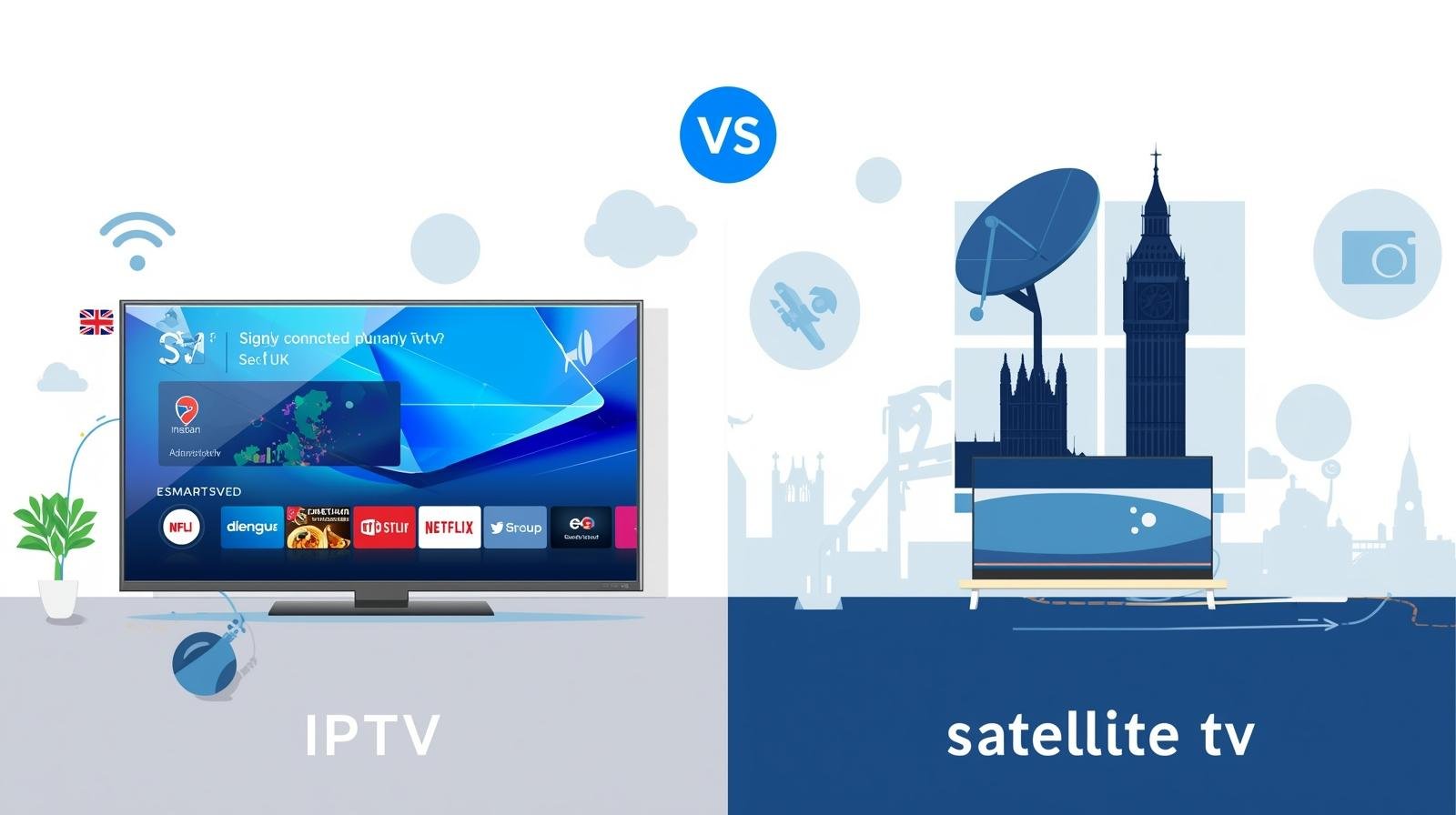
IPTV vs Satellite & Cable in the UK: Which One Should You Choose?

Introduction

Deciding between IPTV, satellite and cable is no longer a simple price comparison. In 2025 the TV landscape blends streaming-first services, hybrid products from legacy broadcasters, and ever-faster broadband. The right choice depends on how you watch TV, what you watch (sports? movies?), where you live in the UK, and how much tinkering you’re willing to do. Choosing IPTV or Satellite.

This long-form guide breaks down the technical differences, costs, reliability, device ecosystems, legal considerations (including TV Licence impacts), and future trends so you can choose with confidence. Wherever possible I’ll point to recent UK-relevant facts and practical examples. If you’re short on time: read the Decision checklist near the end — it’ll get you to a choice in under five minutes.

How TV is delivered: a technical primer

What is IPTV?

IPTV (Internet Protocol Television) delivers live channels and on-demand video over the internet. Everything from BBC iPlayer to NOW, discovery+ and other streaming apps uses IP delivery. IPTV is a broad label — it includes official, licensed streaming apps and, separately, third-party services that rebundle channels for viewers. IPTV’s strengths are flexibility, portability and app richness; its weakness is that it’s network-dependent.

How satellite works

Satellite TV (traditionally Sky in the UK) sends channels from broadcast centres to satellites in orbit, then down to a dish on your house. That signal is demodulated by a receiver (set-top box) which provides the channel guide and DVR functionality. Satellite is robust: when your broadband goes, satellite often still works — except in extreme weather where heavy snow/ice can degrade the signal.

How cable works

Cable (Virgin Media in the UK) sends encrypted TV and internet signals over a coaxial/fibre network into your home. Users typically receive a provider-supplied set-top box or a Stream box that uses the provider’s middleware and app ecosystem. Cable bundles often include broadband and phone services under one price.

Delivery chain and failure points

Every system has weak links:

  • IPTV: CDN capacity, ISP peering, home broadband, Wi-Fi/router, device.
  • Satellite: dish alignment, LNB issues, weather interference, receiver faults.
  • Cable: local network outages, provider headend failures, hardware faults.

Understanding these helps you target the right fix when problems arise.

Cost: subscriptions, hardware and hidden fees

IPTV: modular costs

IPTV shines on price flexibility. You build your TV service from apps: free catch-up services (BBC iPlayer, ITVX, All4), subscription SVODs (Netflix, Disney+, Prime Video), and sports/pay-per-view add-ons (NOW, discovery+ Premium, DAZN). Hardware is often inexpensive: streaming sticks or existing smart TVs work fine. You can rotate subscriptions seasonally to reduce spend. The broad availability of free ad-supported TV (FAST) channels also lowers costs. Guides that track IPTV options list many provider choices; prices vary widely by service and tier. Choosing IPTV or Satellite.

Satellite: packaged pricing

Satellite providers like Sky typically sell bundled packages—entertainment, movies, sports—often tied to long contracts (12–24 months). Packages include set-top hardware, Sky Q/Glass features and options for UHD sports or premium movie channels. Over time, bundled packages can cost significantly more than a tailored IPTV stack — but they can also deliver all-in-one convenience.

Cable: competitive bundles

Cable operators bundle TV and broadband attractively. Virgin Media’s Volt and Mega Volt bundles combine gigabit-capable broadband with TV packages and extras. Cable often undercuts satellite on pure broadband+TV bundles due to integrated network economics. Recent Virgin product pages emphasise bundled value and multiroom Stream boxes.

Hidden fees & equipment

Watch for: installation charges (for satellite dish or cable engineer), set-top box rental, multiroom extras, UHD add-ons, and price hikes after promotional periods. IPTV’s traps can include paid “boost” tiers for UHD or simultaneous streams (e.g., NOW Boost). Always read the small print.

Picture & sound quality: HD, 4K and beyond

Bandwidth and codecs

IPTV quality depends on network bandwidth and the codec used. Newer codecs like AV1 and HEVC (H.265) can deliver high-quality 4K at lower bitrates. Devices that support hardware AV1 decoding help reduce bandwidth needs for 4K streams (useful if your broadband is constrained).

Satellite/cable consistency

Satellite and cable deliver consistent bitrates for linear channels since the signal is managed as a broadcast. That makes them reliable for live events and predictable picture quality. IPTV, however, uses adaptive bitrate streaming: your quality will adjust to the available bandwidth — excellent when network conditions are good, variable when they’re not.

HDR & Atmos

Support for HDR formats (Dolby Vision, HDR10+) and Dolby Atmos varies by platform and device. Apple TV, premium smart TVs and higher-tier set-top boxes tend to support the broadest feature sets. IPTV apps increasingly offer HDR/Atmos, but availability depends on app/device combinations and subscription tiers.

Reliability & performance

Buffering, latency and live events

IPTV streams can buffer if network throughput dips. Latency is also a factor: IPTV often introduces a 10–30 second delay compared to satellite due to encoding, CDN delivery and buffering — usually not an issue for casual viewing but noteworthy for live betting or apps requiring sync across viewers.

Effects of home network

Your home network determines the final user experience. A gigabit fibre connection can be ruined by poor Wi-Fi, a congested router, or multiple simultaneous device-heavy tasks. Wired Ethernet to your main TV remains the gold standard for reliability.

Outages, weather and ISP congestion

Satellite can be affected by extreme weather (rare). IPTV is susceptible to ISP congestion, especially in peak hours or in areas where the ISP’s peering to streaming CDNs is suboptimal. Cable networks can have planned maintenance windows but are generally resilient thanks to provider-managed infrastructure. Choosing IPTV or Satellite.

Content availability & rights

Live sports and exclusive rights

Some sports rights remain splintered: Sky, TNT/Warner/discovery+, Amazon and DAZN all hold different rights for football, tennis, F1 and boxing at various times. That means to cover everything you may need multiple subscriptions across IPTV and legacy platforms. Rights deals change frequently; always check the current season holders for must-watch competitions.

Catch-up & on-demand

Catch-up apps (BBC iPlayer, ITVX, All4) are ubiquitous across IPTV devices. Satellite/cable boxes also integrate catch-up but may route you through proprietary guides. For bingeable boxsets and exclusive originals, SVODs dominate and are native to IPTV.

International and niche channels

IPTV often offers a wider selection of international and niche channels via apps and third-party providers. If you want foreign-language or specialty programming, IPTV’s modularity is a major advantage.

Flexibility & user experience

IPTV: multi-device & portability

IPTV is synonymous with portability: watch on phones during commutes, on tablets, or cast to a TV. Profiles, personalised recommendations and cross-device watch progress are standard in big streaming services. This flexibility is a big reason many households shift away from satellite/cable.

Satellite/cable: unified living-room experience

Satellite and cable aim to replicate the traditional living-room experience: a unified guide, simple channel up/down navigation, and built-in multiroom with single-provider management. For users who prefer an out-of-the-box experience and don’t want to cobble apps together, satellite/cable can be simpler.

User interfaces & voice assistants

Modern IPTV devices integrate voice search and smart-home assistants (Alexa, Google Assistant, Siri). Satellite/cable boxes increasingly support voice and app integration, but the thrift of apps and cross-service search remains IPTV’s strong suit.

Installation & setup

Satellite: engineer and dish

Satellite often requires an engineer to mount a dish and configure receivers. This adds installation cost and scheduling, but results in a stable coaxial feed and integrated DVR services.

Cable: self-install or engineer

Cable providers may offer self-install kits or engineer visits. Virgin’s Stream boxes, for example, are aimed at simpler install without a dish. Cable’s advantage is that the provider manages distribution inside the network. Choosing IPTV or Satellite.

IPTV: plug-and-play

IPTV typically needs only a streaming stick/box and an internet connection. Self-installation is quick, making it ideal for renters and people who move frequently. However, IPTV quality relies heavily on your existing broadband and Wi-Fi setup.

Devices & hardware

IPTV devices

Popular devices include Amazon Fire TV sticks, Apple TV 4K, Chromecast with Google TV, and various Android boxes. Choose devices with modern Wi-Fi (Wi-Fi 6/6E), Ethernet options, and codec support for AV1/HEVC for future-proofing. Choosing IPTV or Satellite.

Satellite receivers

Sky’s receivers (or Sky Stream/Sky Glass alternatives) provide native Sky UI, multiroom options and integrated DVR services. These boxes are tuned to the satellite ecosystem and often include exclusive features like Sky Q recordings.

Lifespan & updates

IPTV devices often receive frequent app/OS updates, while some smart TVs and older set-top boxes can lose app support over time. Consider a small external stick for long-term app compatibility if your TV is older.

Parental controls, profiles & accessibility

Parental controls

IPTV apps generally have granular profile and parental controls. This is excellent for households with kids: you can set PINs, age filters and viewing windows per profile. Satellite/cable providers also offer parental locks, but the flexibility of app-level controls (multiple profiles + downloads) is a clear IPTV advantage.

Accessibility

Accessibility features such as audio description, subtitles, and high-contrast interfaces are widely supported across modern IPTV apps and satellite/cable boxes. Check individual service settings for specifics.

Security & legality

Licensed IPTV vs illicit services

A growing caveat: IPTV is also used by grey-market resellers selling “all channels” packages cheaply. These often lack licensing and are unreliable, insecure and illegal. They can be shut down at any time and may expose users to malware or fraud. Stick to licensed apps and official stores for safety.

TV Licence in the UK

Crucially, the requirement to hold a TV Licence in the UK still applies if you watch or record live TV or use BBC iPlayer — regardless of delivery method. That means IPTV viewers watching live broadcasts must be licenced. Official guidance from TV Licensing and GOV.UK clarifies these obligations.

When satellite/cable still makes sense

Rural coverage & limited broadband

In rural parts of the UK lacking reliable full-fibre broadband, satellite (or cable where available) can be the only option for consistent live TV. Choosing IPTV or Satellite.

Absolute live reliability

For viewers who need the lowest possible latency and the most consistent linear broadcast — for instance, some older live-broadcast workflows or small venues — satellite still wins.

One-provider simplicity

Some households prefer one bill, one provider and in-home support. Satellite/cable offers that convenience with engineer visits and integrated customer service.

When IPTV is the smarter choice

Cost control & flexibility

If you like rotating subscriptions, only paying for sports during the season, or mixing ad-supported tiers and free FAST channels, IPTV often costs less overall. Its agility is a strong selling point.

Portability and modern features

If you want to watch on a phone, tablet, laptop, or mirrored TV with cross-device progress and profiles, IPTV is the clear winner. Its app-driven model integrates with smart-home devices and voice assistants easily.

Access to niche and international content

For international channels, niche sports or curated streaming content, IPTV and standalone streaming services far outpace legacy packages.

Hybrid approaches & future-proofing

Combine the best of both

Many UK households adopt a hybrid strategy: a slim satellite/cable package for key live channels plus an IPTV stack for flexibility and on-demand content. For example, keep a minimal Sky or Virgin package for certain sports while using IPTV apps for movies and international channels.

Emerging tech

Watch for AV1 codec adoption (more efficient 4K), Wi-Fi 6E routers, and 5G home broadband which may make full IPTV setups even more robust in areas with limited fibre. These trends favour IPTV’s continuing growth. Choosing IPTV or Satellite.

Decision checklist: which option fits your household?

Ask yourself:

  1. Do you need absolute broadcast reliability (rural/critical live events)? → Consider satellite/cable.
  2. Do you want portability, rotating subscriptions and app richness? → IPTV likely fits.
  3. Do you have reliable full-fibre broadband and modern Wi-Fi? → IPTV is practical.
  4. Are you unwilling to manage multiple apps or devices? → Cable/satellite offers one-package simplicity.
  5. Do you care about cost and seasonal sports subscriptions? → IPTV offers savings via rotation.

Sample scenarios:

  • Single occupant, streaming-heavy: IPTV + basic broadband.
  • Family with heavy sports interest: hybrid (select satellite sports + IPTV for everything else).
  • Rural area & unreliable broadband: satellite/cable where available.

Conclusion

There is no single “best” option for every UK household. Satellite and cable offer reliability, simple billing and deep live-TV integration — often at a higher, bundled price. IPTV offers flexibility, portability, and potential cost savings, but it depends on reliable broadband and a well-configured home network.

If your broadband is fast, stable and you enjoy app ecosystems and rotating subscriptions, IPTV is a modern, often cheaper, and feature-rich choice. If you value set-and-forget reliability, all-in-one guides and on-site support, then satellite/cable retains strong appeal.

Practical next step: evaluate your broadband quality (run an in-room speed test), list the must-have channels and content, and choose devices before committing. For many households in 2025, a hybrid approach delivers the best of both worlds. Choosing IPTV or Satellite.

FAQs

  1. Do I still need a TV Licence if I move fully to IPTV?
    Yes. If you watch or record live TV or use BBC iPlayer, a TV Licence is required, regardless of delivery method.
  2. Can IPTV deliver the same 4K quality as satellite?
    Yes — on a fast, stable fibre connection and with devices that support the required codecs and DRM. However, IPTV quality can vary more with network conditions.
  3. Are “cheap” IPTV subscriptions legal in the UK?
    Many inexpensive “all channels” IPTV services operate without the proper rights and are illegal and risky. Stick to licensed providers and official app stores for safety.
  4. Which is better for multiroom setups?
    Cable providers often make multiroom simpler with provider-managed boxes. IPTV can do multiroom via streaming sticks and sticks’ price advantage, but depends on Wi-Fi or wired backhaul.
  5. How can I future-proof my home for IPTV?
    Upgrade to a full-fibre broadband plan, use a modern Wi-Fi 6/6E router (or mesh), pick devices with AV1 hardware decode and ensure Ethernet to the main TV where possible.

IPTV FREE TRIAL

Fix IPTV Issues UK : Fix Buffering, Lag & Audio Sync Issues

Introduction

IPTV (Internet Protocol Television) has quickly become the go-to option for UK households looking for more flexibility and affordability compared to Sky or Virgin TV. But while IPTV offers unlimited entertainment, users often face frustrating issues like buffering, lag, or audio not syncing properly.

If you’ve ever tried watching your favourite football match only to see the spinning loading wheel or lips moving out of time with the commentary, Fix IPTV Issues UK you know how annoying it can be. The good news? These problems can almost always be fixed with a few smart adjustments.

This step-by-step guide will walk you through everything you need to know to troubleshoot IPTV in the UK, ensuring smoother, more reliable streaming.

Understanding IPTV Performance Problems

To fix IPTV issues, you first need to understand what causes them. IPTV relies on your broadband connection, home network, and device performance. Fix IPTV Issues UK If one of these fails, your stream suffers.

  • Internet Speed: Too slow or inconsistent speeds will cause buffering.
  • Device Performance: Outdated sticks or boxes can’t handle modern 4K streams.
  • Network Congestion: Too many devices fighting for bandwidth leads to lag.

By tackling these areas one by one, you can restore your IPTV experience.

Why IPTV Keeps Buffering

Buffering is the most common IPTV complaint. It happens when the video can’t download quickly enough to keep up with playback.

Speed Requirements for IPTV

  • SD streaming: 3–5 Mbps
  • HD streaming: 10–15 Mbps
  • 4K UHD streaming: 25–40 Mbps per stream

In the UK, many households still run multiple devices at once. If two family members are watching in 4K while others are gaming or downloading, buffering becomes inevitable.

Step-by-Step Fixes for Buffering

  1. Check Broadband Speed

    • Run a speed test using Ookla or Fast.com.
    • Compare your results with the requirements above.
  2. Switch from Wi-Fi to Ethernet

    • Wi-Fi is never as reliable as a cable connection.
    • If Ethernet isn’t possible, use powerline adapters.
  3. Optimise Router Placement

    • Your router should be positioned in the center of your house.
    • Keep it away from thick walls or appliances.
  4. Limit Background Devices

    • Pause large downloads.
    • Ask others to avoid online gaming during IPTV streaming.

Fixing IPTV Lag Issues

Lag in IPTV usually appears as slow channel switching, Fix IPTV Issues UK delayed remote response, or stuttering video.

Causes of Lag

  • Low device memory
  • Overloaded apps
  • Poor Wi-Fi coverage

Solutions for Lag

  • Update IPTV Apps and Firmware: Outdated software often causes lag.
  • Enable QoS: Prioritise IPTV devices in your router’s settings.
  • Free Device Memory: Delete unused apps and clear cache.
  • Reduce Interference: Use the 5 GHz Wi-Fi band instead of 2.4 GHz.

Solving Audio Sync Problems

Audio sync issues happen when video and sound play at different speeds. This is especially noticeable in live sports or movies.

Step-by-Step Fixes

  1. Restart the stream.
  2. Adjust the lip-sync delay in your TV or soundbar settings.
  3. Disable audio passthrough if unsupported.
  4. Update your device firmware.

Troubleshooting IPTV Apps

Popular apps like TiviMate, IPTV Smarters, and Perfect Player can also cause trouble.

  • Always keep apps updated.
  • Clear cache regularly.
  • If freezing continues, uninstall and reinstall.
  • Ensure your app supports your device’s operating system.

Router Settings to Improve IPTV

Tweaking your router can make a huge difference.

  • Enable QoS to prioritise IPTV traffic.
  • Switch DNS to Google (8.8.8.8) or Cloudflare (1.1.1.1).
  • Assign static IPs to your IPTV devices.
  • Use mesh Wi-Fi in large homes for better coverage.

Device-Specific Troubleshooting

Smart TVs

  • Update the built-in IPTV app.
  • If performance is poor, use an external Fire Stick or Android TV box.

Fire TV Stick

  • Clear cache weekly.
  • Turn off “Data Monitoring.”

Android Boxes

  • Close background apps.
  • Use lightweight launchers.

Apple TV

  • Keep tvOS updated.
  • Use match frame rate and dynamic range settings.

Provider-Side Issues

Sometimes the problem isn’t you. IPTV providers can have:

  • Server overloads during peak times.
  • Temporary maintenance.
  • Low-quality stream sources.

If all else fails, contact your provider for support or try a backup service.

Preventing IPTV Issues Long-Term

  • Upgrade broadband if your household streams a lot.
  • Restart your router once a week.
  • Keep devices and apps updated.
  • Use Ethernet for your main TV.

Advanced Troubleshooting for Enthusiasts

  • Change DNS servers to improve resolution times.
  • Test packet loss with continuous pings.
  • Check router logs for disconnections.
  • Use a VPN only if geo-restrictions apply (but note VPNs may slow speeds).

Future-Proofing Your IPTV Setup

  • Buy devices with AV1 codec support for efficient 4K.
  • Invest in Wi-Fi 6 routers for better performance.
  • Stick with licensed providers for consistent quality.

Conclusion

Troubleshooting IPTV in the UK doesn’t have to be complicated. By checking your broadband, optimising router settings, updating devices, and making small adjustments, you can fix buffering, lag, and audio sync problems. With the right setup, IPTV becomes a smooth and enjoyable alternative to cable and satellite TV.

FAQs

  1. Why does my IPTV buffer during peak hours in the UK?
    Because more users are online, causing congestion. Ethernet and QoS help reduce buffering.
  2. How do I fix IPTV audio lag permanently?
    Adjust lip-sync settings, update firmware, and disable unsupported audio passthrough.
  3. What’s the best router setting for IPTV?
    Enable QoS, use 5 GHz Wi-Fi, and assign static IPs for IPTV devices.
  4. Can cheap streaming sticks handle 4K IPTV?
    Yes, modern Fire TV Stick 4K Max or Chromecast with Google TV can handle 4K.
  5. When should I contact my IPTV provider?
    If all troubleshooting fails, the issue may be server-side. Contact support for help.

IPTV FREE TRIAL

How to Set Up IPTV in the UK: A Step-by-Step Guide for Beginners

Introduction

IPTV (Internet Protocol Television) lets you watch live channels, catch-up and on-demand shows over your broadband connection — no dish, no coax, no long engineer visits. If you want flexibility (watch on phones, tablets, smart TVs, or streaming sticks), fine-grained subscription control, and access to vast on-demand libraries alongside live TV, IPTV is usually the best route today. IPTV Beginner Setup Guide.

This guide walks you through everything a UK beginner needs: legal checks (TV Licence), choosing the right broadband and device, step-by-step setup, optimizing for 4K or sports, troubleshooting common problems (buffering, black screens), parental controls, safety, and how to avoid illegal services.

Part A — Before you start: legal & technical checklist

1. TV Licence — the UK legal must-know

A current UK TV license is required if you use BBC iPlayer or view or record live TV on any channel. This holds true whether the TV is delivered via IP, cable, satellite, or the air. Don’t assume “streaming = different”: live streaming counts. For details and to check whether you need one, see TV Licensing guidance. IPTV Beginner Setup Guide.

2. Broadband: basics and 4K requirements

The quality of your internet determines how well you enjoy IPTV. For a smooth single-stream:

  • HD (1080p): ~10–15 Mbps minimum per stream.
  • 4K (UHD): plan for 25–30 Mbps per stream as a practical baseline; more headroom (50+ Mbps) reduces buffering with simultaneous uses. Sources from consumer guides and UK fibre providers give similar practical ranges.

If more than one person streams at once (family homes), multiply per-stream needs and add bandwidth for gaming, uploads and background use. For multi-room households, 100 Mbps+ fibre is a good target.

3. Device compatibility and codecs

Different devices have different capabilities (HDR, Dolby Vision, Dolby Atmos, AV1 decoding, Wi-Fi generation). Newer streaming sticks and set-top boxes increasingly include Wi-Fi 6/6E and AV1 support, which improves 4K performance and future-proofing. Check the device tech specs before you buy. IPTV Beginner Setup Guide.

Part B — Choose the right hardware

1. What to buy (short list for most UK homes)

  • Streaming stick (best value): Amazon Fire TV Stick 4K Max — fast, wide app support, Wi-Fi 6/6E on newer SKUs. Good first buy for living room or bedrooms.
  • Premium box: Apple TV 4K — excellent HDR/Atmos support and polished UI; great if you use Apple devices.
  • Google option: Chromecast/Google TV (latest models) — solid discovery tools and Google integration; check AV1 support on the specific SKU.
  • Console or smart TV: Xbox/PlayStation or modern Smart TVs (LG webOS, Samsung Tizen, Sony) work if you already own them — a stick usually outperforms older TV OSes. IPTV Beginner Setup Guide.
  • AV1/hardware decode limits for long-term streaming for enthusiasts and server users: NVIDIA Shield (excellent for Plex) or Raspberry Pi for do-it-yourself media clients.

2. Essential accessories

  • Ethernet cable (best reliability).
  • USB-Ethernet adapter for sticks that are Wi-Fi only (many sticks support wired adapters).
  • Good HDMI cable (High Speed / HDMI 2.0 or better for 4K).
  • For larger houses, use mesh Wi-Fi or a contemporary Wi-Fi 6 router.

Part C — Pick your IPTV apps & services (legal options)

Most IPTV in the UK is built from apps — a mix of free catch-up services and paid subscriptions:

  • Free UK catch-ups: BBC iPlayer (TV Licence required if you use it), ITVX, All4 (Channel 4), My5.
  • Popular paid apps: Netflix, Disney+, Amazon Prime Video (Prime includes Video), NOW (Sky content), discovery+ (TNT Sports in certain plans). Each app has its own device compatibility and sometimes 4K or boost add-ons (e.g., NOW Boost/Ultra Boost requirements). IPTV Beginner Setup Guide.

Tip: If you want sports in 4K, check that the service supports 4K on your device and whether a paid “boost” or higher tier is required (NOW Ultra/Boost, discovery+ Premium for TNT Sports, etc.). NOW specifies device restrictions and minimum Boost/Ultra Boost speeds. IPTV Beginner Setup Guide.

Part D — Step-by-step setup (30–60 minutes)

Follow these steps to get IPTV running reliably.

 1 — Confirm your broadband & home network

  1. Run a speed test in the room where the TV sits (use Speedtest.net or Fast.com). If your Wi-Fi result is much lower than your advertised plan, either move your router closer or use Ethernet/mesh. Aim for at least 25–30 Mbps for 4K, higher if more people stream concurrently.
  2. If you can, connect the TV or streaming device via Ethernet. Wired is far more stable, especially for live sports or UHD.
  3. If Ethernet isn’t possible, use 5 GHz Wi-Fi (less interference) and consider a mesh node close to the TV.

 2 — Prepare the device

  1. Plug in your Fire TV / Apple TV / Chromecast / stick and complete initial setup (language, Wi-Fi, account sign-in).
  2. Update the device’s software by going to Settings → System → Software Update. Updates are frequently made to modern devices to enhance codec support and streaming.

 3 — Install the apps you need

  1. Open the device’s app store (Amazon Appstore, Apple App Store, Google Play on Android TV devices).
  2. Install: BBC iPlayer, ITVX, All4, Netflix, Disney+, Amazon Prime Video, NOW, discovery+ — whichever you plan to use. Note availability can vary by platform.

 4 — Sign in and test streams

  1. Sign in to each service with your account.
  2. For each app, play a short HD/4K piece of content to test buffering, picture and audio sync. If you have a paid 4K plan or Boost/Ultra settings (NOW), enable them per the app’s instructions — NOW documents minimum speeds for Boost/Ultra Boost.

 5: Set up the audio and picture

  1. On Apple TV / Fire TV: enable “Match Content” features where available so the device switches frame-rate and HDR automatically (improves film look and sports motion)
  2. On the TV: pick a picture preset optimized for movies/sports (Cinema/Filmmaker for movies, Game or Sports mode for live sports) and disable aggressive motion smoothing if it makes sports look odd.

 6 — Enable parental controls & profiles

  1. Create profiles on Netflix, Disney+ and Prime for kids.
  2. Set PIN/protected purchases on Fire TV / Apple TV so kids can’t buy content accidentally.
  3. Use router-level parental controls or screen-time features in Google/Apple ecosystems for tighter control.

Part E — Optimizing for the best experience

1. Make Ethernet the default for the main TV

If possible, wire the main set to the router. Even a modest FTTP plan with wired connection beats Wi-Fi for uninterrupted 4K sports.

2. Use modern Wi-Fi (Wi-Fi 6/6E) and mesh for large homes

New routers and sticks with Wi-Fi 6/6E reduce interference and improve multi-device performance. Amazon’s Fire TV Stick 4K Max and some newer sticks support Wi-Fi 6/6E — helpful in dense homes.

3. Reserve bandwidth for streaming (QoS)

If your router supports Quality of Service (QoS), prioritise the streaming device’s MAC address so large downloads or uploads don’t ruin match day.

4. For future proofing, select devices with hardware AV1 support.

AV1 delivers better compression; devices that decode AV1 in hardware will be more efficient on bandwidth — check the specific model specs when buying.

Part F — Sport & 4K specific notes

1. Check the service’s 4K policy & add-ons

Some services require extra “boost” passes for UHD (e.g., NOW Boost/Ultra Boost have minimum speed recommendations) — and even when allowed, 4K may be limited to particular devices. Confirm on the service’s help pages.

2. Latency and live sports

IPTV often introduces slight latency relative to satellite — that’s normal. For competitive gaming or betting reactions, bear in mind a 10–30 second delay is common with internet streams.

3. Audio: eARC for Atmos

If you use a soundbar/AVR for Dolby Atmos, ensure your TV and device support eARC to pass through Atmos to your sound system correctly. Apple TV and many premium boxes handle Atmos, but full pass-through depends on your TV and AVR chain. IPTV Beginner Setup Guide.

Part G — Troubleshooting common problems

Problem: Buffering mid-match

Symptoms: stream stalls, pixelation, or repeated loading wheel.

Fix checklist:

  1. Run an in-room speed test. If below required per-stream bandwidth, reduce resolution or upgrade broadband.
  2. Switch to Ethernet.
  3. Close other heavy downloads (household devices).
  4. Restart router and streaming device.
  5. If only one app buffers, the provider’s servers may be congested; try a different channel or contact support.

Problem: Black screen or app won’t start

Symptoms: app opens to black screen, or shows errors.

Fix checklist:

  1. Reboot the device.
  2. Clear app cache and reinstall the app.
  3. Check geo-restriction: some content is region-locked.
  4. Verify account (subscription valid, logged in).
  5. Ensure device firmware is updated.

Problem: Audio out of sync

Symptoms: lip sync issues.

Fix checklist:

  1. To adjust audio, use the device’s audio delay settings, if any are provided.
  2. Switch between passthrough and device-decoding audio options to locate where delay happens (TV vs AVR).
  3. Update app/firmware — sometimes fixed in updates.

Issue: Despite having a plan, the app does not have a 4K option.

Fix checklist:

  1. Confirm you’re on the correct service tier and that the app supports 4K on that device (some devices are excluded).
  2. Check minimum speed requirement (NOW Ultra Boost lists 30 Mbps minimum for Ultra).

Part H — Security and legal safety

1. Avoid illegal IPTV services

“Fully loaded” boxes or vendors promising every premium channel for a tiny monthly fee are almost always illegal and unreliable — they risk malware, sudden shutdowns, and legal consequences for suppliers. Stick to official apps in the Amazon/Apple/Google stores. Enforcement is active and penalties can be significant.

2. Use secure payment methods and protect accounts

Pay with cards or reputable processors (PayPal) so you have chargeback options. Use strong, unique passwords and enable 2FA on accounts where available.

3. When to use and when not to use VPNs

A VPN can help if a service is geo-restricted, but it may reduce speed (bad for 4K) and violate service terms. Use responsibly and check the provider’s policy.

Part I — Advanced tweaks for power users

1. DNS changes for faster lookups

Changing to Google DNS (8.8.8.8) or Cloudflare (1.1.1.1) can speed up DNS lookups and occasionally shorten app load times. Test first; effects vary.

2. Router optimisations and QoS

Set up QoS priorities for your IPTV device, or put streaming devices on their own SSID or VLAN for stable performance.

3. Local media and Plex/Jellyfin

If you run a home media server (Plex, Jellyfin), integrate your local library with streaming apps for a single, unified living-room experience. Many enthusiasts pair a Shield or NAS with IPTV apps.

Part J — Practical scenarios & quick checklists

Scenario 1 — Student in a flatshare (budget)

  • Product: Fire TV Stick 4K Max (available for £30–£60).
  • Broadband: Shared Virgin / local FTTC 100–200 Mbps.
  • Apps: Free catch-ups, Netflix Basic/Ad, Prime Video via student deals.
  • Tips: Use wired Ethernet where possible, rotate subscriptions month-by-month.

Scenario 2 — Family of four who want sports + kids’ shows

  • Device: Apple TV 4K or top Fire TV stick (living room), extra sticks for bedrooms.
  • Broadband: 200–500 Mbps FTTP.
  • Apps: discovery+ (TNT Sports where relevant), NOW (Sky content as needed), Netflix/Disney+. Check TV Licence.

Quick setup checklist

  • Confirm TV Licence if you’ll watch live TV/BBC iPlayer.
  • Test delivered speed at the TV.
  • Wire main TV with Ethernet where possible.
  • Buy a modern stick/box (Fire TV Stick 4K Max or Apple TV 4K).
  • Install official apps from device store.
  • Create profiles and parental controls.
  • Perform a 4K test stream and tweak picture/audio settings.

Conclusion — IPTV on your terms

Setting up IPTV in the UK is straightforward once you understand the legal baseline (TV Licence), have suitable broadband, and choose a device that matches your needs. The rewards are huge: flexible subscriptions, multi-device viewing, 4K HDR where supported, and easier family control. Follow the steps above, prioritise wired connections for the main screen, and pick official apps on supported devices. Avoid illegal sellers — they’re a false economy. IPTV Beginner Setup Guide.

If you want me to build a personalised shopping & setup plan for your home (tell me your broadband speed, how many viewers, preferred content — e.g., sports or movies — and your budget), I’ll map exact device models, subscription combinations and a step-by-step install checklist you can follow the same evening.

FAQs

  1. Do I need a TV Licence for IPTV?
    Yes, if you watch or record live TV in the UK or use BBC iPlayer, you need a TV license. Catch-up on demand (non-BBC) generally doesn’t require a licence. Check TV Licensing for specifics.
  2. What internet speed do I need for 4K IPTV?
    As a practical baseline, aim for 25–30 Mbps per 4K stream; 50+ Mbps provides more headroom for multiple users at once. Similar numbers are suggested by other suppliers and consumer guidelines.
  3. Is the Fire TV Stick 4K Max good for IPTV?
    Yes — it’s a strong value pick with robust app support and modern Wi-Fi (Wi-Fi 6/6E on newer SKUs), making it an excellent choice for UK IPTV users.
  4. How do I watch Sky content without a dish?
    You can use Sky’s streaming offerings via apps like NOW or Sky Stream on supported devices — these are IPTV-delivered options that don’t require a satellite dish. NOW sometimes requires Boost/Ultra Boost for higher resolutions; check their device and speed requirements.
  5. Should I use a VPN for IPTV?
    Only if you understand the trade-offs. VPNs can bypass geo-blocks but often reduce speed (which matters for 4K) and may violate service terms. Always prefer licensed services available in your region.

Optimizing Your UK IPTV Experience: Router Settings, Device Selection & More

Introduction

In the UK, IPTV (Internet Protocol Television) has changed the way people watch television. It delivers live channels, catch-up services and on-demand content over your broadband connection rather than through a satellite dish or coax cable. That means flexibility: watch on smart TVs, streaming sticks, consoles, tablets and phones — often with better on-demand features than legacy pay TV. Best IPTV Settings Tips.

But IPTV’s promise only becomes reality when the plumbing — your home network and devices — are set up right. Get the wrong router settings, pick a sluggish device, or ignore common pitfalls and you’ll spend match day staring at a buffering wheel. This guide walks you through everything a UK viewer needs to know to optimize IPTV for steady picture quality, minimal lag, and great audio — whether you stream casual daytime TV, binge box sets, or watch live sports in 4K.

1. IPTV basics — what actually matters

Before we deep dive, a short primer so we’re talking the same language:

  • IPTV = TV delivered over the internet (IP packets) rather than satellite or cable. It includes official apps (BBC iPlayer, ITVX, Netflix, Disney+, NOW, discovery+) and licensed streaming bundles.
  • Delivery chain: content provider → CDN/servers → your ISP → your router → your device. Any weak link creates problems.
  • Key influencers of quality: your broadband speed, the stability of your home network, the capabilities of the streaming device, and the IPTV service (server load, codec efficiency).

The rest of this guide focuses on the parts you control: your broadband plan, router settings, device choice, and local configuration.

2. How much internet do you really need?

IPTV is bandwidth sensitive. Below are practical guidelines you can apply immediately.

Per-stream rough guide

  • SD (480p): 2–4 Mbps
  • HD (720p/1080p): 5–12 Mbps
  • 4K UHD (HDR): 25–40+ Mbps (practical baseline 25–30 Mbps per stream)

Why the range? Because modern streaming uses adaptive bitrates and codecs. AV1 or efficient HEVC services can provide comparable quality at lower Mbps than H.264. But don’t rely on theory — plan for headroom. Best IPTV Settings Tips.

Household planning

If your home has multiple streamers, add per-stream numbers. Example: two 4K streams + one HD stream → aim for 60–90 Mbps minimum. Take into account additional applications (Zoom, gaming, cloud backups). For the majority of UK homes, 100–300 Mbps FTTP provides a safe sweet spot for occasional downloads and multi-room streaming.

Latency matters too

For live sport and interactivity, latency (ping) influences how quickly streams start and how responsive apps feel. Fibre broadband typically gives low latency; mobile home broadband and ADSL may be higher and cause perceptible delays.

3. Wired vs Wireless: the fundamental tradeoff

Why Ethernet is king

A connected Ethernet connection is less susceptible to interference, has a lower latency, and is more reliable. If you can run a cable to your main TV or streamer, do it. Ethernet significantly lowers the possibility of buffering during 4K live sports or family movie nights.

When Wi-Fi is acceptable

Wi-Fi gives flexibility. If Ethernet isn’t possible, modern Wi-Fi can be excellent — but choose the right band, router and topology:

  • For streaming devices, use 5 GHz (lower interference, higher throughput).
  • Avoid long-distance 2.4 GHz links for streaming; they’re slower and noisy.
  • Use Wi-Fi 6 or 6E routers/sticks for best multi-device performance, especially in dense homes.

Powerline and Mesh alternatives

  • Powerline adapters can work well where Wi-Fi is weak and Ethernet running is impractical — results vary with home wiring quality.
  • Mesh Wi-Fi (with wired backhaul if possible) is ideal for larger homes. Place a mesh node close to each main TV to reduce hop counts.

4. Choosing a router: what to buy and why

Not all routers are created equal for IPTV. ISP supplied routers are okay for light browsing, but for reliable multiple 4K streams you’ll likely want a step up.

Key router features for IPTV

  • Gigabit Ethernet ports (ideally >1 on LAN)
  • Dual/tri-band with 5 GHz and 6 GHz (Wi-Fi 6/6E) support
  • Quality of Service (QoS) controls to prioritise streams
  • Support for VLANs and guest networks to divide up IoT devices
  • Good CPU / RAM for handling NAT and concurrent streams
  • Regular firmware/security updates

Practical router choices (examples)

  • Budget / Good value: TP-Link Archer AX50/AX55 — solid Wi-Fi 6 performance.
  • Performance / Features: Asus RT-AX88U or Netgear Nighthawk AX12 — strong QoS and throughput.
  • Top-end / Future-proof: Wi-Fi 6E routers (Asus ROG Rapture / Netgear Nighthawk RAXE) for serious multi-4K households.

(You don’t need the absolute top model unless you have many simultaneous heavy users.)

5. Router settings that improve IPTV

Once you have a capable router, a few key settings will materially improve IPTV performance.

Enable and configure QoS

Quality of Service lets you prioritise IPTV devices or streaming traffic. Options vary by router:

  • Use device-based QoS: set your TV or streaming stick as “high priority”.
  • Use application QoS where available: prioritise streaming/media protocols.
  • For best effect, assign upstream and downstream limits based on your ISP plan so QoS can fairly allocate bandwidth.

Use the 5 GHz (and 6 GHz) band

Put your IPTV device on the 5 GHz SSID (or 6 GHz for Wi-Fi 6E). Best IPTV Settings Tips. Keep IoT devices on 2.4 GHz to avoid congestion.

Static IPs and DHCP reservations

Assign a static IP or DHCP reservation for your main TV/streaming devices so router rules (QoS, port forwarding) remain consistent.

Channel selection and interference management

  • Use an app or router dashboard to scan for the least crowded Wi-Fi channel.
  • For 5 GHz, DFS channels can be less congested but may cause brief dropouts when radar events occur — if you see occasional disconnects, try a different channel range.

Enable MU-MIMO and OFDMA (Wi-Fi 6)

These features improve multi-device throughput on Wi-Fi 6 routers — keep them enabled.

Firmware updates

Install router firmware updates periodically for improved performance and security.

6. Device selection: best boxes, sticks and TVs for IPTV

Your streaming device impacts app compatibility, codec support (AV1/HEVC), HDR/DRM, audio, and UI responsiveness.

Key device capabilities to prioritise

  • AV1 hardware decode (future-proofs bandwidth efficiency)
  • Wi-Fi 6 / Ethernet port for stable throughput
  • 4K HDR & Dolby Vision / HDR10+ support for premium picture
  • Dolby Atmos / eARC passthrough if using a soundbar/AVR
  • Regular OS and app updates

Good device categories and picks

  • Streaming sticks (best value): Amazon Fire TV Stick 4K Max — wide app support, good performance.
  • Premium set-top: Apple TV 4K — polished UI, strong HDR/Atmos support.
  • Google ecosystem: Chromecast with Google TV (latest) — clean UI and discovery.
  • Enthusiasts / media servers: NVIDIA Shield TV Pro — great for Plex/Jellyfin and local media, though check AV1 status.
  • Smart TVs: Modern LG (webOS), Samsung (Tizen), and Sony (Android TV/Google TV) models often have native apps; their built-in SoC can be weaker than a dedicated stick for app performance — consider an external stick if the TV is older.

Device sizing for rooms

  • Use premium boxes for the main living room (4K, Atmos).
  • Use compact sticks for bedrooms.
  • Use a console (PS5/Xbox) if you also need gaming and your console supports the apps you want.

7. Apps and codecs: what to check

Official apps vs third-party players

Use official apps from the device app store (BBC iPlayer, ITVX, Netflix, Disney+, NOW, discovery+). Third-party IPTV players (TiviMate, IPTV Smarters) can play M3U playlists and EPGs — but ensure the playlist source is licensed. Best IPTV Settings Tips.

Codec support

AV1 is becoming common for efficient 4K. Devices with hardware AV1 decoding need less bandwidth to deliver the same quality. If you plan heavy 4K streaming in constrained networks, AV1 support is a strong plus.

DRM and 4K

4K often requires Widevine L1 or Apple FairPlay DRM and app support — check the service device compatibility list before expecting UHD.

8. Video & audio optimisation on device and TV

Match frame rate and resolution

Enable settings that let the device match content frame rate and dynamic range to avoid judder and incorrect HDR rendering. On Apple TV this is “Match Content”; other platforms have similar toggles.

HDR and picture modes

  • For films, prefer Filmmaker or Cinema modes to respect original colour grading.
  • For live sports, use Game or Sports modes for reduced motion handling latency.
  • Disable extreme motion smoothing for natural motion; it can make films look “soap opera”-like.

Audio passthrough and eARC

If you have a Dolby Atmos capable soundbar/AVR, ensure eARC is enabled on TV and device settings are passing through Atmos. Otherwise choose receiver decoding or device decoding depending on chain. Best IPTV Settings Tips.

9. Troubleshooting common IPTV problems

Even with optimization, issues happen. Here are pragmatic steps to resolve them.

1: buffering mid-stream

  • Check speed on the device near the TV (phone speed tests at the same location are useful but device tests are better).
  • Switch to Ethernet for the TV if possible.
  • Close background downloads and P2P activity.
  • Reduce stream quality (temporarily to HD).
  • Reboot router and device.
  • If only one app buffers, the service may be congested — try a different channel or check the provider’s status.

2: black screen / app won’t start

  • Reboot the device.
  • Clear app cache / reinstall the app.
  • Check for region locks (some content is geo restricted).
  • Verify account/subscription; some apps require specific add-ons for live channels.

3: audio out of sync

  • Try toggling audio passthrough on/off.
  • Use device audio delay or TV lip-sync adjustment.
  • Check firmware updates for TV/receiver — sometimes manufacturers patch sync bugs.

4: frequent disconnects on Wi-Fi

  • Move the router or add a mesh node nearer the TV.
  • Avoid channel overlap with neighbouring networks.
  • Use 5 GHz and check distance/obstacles.

10. Family features and parental control

IPTV shines for families with multi-profile support, downloads and parental controls.

Profiles & kid modes

Create child profiles on Netflix, Disney+, Amazon and restrict content by age rating. Use in-app PINs to lock purchases.

Device-level controls

Most platforms and routers let you implement time schedules, content filtering, and guest networks to isolate kids’ devices.

Offline downloads

Use downloads for tablets/phones when travelling to avoid mobile data use and reduce network congestion at home.

11. Sports optimizations: live action, low latency and 4K

Sports fans have special needs: low latency, stable high bitrate and clarity. Best IPTV Settings Tips.

Low latency tips

  • Prefer wired (Ethernet) for the main screen.
  • Use the service’s native app on a fast device (native apps tend to be lower latency than web casting).
  • Avoid VPNs (they add latency), unless needed for geo access — then choose a fast, reputable VPN with local exit nodes.

4K for sports

  • Confirm the broadcaster streams the sport in 4K and requires a premium tier or add-on (NOW Boost, discovery+ Premium, etc.).
  • Ensure your device and TV support the required DRM and codecs for 4K.

12. Security, legal and privacy considerations

Use licensed services

Only use services with proper rights to avoid legal risk and unreliable streams. “Fully loaded” boxes and suspicious playlists are common sources of malware and sudden shutdowns. Best IPTV Settings Tips.

Protect your accounts

Use unique passwords and two-factor authentication on streaming accounts. Pay with credit cards or reputable payment methods for chargeback protections.

VPNs: pros and cons

VPNs can help when travelling or when geo-restricted content needs access. But VPNs often reduce speed and can violate terms of service. If you use a VPN, pick one with fast UK exit nodes and test speed impact before committing.

13. Budget setups and where to save

Not everyone needs high-end routers and boxes. Best IPTV Settings Tips. Here’s how to balance cost and performance:

Save on devices

  • Use a Fire TV Stick 4K Max or Chromecast with Google TV for bedrooms — they’re affordable and capable.
  • Reserve Apple TV or Shield for the main screen if you need advanced features.

Save on broadband

  • If you only need HD and have light concurrent usage, a cheaper fibre plan (50–100 Mbps) can be enough. Upgrade only when you run into multi-stream bottlenecks.

Smart subscription management

Rotate sport or niche subscriptions seasonally rather than paying all year. Use ad-supported plans if occasional ads are acceptable.

14. Future-proofing: AV1, Wi-Fi 6E and beyond

Invest a bit in future tech to reduce upgrade cycles:

  • AV1 support reduces bandwidth for 4K — prioritise devices with AV1 hardware decode.
  • Wi-Fi 6E expands 6 GHz spectrum to cut congestion.
  • Ethernet where possible — the simplest future-proofing step.

15. Step-by-step quick configuration checklist

  1. Confirm broadband plan and run an in-room speed test.
  2. Wire the main TV with Ethernet if possible.
  3. Choose a capable router (Wi-Fi 6 recommended) and place centrally.
  4. Enable QoS and prioritise your streaming device’s IP/MAC.
  5. Use 5 GHz Wi-Fi (or 6 GHz if available) for streaming devices.
  6. Assign DHCP reservation for each main device.
  7. Install official IPTV apps from your device’s store.
  8. Enable frame rate/HDR matching on the device.
  9. Set up parental controls and profiles.
  10. Test 4K content and tweak picture/audio settings.
  11. Reboot router monthly and keep firmware updated.

16. Real-world scenarios and recommended setups

Small flat / student room

  • Device: Fire TV Stick 4K Max
  • Router: ISP hub or budget Wi-Fi 6 router
  • Connection: Wi-Fi 5 GHz (Ethernet if possible)
  • Plan: 50–100 Mbps fibre

Family home (two kids, work from home)

  • Device: Apple TV 4K main; Fire sticks in bedrooms
  • Router: Wi-Fi 6E router with mesh nodes or Wi-Fi 6 mesh router
  • Connection: 200–500 Mbps FTTP
  • Extras: QoS, device reservations, Ethernet for main TV

Enthusiast / media server owner

  • Device: NVIDIA Shield TV Pro + NAS + Plex/Jellyfin
  • Router: High-end Wi-Fi 6/6E with robust QoS and VLANs
  • Connection: 500 Mbps–1 Gbps FTTP
  • Notes: Use Shield for transcoding/local playback; keep AV1 in mind for future streaming efficiency.

17. Troubleshooting deep dive (advanced)

If problems persist after the basics:

  • Packet loss / jitter checks: Use a laptop to run continuous pings to your gateway, then to an external server. High packet loss indicates network issues.
  • Router logs: Check logs for DHCP conflicts, reboot loops or dropped sessions.
  • ISP checks: If speed tests show consistent underperformance, escalate to your ISP — ask for line tests, and check for congestion windows.
  • Alternate DNS: Try Cloudflare (1.1.1.1) or Google (8.8.8.8) to see if DNS resolution issues reduce app load times.
  • Factory reset: As last resort, factory reset the device and router and rebuild configuration — often clears obscure misconfigurations.

18. Summary & final recommendations

Optimising IPTV in the UK is largely an exercise in network hygiene and appropriate device choice. The single best step is Ethernet for the main screen. If wiring isn’t practical, invest in a modern Wi-Fi 6/6E router and position it well, or deploy mesh. Best IPTV Settings Tips.

Prioritise devices that receive OS/app updates, support modern codecs (AV1/HEVC), and offer the HDR/audio formats you need. Use your router’s QoS and band selection to prioritise streaming traffic. Always prefer licensed apps and reputable providers — they give predictable performance, security and updates.

Small configuration wins (static IPs, QoS, 5 GHz use, firmware updates) deliver noticeable, consistent benefits. For families, enable profiles and parental controls.  Sports fans, wire the main TV and avoid VPNs during live events unless necessary.  Enthusiasts, plan around AV1 and gigabit broadband.

Follow the checklist in section 15 and you’ll reduce buffering, eliminate intermittent black screens, and get the most out of your IPTV subscriptions.

FAQs

  1. What broadband speed should I get for IPTV in the UK?
    Aim for at least 25–30 Mbps per 4K stream, and 100 Mbps+ for multi-device households. For single HD viewing, 10–15 Mbps is usually adequate.
  2. Is Ethernet necessary for good IPTV performance?
    Not strictly necessary, but Ethernet is the most reliable and reduces buffering and latency dramatically. Use Ethernet for your main TV whenever possible.
  3. Which router settings most improve streaming quality?
    Enable QoS to prioritise streaming devices, put streamers on 5 GHz/6 GHz, assign static IPs for key devices, and keep firmware up to date.
  4. Do cheap streaming sticks work for IPTV?
    Yes — modern low-cost sticks (Fire TV Stick 4K Max, Chromecast with Google TV) are powerful enough for most IPTV uses. Use premium boxes for advanced features (4K HDR, Atmos, local media servers).
  5. Are “fully loaded” IPTV boxes safe?
    No. They are often illegal and come with security, reliability and legal risks. Use licensed services and official apps for consistent quality and safety.

IPTV FREE TRIAL

Affordable IPTV UK Packages for Families in 2025

Want top-notch TV for the whole family without breaking the bank? This guide breaks down how families in the UK can build affordable, legal IPTV setups in 2025 — step-by-step packages, device choices, broadband guidance, parental-control setups, saving hacks, and realistic monthly cost examples you can copy and tweak. Best IPTV UK Family Deals.

I’ll cover:

  • What families actually need from IPTV in 2025
  • Budget tiers (ultra-cheap → all-rounder → sports family) with exact app mixes you can subscribe to today
  • Device and broadband recommendations for rock-solid streaming (including 4K where it matters)
  • Step-by-step switching and setup instructions so you can move rooms/apply parental controls in under an hour
  • How to legally watch live TV (TV Licence note) and how to avoid illegal IPTV traps
  • Final example yearly savings and a comparison checklist

Important, up front: prices and plan names change fast in streaming-land. Below I cite the most load-bearing current numbers I used to build the packages. Use them as anchors; the rest of the guidance is evergreen.

Key price anchors used in this article:

  • discovery+ Premium (TNT Sports) tiers and pricing info.
  • NOW (Sky) membership options and Boost/Ultra Boost add-ons for HD/4K.
  • Netflix 2025 plan ranges (including ad-supported tiers).
  • Amazon Prime price in the UK (monthly/annual figures).
  • TV Licence requirement and current licence info — if you watch live TV or BBC iPlayer you need a licence. 

1 — What families actually need from IPTV in 2025

Not every household wants the same thing. But most families share these priorities:

  1. Reliable live TV for key items — news, weekend sport, school events.
  2. Kid-friendly content & profiles — on-demand cartoons, safe profiles, screen-time limits.
  3. Simple multi-room access — living room + bedroom(s) + mobile devices.
  4. low monthly cost, particularly when living expenses are tight.
  5. Parental controls and offline downloads for journeys.
  6. Reasonable picture quality — HD is sufficient for most; 4K for cinephiles/sports fans.
  7. Legal certainty — parents don’t want to risk dodgy services or malware.

This guide helps you pick plans that hit those needs without paying for redundant channels or long contracts.

2 — How to think about cost: building blocks, not bundles

IPTV is modular. Instead of one big bundle, build your family package from inexpensive building blocks:

  • Base: free catch-up and FAST channels (such as Pluto/Roku Channel, My5, Channel 4, ITVX, and BBC iPlayer).
  • Kids: low-cost SVOD (Netflix basic with ads, Disney+ ad tier, or Amazon Prime Video for some kids’ shows)
  • Movies/Boxsets: one mid-tier streaming service (Netflix Standard or Prime Video)
  • Live sport/special events: pay only for the season (NOW, discovery+ TNT Sports, DAZN, or pay-per-view)
  • Extras: occasional rentals on Apple/Prime, or a low-cost FAST replacement for niche interests

Because IPTV services let you pause/cancel, you can rotate sport and premium subscriptions to match the calendar — a huge saving over a year. Best IPTV UK Family Deals.

3 — The realistic family packages (cheap → full)

Below are four family packages with example monthly costs and notes. Each package is legal and practical for UK households in 2025. I give both the app mix and a short “why it works for families” rationale.

Notes on price accuracy: I used authoritative recent plan prices for the key pieces (discovery+, NOW, Netflix, Prime) as anchors. Expect small regional/promotional variations. See earlier citations.

1) The Essential Family — £6–£12 / month (ultra-budget)

Who this is for: Tight budgets, kids, grandparents, minimal streaming needs.

Apps & costs (example):

  • Free (catch-up and many live channels) are BBC iPlayer, ITVX, Channel 4, and My5.
  • Pluto TV / Roku Channel / other FAST apps — Free (ad-supported linear channels).
  • Netflix Basic with ads (optional) — £5.99/month (entry level ad-supported plan).
  • Amazon Prime Video (optional yearly split) — usually available through shared household or as a sub-£5.99 Prime Video only option in some promotions; full Prime is £8.99/month or £95/year if you want parcels & Prime benefits.

Total monthly cost: £0–£12 depending on whether you add Netflix/Prime.

Why it works:

  • You get the full set of UK catch-up services (news, children’s shows, local drama) at no monthly cost beyond your broadband and TV Licence. Classic kids’ shows and movies are among the linear TV needs that are satisfied by FAST channels. Netflix ad tier gives access to a lot of kids’ series cheaply.

2) The Balanced Family — £18–£35 / month (best value)

Who this is for: Families wanting a solid mix of kids’ content, box sets, and occasional movies without expensive sport packages.

Apps & costs (example):

  • BBC iPlayer, ITVX, Channel 4, My5 — Free.
  • Netflix Standard (ad-free HD, multi-profile) — ~£12.99/month (estimate band used in 2025).
  • Disney+ (good for kids) — ~£7.99/month (promo and bundle pricing vary).
  • Pluto / FAST channels for extras — Free.

Total monthly cost: ~£20–£28.

Why it works:

  • Netflix + Disney+ cover nearly all mainstream kids’ series, most family films and the big boxset shows. Free catch-up channels handle live UK programming. This basket is the sweet spot for many families who don’t need live sports.

3) The Sports & Family Mix — £35–£70 / month (seasonal rotation saves money)

Who this is for: Families who care about live sport plus good on-demand content.

Apps & costs (example):

  • BBC iPlayer, ITVX, Channel 4, My5 — Free.
  • The advertised TNT Sports/discovery+ tier is discovery+ Premium (TNT Sports tier), which costs about £30.99 per month.
  • Netflix Standard or Prime Video costs £12–£13 per month, or £8.99 per month if Prime is included.

Total monthly cost: ~£38–£44 (core) — you can pause TNT Sports off-season to drop back to the Balanced Family cost.

Why it works:

  • Discovery+ Premium brings TNT Sports (many Premier League/Champions League packages and other sport depending on the season), which is the expensive piece. Rotating (subscribe only during the season) saves hundreds per year compared with an 18-month satellite sports contract.

4) The Premium Family: £60 to £100 per month (All-Rounder with 4K)

Who this is for: Multi-room families who want all-round content, multiple simultaneous streams, and 4K sports/movies.

Apps & costs (example):

  • NOW Entertainment + NOW Sports (pay monthly) with Ultra Boost for 4K (NOW charges for Boost/Ultra Boost for HD/4K features; check current boost pricing).
  • discovery+ Premium (TNT Sports) — ~£30.99/month.
  • Netflix Premium / Disney+ ad-free / Prime — ~£12–£19 per service depending on tiers.

Total monthly cost: Highly variable depending on Netflix tier and whether you run simultaneous premium subscriptions — plan for £60–£100 during peak sport seasons.

Why it works:

  • App-by-app, this is similar to a lightweight Sky/UHD experience. You control the exact months you pay for the expensive bits and you only rent the channels you actually use.

4 — Device & broadband checklist (so your cheap subscriptions actually work)

Budget packages only save money if the streaming is reliable. These are the essential kits that families will require in 2025.

Broadband recommendations

  • Minimum: 30–50 Mbps for one HD stream + background browsing.
  • Recommended for multi-room: 100 Mbps FTTP for 2–3 concurrent HD streams.
  • 250 Mbps+ FTTP or gigabit tiers for 4K sports or multiple 4K streams.
  • Best practice: Wire your main TV with Ethernet — it solves most buffering problems.

(If you live in a location with limited FTTP options, consider alternative ISPs, community fibre rollouts, or bonding routers — but for most homes FTTP is now widely available.)

Devices that keep costs low and work well

  • Amazon Fire TV Stick 4K Max — excellent value, app support and widely used in UK homes (good for bedrooms and kids’ rooms). (Retail prices vary; look for deals during Amazon events).
  • When combined, Google TV and Chromecast provide amazing watchlist and discovery features.
  • If you have the money, the Apple TV 4K is a premium option with the finest user experience and reliable 4K/HDR/Atmos performance.
  • Smart TVs (modern LG/Samsung/Sony) — if the TV is <3 years old it will likely run the needed apps fine.
  • Phones and tablets are helpful for children and downloads when on the go.

Tips to keep device costs down

  • Use existing smart TVs where possible.
  • Buy a streaming stick (£30–£80) for bedrooms instead of an extra TV.
  • Watch for Prime Day / Black Friday deals for sticks and TVs.

5 — Parental controls, profiles and child safety

IPTV makes parental control easier than old coax boxes — but you must configure it.

Must-do steps:

  1. Create separate app profiles (Netflix, Disney+, Prime all support profiles and PINs).
  2. Use device-level restrictions (Fire TV and Apple TV can lock apps behind a PIN).
  3. Enable children’s modes in apps (Disney+ Kids, Netflix Kids).
  4. Restrict app store purchases (rentals require a password).
  5. Set screen-time routines: use tablet/phone parental controls or router schedules.
  6. Download for travel: configure offline downloads for plane/car trips so kids aren’t streaming over mobile data.

Most family packages suggested earlier work with robust parental controls — Balanced Family and Premium Family have the richest parental control features since they include Netflix/Disney+. Best IPTV UK Family Deals.

6 — How to legally watch live TV & the TV Licence note

Important legal information for families in the UK: you need a valid TV license in order to use BBC iPlayer or watch or record live TV on any channel. That includes watching live streams delivered via IPTV. The TV Licence is enforced separately from subscription services and remains a legal requirement. Check TV Licensing guidance for the current charge (annual rates can change).

Tip: owning a subscription service does NOT replace the TV Licence — keep that licence current if you watch live content or iPlayer.

7 — How to save even more — practical money hacks

  1. Rotate sport seasonally. Subscribe to TNT Sports or NOW Sports only during the months you need them. Switching off a £30 service for 6 months saves ~£180/year. (A crucial anchor in this case is the Discovery+ Premium/TNT Sports pricing.)
  2. Use ad-supported tiers where acceptable. Netflix/Disney+ ad tiers shave several pounds per month.
  3. Use FAST channels aggressively. Pluto, The Roku Channel, and other free channels fill in many movie and classic show needs at no cost.
  4. Share legally with household members. Many plans permit multiple profiles/streams; split cost across the household rather than buying extra plans.
  5. Watch library rotations & use rentals. If you need one movie, rent it rather than keep another subscription year-round.
  6. Bundle via ISP promos carefully. Sometimes ISPs add free subscriptions (e.g., discovery+/Netflix promos) — check the real long-term value and whether the bundle auto-renews at a higher rate.
  7. Make strategic use of free trials (one-time binge-watching a show or season, then canceling; create a calendar reminder to cancel before renewal).

8 — Switching from Sky/Virgin? Step-by-step to save cash

If you currently pay for Sky/Virgin and want to switch to the Balanced or Sports Family packages:

  1. List must-have channels (sports, kids, news) and identify which app covers them.
  2. Verify the current contract’s expiration date to prevent paying early termination penalties.
  3. Set up your broadband-only plan (choose the same or a cheaper ISP if you don’t need the TV bundle).
  4. Buy a reliable streaming stick for the living room (Fire TV Stick 4K Max or Apple TV for premium)
  5. Install official apps and transfer shows/watchlists.
  6. Subscribe to month-to-month services (Netflix, discovery+, NOW) and add premium sport only during  season.
  7. After one billing cycle, evaluate — if you miss something you can re-subscribe; most IPTV subscriptions are flexible.

Real saving example: Replacing a £70/month Sky package with Balanced Family at £25/month + occasional TNT Sports season at £31/month for four months reduces yearly spend considerably. Do the math for your household’s viewing habits. Best IPTV UK Family Deals.

9 — Troubleshooting common family issues

Problem: Kids keep streaming on tablets and hogging bandwidth.
Fix: Enable router QoS to prioritise the main TV or schedule bedtime blocks; download shows for offline play.

Problem: Buffering on match day.
Fix: Wire the main TV via Ethernet; if not possible, move to 5 GHz Wi-Fi or add a mesh node near the TV.

Problem: “Is this service legal?”
Fix: Use only apps from official stores (Amazon, Google, Apple) and check provider T&Cs. Avoid “fully loaded” boxes and sellers on social media promising all channels for £5/month. Best IPTV UK Family Deals.

10 — Avoiding illegal IPTV (red flags)

A short checklist — walk away if:

  • A seller promises every premium channel for an implausibly low price.
  • The device is “pre-loaded” and sold through social media, WhatsApp, Gumtree or eBay without a corporate identity.
  • Payment is requested via cash, crypto or bank transfer only (no card/PayPal safety).
  • The seller refuses to explain the source of streams or provide terms & conditions.

Illicit services often collapse without notice — then you lose your money and potentially expose devices to malware.

11 — Example yearly cost comparison (realistic family)

Below are three simple annual scenarios to show the saving power of IPTV rotation vs a fixed satellite bundle.

  1. Satellite bundle (example): £70/month → £840/year
    B. Netflix Standard + Disney+ + FAST + Free Catch-Up (balanced IPTV):
  • Netflix Standard: £12.99 x 12 = £156
  • Disney+: £7.99 x 12 = £95.88
  • FAST & catch-up: £0
    Total: ~£251.88/year
  1. Sports seasonal family (including TNT Sports for six months):
  • Balanced base: ~£252
  • £185.94 for six months of Discovery+Premium (TNT) at £30.99
    Total: ~£438/year (still ~£400 cheaper than the fixed satellite spend above)

Those numbers are illustrative, but they show how rotating expensive sport packages dramatically reduces annual spend. I used discovery+/TNT Sports price anchors for the sport cost assumptions. Best IPTV UK Family Deals.

12 — Final checklist before you sign up

  • If you watch live TV or BBC iPlayer, do you have a valid TV license? (Make sure to stay legal.)
  • What are your absolute must-have channels (sports, kids’ shows, a specific boxset)?
  • Can your broadband handle the streams you want (run a speedtest at the TV location)?
  • Will you buy a streaming stick for bedrooms (cheaper) or use the TV’s built-in apps?
  • Have you checked parental controls and download options for travel?

13 — FAQs families ask

Q — Can we share accounts between family members?
A — Most services allow multiple profiles and simultaneous streams within a household. Read the T&Cs (some services limit simultaneous streams).

Q — Are FAST channels any good for kids?
A — Yes. FAST channels host a lot of classic kids’ content suitable for casual viewing, but they do include ads.

Q — Which should I prioritise for a small flat with one TV?
A — Balanced Family: Netflix + Disney+ (or Prime Video) + free catch-up channels is usually perfect.

Q — How do I know if sport rights move mid-season?
A — Rights sometimes shift between seasons; check the broadcaster’s sites and plan to be flexible — that’s the advantage of IPTV.

14 — Closing — the smart family strategy for 2025

Families win with IPTV UK in 2025 by thinking modularly: use free catch-up apps as the base, add a kid-focused streamer and one general-purpose streamer, and only add expensive sports packages when you need them. Couple this with an inexpensive streaming stick (so bedrooms don’t need separate boxes), wired Ethernet for the main TV, and smart parental control configuration — and you’ll be ahead financially and practically. Best IPTV UK Family Deals.

IPTV FREE TRIAL

The Ultimate Guide to IPTV Free Trials in the UK

Introduction

Looking for a way to enjoy premium TV without committing to long contracts or hefty bills? IPTV free trials are your golden ticket. They let you explore channels, test device compatibility, and experience premium features — all without spending a penny upfront. In the UK, IPTV free trials have become increasingly popular, especially in 2025, as households seek flexible and affordable entertainment options. UK IPTV Free Trials Guide.

But here’s the big question: How do you find a reliable IPTV free trial without falling into scams or illegal offers? That’s what this guide is all about.

So, grab a cup of tea and let’s dive into everything you need to know about IPTV free trials in the UK.

Why is IPTV so popular in the UK, and what is it?

Definition of IPTV

IPTV, short for Internet Protocol Television, delivers TV content via the internet rather than traditional cable or satellite. Instead of channels broadcasting signals through dishes, IPTV streams directly to your device — whether it’s a TV, phone, or laptop. UK IPTV Free Trials Guide.

How IPTV Works

Imagine IPTV as Netflix for live television. You request a channel, the provider streams it over the internet, and your device decodes it instantly. It’s fast, flexible, and doesn’t require bulky equipment. UK IPTV Free Trials Guide.

Why IPTV is Booming in the UK

  • Cord-cutting is on the rise as families ditch costly satellite packages.
  • Fibre broadband expansion has made IPTV smoother and more reliable.
  • Streaming apps now bundle live TV, on-demand content, and sports.

Understanding IPTV Free Trials

What is an IPTV Free Trial?

An IPTV free trial is a limited-time access to a provider’s service. You get full or partial access to their content library and features, usually for 7–30 days.

Why Providers Offer Free Trials

It’s simple — trials hook you in. If you enjoy the content and experience, you’re more likely to convert into a paying customer.

Typical Duration of IPTV Free Trials

  • Netflix: 7–30 days depending on promotions.
  • NOW: Often 7-day free trials for entertainment or sports.
  • discovery+: Usually 7 days.
  • Amazon Prime Video: 30 days.

Benefits of IPTV Free Trials for UK Users

Risk-Free Testing

No upfront costs. You get to try before you buy.

Exploring Channels and Content

Perfect for sampling whether the service offers the channels you actually watch.

Device Compatibility Checks

Test if the app works on your Fire Stick, Apple TV, or smart TV before subscribing.

Budget-Friendly Entertainment

Families can rotate free trials across platforms, cutting monthly costs drastically.

How to Find Reliable IPTV Free Trials in the UK

Official IPTV Providers

Stick to known names: NOW, discovery+, Netflix, Disney+, Prime Video.

Third-Party Apps and Services

Some smaller legal IPTV apps also provide free trials. Always double-check legitimacy.

Social Media and Community Forums

Promo codes are frequently shared in IPTV and Reddit Facebook groups.

Warning Signs of Fake Free Trials

  • Requests for crypto payments.
  • Providers without a UK or global presence.
  • “Unlimited free IPTV forever” claims.

Step-by-Step Guide to Signing Up for an IPTV Free Trial

1. Research the Provider

Google the provider, check Trustpilot reviews, and look for an official website.

2. Check Legal Compliance

Verify the provider’s UK broadcasting license.

3. Device Preparation

Update your apps, check your broadband speed, and clear off your device’s storage.

4. Sign-Up Process Explained

  • Enter email and password.
  • Add payment details (sometimes required).

Best IPTV Providers Offering Free Trials in 2025 (UK Edition)

NOW TV

Great for sports fans — 7-day trials on Entertainment and Sports passes.

discovery+

Covers TNT Sports (football, UFC, and more). Usually 7-day trials.

Amazon Prime Video Channels

30-day Prime trial includes access to Prime Video + add-on channels.

Netflix, Disney+, and Other Global Apps

Trials vary; some rotate offers. Keep checking promotions.

Regional IPTV Services

Certain UK-based IPTV platforms occasionally offer short trials for niche content.

Legal Aspects of IPTV Free Trials in the UK

The Role of TV Licensing

You still need a TV Licence if you stream live BBC channels via IPTV.

Licensed vs Unlicensed Providers

Stick to licensed providers to avoid fines or malware.

Risks of Illegal IPTV Free Trials

Illegal IPTV trials often:

  • Steal personal data.
  • Lead to poor streaming quality.
  • Shut down without warning.

Testing IPTV Free Trials for Families

Parental Controls

Check if profiles and age restrictions work properly.

Multi-Device Streaming

See if you can stream on the living room TV and kids’ tablets at the same time.

Kids-Friendly Content

Netflix Kids and Disney+ excel here, while NOW also has dedicated children’s channels.

Testing IPTV Free Trials for Sports Fans

Premier League and Football Coverage

Ensure your free trial includes the sports channels you care about.

4K Ultra HD Streaming Tests

Check for HD/4K quality — many apps require paid add-ons.

VPN and Geo-Restrictions

Some sports are region-locked. Test with a VPN if needed.

Testing IPTV Free Trials for Movie Buffs

4K UHD Movies

When it comes to 4K blockbuster films, both Disney+ and Amazon Prime thrive.

Exclusive Releases and Originals

Netflix originals and Prime exclusives are key trial features.

Download and Offline Features

Perfect for flights or kids’ trips — test the download speeds.

Common Issues During IPTV Free Trials

Buffering Problems

Caused by weak broadband or overloaded servers.

Black Screens

Could mean geo-restrictions or app glitches.

Account Access Errors

Make sure you typed login details correctly; reset if needed.

Billing Concerns After Trials

Cancel before the renewal date to avoid charges.

How to Maximise IPTV Free Trials

Rotating Free Trials Legally

Families can rotate between Netflix, Disney+, NOW, and Prime to enjoy months of free content.

Cancel Before Billing Starts

Always set reminders in your calendar.

Note-Taking for Comparison

Jot down pros/cons of each trial to decide which is worth paying for.

IPTV Free Trials vs Paid Subscriptions

When to Upgrade

If you love the content and use it daily, paying makes sense.

Long-Term Cost Benefits

4K, simultaneous broadcasts, and offline downloads are frequently made available through paid memberships.

Trial vs Full Features

Some trials restrict premium features — check carefully.

Future of IPTV Free Trials in the UK

AI-Powered Recommendations

Trials may soon adapt content suggestions to your preferences.

Expanded Trial Durations

With competition heating up, expect longer trials in future.

Integration with 5G and Fibre

Faster networks will make free trial streaming flawless.

Conclusion

IPTV free trials in the UK are a game-changer in 2025. They give you a no-risk opportunity to explore channels, test devices, and enjoy premium content before spending a penny. Whether you’re a sports fan, a movie buff, or a parent looking for family-friendly content, free trials are the smart way to find the perfect IPTV service for your household.

Just remember: stick to licensed providers, check trial terms, and always cancel before billing if you’re not ready to commit. Play it smart, and IPTV free trials could save you hundreds every year. UK IPTV Free Trials Guide.

FAQs

  1. What is the average length of IPTV free trials in the UK?
    Most trials last between 7 and 30 days depending on the provider.
  2. Can I sign up for multiple IPTV free trials at once?
    Yes, but manage them carefully to avoid overlapping charges.
  3. Is it legal to use IPTV free trials in the UK?
    Yes, as long as the provider is licensed and you comply with TV Licence rules.
  4. Is a credit card needed for IPTV’s free trials?
    Some do, especially Netflix and Amazon Prime; others may not.
  5. Which IPTV free trial is best for sports in the UK?
    NOW and discovery+ are top picks for Premier League and TNT Sports.