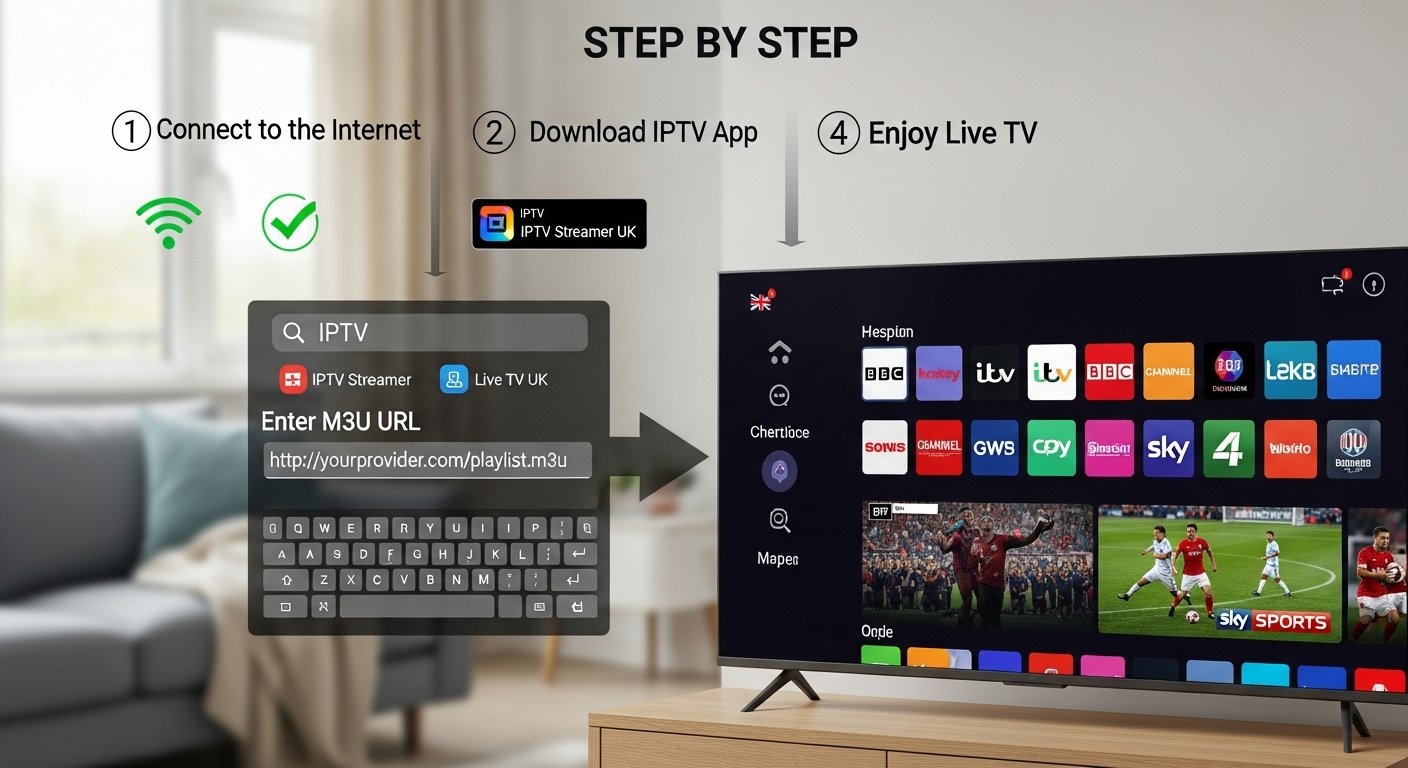
IPTV for Every Household: Retirees, Students, and Families

What is IPTV? Plain-English explanation

IPTV means Internet Protocol Television: video delivered over the internet rather than by satellite dish or cable. That delivery method can carry legal, licensed services (broadcaster apps, ISP-managed TV, paid SVOD) — or illegal pirate services that resell unlicensed streams. The delivery style doesn’t determine legality; rights do. IPTV for All Homes.

Delivery vs rights: why that difference matters

  • Delivery = how the video reaches you (IP packets over broadband).
  • Rights = whether the service has permission to distribute the content in the United Kingdom.
    So, an iptv subscription from an authorised UK provider is legal; an anonymous seller on social media offering “all channels for £5” almost certainly is not. Legal services protect you from outages, malware, and legal risk.

Common IPTV formats and players

  • Native apps on Smart TVs: BBC iPlayer, ITVX, All 4, Netflix, Disney+.
  • Streaming sticks / devices: Amazon Fire Stick, Chromecast with Google TV, Roku.
  • Front-end players: TiviMate (Android TV), IPTV Smarters Pro (Android/Fire TV) — these are players that load playlists (M3U/Xtream) or provider APIs; the legality depends on the source.
  • ISP-managed IPTV: BT TV, Sky Stream, Virgin Media — these are licensed services with clear support.

Why IPTV works for different households

Retirees: simplicity and catch-up

Retirees typically want simplicity, good readability and plenty of catch-up or classic content. IPTV for All Homes. They benefit from:

  • Big-font UIs and single-device simplicity (Smart TV or one Fire Stick).
  • Catch-up apps like BBC iPlayer and BritBox for classics.
  • Minimal monthly cost.

Students: budget and portability

Students need cheap, portable solutions:

  • Use phone/tablet apps and a small Fire Stick or Chromecast.
  • Rotate subscriptions via iptv uk free trial offers and student discounts.
  • Prioritise portability — watch on the move between halls and flats.

Families: multi-room streaming and parental control

Families require:

  • Multiple simultaneous streams and robust parental controls.
  • Short-term passes (e.g., NOW Sports pass) for big events instead of long contracts.
  • Front-end EPGs (TiviMate) for easy channel navigation if using an IPTV provider.

Key benefits everyone shares

Cost, choice and device flexibility

IPTV lets you pay for what you use: keep free catch-up apps, add one or two paid pillars (Netflix, Prime, Disney+) and buy seasonal passes for sport. Devices range from low-cost sticks to full Smart TVs. IPTV for All Homes.

Content variety: local, niche and international

IPTV ecosystems offer local UK programming, international channels (useful for multicultural households), and niche content via FAST (Free Ad-Supported TV) apps like Pluto TV and Tubi.

Devices, apps and front-ends: match to needs

Smart TV vs streaming stick vs set-top box

  • Smart TV: easiest for retirees — minimal extra hardware.
  • Streaming stick (Fire Stick/Chromecast): best value and portability for students.
  • Android TV box / Shield: best for families and power users who want TiviMate/advanced EPG and stronger codec support.

Recommended apps and players

  • Official: BBC iPlayer, ITVX, All 4, Freeview Play, Netflix, Amazon Prime Video, Disney+.
  • Players: TiviMate for polished EPG-driven playlists (Android TV); IPTV Smarters Pro for flexible playlist/Xtream API support on Fire/Android (use only with licensed sources).

Step-by-step: Build your household IPTV setup

Below is a practical 800-word walkthrough you can follow end-to-end to set up a legal, safe, and optimised IPTV system tailored to retirees, students, or families. This is the core, actionable piece — follow the steps carefully.

Step 1 — Audit viewing needs and budget

Grab recent statements and list current TV and streaming spend (Sky, Netflix, Amazon, mobile data). Meanwhile, for one week, note who watches what and when: live sport, news, kids’ shows, box sets. Classify each item as Must-have (live sport, BBC news), Nice-to-have (first-run films), or Rarely-used (premium movie channels). This clarifies priorities and the likely cost savers.

Step 2 — Choose legal sources and avoid pirate iptv subscriptions

Start with legal building blocks: BBC iPlayer, ITVX, All 4, My5, Freeview Play (all free). Add one or two paid pillars depending on taste: Netflix (broad drama), Amazon Prime Video (movies + channels), Disney+ (family franchises). For sport, prefer official passes (NOW Sports, BT, DAZN) or short-term season passes. If you’re tempted by a third-party iptv subscription provider, demand company details, invoices, and proof of rights — if they can’t provide these, walk away. Never buy “pre-loaded” sticks or accept APKs from unknown sites. IPTV for All Homes.

Step 3 — Pick devices and install apps

Device choice matters by household:

  • Retiree: Smart TV or Fire Stick. When setting up, increase font size, enable “simple mode” if available, and pin core apps to the home screen. Install BBC iPlayer, Freeview Play, and maybe BritBox.
  • Student: Fire Stick or Chromecast plus phone apps. Keep credentials portable and use student offers. Install Netflix, Prime, and carry the Fire Stick between locations.
  • Family: Android TV box or Fire Sticks for each TV. For main TV, consider NVIDIA Shield or an Android TV box supporting TiviMate (gives an excellent EPG when using a legal playlist). Install parental controls and create profiles (Netflix, Disney+).

For a Fire Stick: plug into HDMI, sign into Amazon, go to the Appstore, search & install each app. For Android TV boxes: use Google Play for apps like TiviMate and official streaming apps — avoid sideloading unknown APKs.

Step 4 — Configure profiles, parental controls and accessibility

Set up user profiles for children and adults in Netflix/Disney+/Prime. In TV settings, enforce PIN locks on purchases. For young retirees, set larger text and voice control (Alexa/Google Assistant). Use routers’ parental controls or third-party tools (e.g., OpenDNS) to set time limits or site restrictions. IPTV for All Homes.

Step 5 — Optimise network for streaming

A stable network matters more than anything:

  • Prefer Ethernet for the main living-room TV; use a powerline adapter if needed.
  • If Wi-Fi, use 5GHz and a modern router (Wi-Fi 5 or Wi-Fi 6). Position the router centrally or use mesh nodes for larger homes.
  • For families with multiple concurrent streams, aim for at least 100 Mbps down if you want multiple 4K streams; for HD stacks, 25–50 Mbps is typically fine.
  • Enable Quality of Service (QoS) to prioritise TV devices during evenings.

Step 6 — Test during peak times, iterate and manage costs

Before cancelling legacy services, run a 48–72 hour test: stream live channels, watch a 4K title, and stream simultaneously to two or three devices. Time tests for evening peak hours. If using any iptv uk free trial, note the start and end date and set a calendar reminder to cancel if it’s not needed. After tests, compare quality and cost, then decide whether to fully switch. For families, trial seasonal sport passes only when tournaments are active. Every 3 months, review subscriptions to remove under-used services and rotate trials to keep costs low. IPTV for All Homes.

Sample stacks: retiree, student and family configurations

Retiree stack (simple & comfy)

  • Device: Smart TV or Fire Stick.
  • Apps: BBC iPlayer, Freeview Play, BritBox, YouTube.
  • Cost: minimal — maybe BritBox or ITV Hub+ if desired.
  • Focus: readable UI, easy remote.

Student stack (portable & cheap

  • Device: Fire Stick / Chromecast, phone apps.
  • Apps: Free apps + Netflix Basic or shared Prime, rotate trials.
  • Cost: low — prioritise discounts & trials.

Family stack (multi-room & sport-ready)

  • Devices: Fire Stick per TV or Android TV box + TiviMate on main.
  • Apps: Freeview Play, Netflix/Disney+, Prime, NOW Sports when needed.
  • Cost: moderate — use short-term sport passes to save.

Legal, safety & TV licence reminders

  • TV Licence: In the UK, watching live TV or using BBC iPlayer requires a valid TV Licence. On-demand-only users (Netflix etc.) generally do not require a licence, but mixing live streaming and iPlayer does.
  • Avoid illegal services: Don’t buy anonymous playlists, pre-loaded sticks, or pirate iptv subscrition — they risk malware, data theft and legal trouble.
  • Use official stores (Amazon Appstore, Google Play, Samsung/LG) for apps.
  • Secure payments: Pay by card or PayPal for consumer protections.

Troubleshooting common issues

  • Buffering: switch to Ethernet, 5GHz Wi-Fi, or lower quality. Check ISP speed.
  • App crashes: update app/firmware, clear cache, reinstall.
  • Login problems: reset passwords, check subscription status, region locks.
  • EPG missing: use native app guides or TiviMate with a legitimate EPG source.

Money-saving and trial strategies

  • Use iptv uk free trial offers on official sites only and set calendar reminders.
  • Rotate subscriptions by binge-watching one service at a time.
  • Use NOW-style monthly passes for sport and cancel after the season.
  • Share family plans within household limits to split costs.

Future-proofing: codecs, Wi-Fi and accessibility

  • Prefer devices with HEVC (H.265) or AV1 decoding for efficient 4K streaming.
  • Upgrade routers to Wi-Fi 6 or use mesh to support many simultaneous streams.
  • Look for devices with voice control and good accessibility features for retirees.

Conclusion: quick checklist & takeaways

Checklist before switching:

  1. Audit who watches what and tally monthly costs.
  2. Start with free legal apps (BBC iPlayer, ITVX) and one paid pillar.
  3. Use official British iptv uk free trial offers and test during peak hours.
  4. Choose devices from official retailers (Fire Stick, Chromecast, Android TV).
  5. Avoid pirate iptv subscriptions, pre-loaded sticks and sideloaded APKs.
  6. Secure devices, use Ethernet/5GHz Wi-Fi and enable parental controls.
  7. Keep a calendar reminder for trial ends and quarterly subscription reviews.

IPTV can serve retirees, students, and families well — when done legally and thoughtfully. Pick devices and subscriptions that match needs, secure your network, and use trials smartly. Enjoy more choice, better budgets, and modern convenience. IPTV for All Homes.

FAQs

Q1 — Do I need a TV Licence to use IPTV in the UK?
A: Yes — if you watch live TV (including via IPTV) or use BBC iPlayer you need a TV Licence. On-demand-only services like Netflix generally do not require a licence.

Q2 — Are apps like TiviMate and IPTV Smarters Pro illegal?
A: No — they are legal front-end players. Legality depends on the streams you load; use them only with licensed providers.

Q3 — What’s the cheapest legal setup for students?
A: A cheap Fire Stick + free apps (iPlayer, Freeview Play) + one paid pillar on rotation (use official iptv uk free trial offers) is often cheapest.

Q4 — Should retirees avoid streaming sticks?
A: Not necessarily — retirees benefit from Smart TVs for simplicity, but a Fire Stick with a simplified launcher works too. Provide a short cheat sheet and set large fonts.

Q5 — How can families manage sport without a Sky contract?
A: Use modular passes like NOW Sports for the season or event-specific passes offered by rights holders — buy only when you need them.

Troubleshooting IPTV: Fix Buffering, Freezing & Lag Fast

Introduction:

IPTV (Internet Protocol Television) has revolutionized how people in the UK consume entertainment. With hundreds of live channels, on-demand movies, and catch-up TV at a fraction of cable’s cost, IPTV offers flexibility, value, and freedom. But like any streaming-based service, issues like buffering, freezing, and lag can ruin the experience. IPTV Buffering Fix Guide.

If you’ve ever sat through an exciting football match only to have the picture freeze mid-goal, you know how frustrating it can be. The good news is that most IPTV performance issues are fixable — often with a few simple adjustments to your internet, settings, or device.

This in-depth guide explains everything you need to know to troubleshoot IPTV issues quickly — whether you’re using a Fire Stick, Smart TV, Android box, or mobile app. We’ll cover network optimization, device performance, ISP issues, server-side problems, and the best settings to ensure smooth, stable streaming across your entire home.

1. Understanding IPTV Streaming Problems

Before we dive into fixes, it’s important to understand why IPTV buffers or freezes in the first place. IPTV relies on real-time internet delivery, so any weak link in your connection chain can cause disruptions.

Common Causes of IPTV Buffering, Freezing, and Lag

  1. Slow Internet Speeds:
    If your broadband speed drops below 10 Mbps for HD or 20 Mbps for 4K, IPTV apps struggle to maintain continuous playback.
  2. Wi-Fi Interference or Weak Signal:
    Wi-Fi signals weaken through walls, floors, or distance from your router, causing unstable streaming.
  3. ISP Throttling (Traffic Shaping):
    Some ISPs limit or “throttle” IPTV traffic, especially during peak hours, leading to lag or constant buffering.
  4. Overloaded IPTV Servers:
    If the IPTV provider’s servers are congested, even a fast connection can’t help — the issue is on their end.
  5. Outdated Apps or Firmware:
    Older app versions or unpatched firmware can cause software conflicts or performance bugs.
  6. Device Overheating or Low Performance:
    Cheap or older devices may overheat or run out of memory, leading to freezing or sluggish playback.
  7. VPN Conflicts:
    Using a poorly configured VPN can slow streaming or block server connections altogether.

By identifying where the problem lies — your network, device, app, or provider — you can quickly apply the right fix.

2. Step-by-Step IPTV Troubleshooting Checklist

Let’s go through each layer of your IPTV setup to pinpoint and solve performance problems efficiently.

Step 1: Test Your Internet Speed

  • Go to speedtest.net or fast.com and check your download speed.
  • For smooth IPTV:
    • SD streaming: 5 Mbps minimum
    • HD streaming: 10 Mbps minimum
    • 4K UHD: 20–30 Mbps minimum
  • If speeds are lower, restart your router and retest. If it doesn’t improve, contact your ISP.

Pro Tip: If multiple people in your household are gaming, downloading, or watching YouTube at the same time, it can impact IPTV performance. Schedule updates and downloads for off-peak hours.

Step 2: Switch from Wi-Fi to Ethernet

Wireless is convenient, but wired connections are faster and more reliable for IPTV.
If possible, connect your device directly to the router via an Ethernet cable.

Why Ethernet is better:

  • Zero interference from walls or neighboring networks.
  • Consistent bandwidth delivery.
  • Lower latency and jitter — critical for live sports or interactive IPTV apps.

If Ethernet isn’t possible, consider:

  • A Wi-Fi 6 router (better range and performance).
  • A powerline adapter, which extends your connection through home wiring.
  • A mesh Wi-Fi system for multi-room coverage.

Step 3: Restart Everything

It sounds simple, but a restart can clear temporary memory leaks, cache buildup, and unstable connections. IPTV Buffering Fix Guide.

  1. Turn off your IPTV device (TV, Fire Stick, box).
  2. Unplug your router/modem for 30 seconds, then plug it back in.
  3. Wait for the network to fully reboot.
  4. Reopen your IPTV app and test playback.

Why this works:
Restarting resets your DHCP lease, clears cache, and forces your IPTV app to reconnect to the most stable server path.

Step 4: Update Apps and Firmware

Outdated apps or operating systems are a leading cause of IPTV instability.

  • Go to your device’s app store (Play Store, App Store, Amazon Appstore) and check for IPTV app updates.
  • Also, check for device firmware or OS updates.
    • Smart TVs: via Settings > Support > Software Update
    • Fire Stick: Settings > My Fire TV > About > Check for Updates
    • Android Boxes: via Settings > About > System Update

Pro Tip: Enable auto-updates so you never miss performance or security patches.

Step 5: Clear IPTV App Cache and Data

If your IPTV app keeps freezing, clearing cached files can refresh performance.

On Android / Fire Stick:

  1. Navigate to Applications > Settings > Manage Installed Apps.
  2. Choose your IPTV app (e.g., IPTV Smarters, TiviMate, or Smart IPTV).
  3. Select Clear Cache and Clear Data.

Why it helps:
Cache files can become corrupted or oversized, especially after software updates. Clearing them forces a clean reconnect to IPTV servers.

Step 6: Check for Server Issues (Provider Side)

Sometimes the issue isn’t you — it’s the IPTV provider.

  • Try a few different channels. If all are freezing, it’s likely your network or device.
  • If only certain channels buffer, it’s likely the provider’s feed for that specific stream.
  • Test the same channel on another device — if it works fine, your device or app is the issue.

Pro Tip: Many IPTV providers maintain backup servers or multiple playlists. Ask your provider for an alternative M3U or XC link and test performance.

Step 7: Use a Reliable VPN (for ISP Throttling)

If your ISP is throttling IPTV traffic, a VPN can help by encrypting your connection.

However, not all VPNs are equal. Avoid free VPNs — they often slow streaming. Instead, use reputable providers optimized for IPTV.

Recommended Features:

  • Fast UK or EU servers
  • No data caps
  • Split tunneling (to keep non-IPTV traffic off the VPN)
  • Support for routers or Fire Stick apps

Caution: Some IPTV providers block VPNs for licensing reasons. Always test with and without the VPN to compare performance.

3. Advanced IPTV Troubleshooting Techniques

If you’ve followed all the basic steps and still face issues, deeper optimizations may help.

A. Adjust Buffer Settings

Some IPTV apps allow you to tweak buffering time. Increasing the pre-buffer (e.g., from 5 seconds to 10 seconds) helps maintain smooth playback during small network fluctuations. IPTV Buffering Fix Guide.

  • In TiviMate or IPTV Smarters Pro, look for:
    • Settings → Player → Buffer Size
  • Experiment with small increments; too large a buffer increases start time.

B. Change Video Player or Decoder

Different players and codecs handle streaming differently.
Try switching between hardware and software decoding in your IPTV app settings.

  • Hardware decoding uses the device’s chipset — more efficient and smoother.
  • Software decoding relies on CPU — useful for older or incompatible hardware.

Try both and observe which gives more stable playback.

C. Disable Background Apps

On low-power devices (Fire Stick, Android boxes), background apps consume RAM and CPU.

Steps:

  • Close all other apps before launching IPTV.
  • Uninstall unused apps.
  • Disable animations or background sync if possible.

Bonus Tip:
Use lightweight launchers like Wolf Launcher or Leanback Launcher for faster navigation.

D. Use Quality of Service (QoS) on Router

Many modern routers include QoS settings, letting you prioritize IPTV traffic.

Steps:

  1. Log into your router’s web panel.
  2. Find “QoS” or “Traffic Prioritization.”
  3. Add your IPTV device’s MAC address or IP address.
  4. Assign it high priority.

Result: IPTV packets get sent first, reducing stutter and lag.

E. Update Router Firmware

Routers benefit from regular firmware updates — improving speed, compatibility, and stability.

  • Visit your router brand’s website (e.g., TP-Link, Asus, Netgear).
  • Check the latest firmware and follow update instructions carefully.
  • Reboot after updating.

F. Test on Another Network

Try your IPTV connection on a mobile hotspot or friend’s Wi-Fi.
If it works fine elsewhere, your home ISP or router is the culprit.

Contact your ISP and ask if IPTV streaming is being restricted or blocked. IPTV Buffering Fix Guide.

4. IPTV App-Specific Fixes

Different IPTV apps have their quirks. Here are tailored tips for the most popular ones:

IPTV Smarters Pro

  • Clear cache frequently.
  • Use the default built-in player instead of VLC or MX if streams stutter.
  • Update playlist URLs regularly to avoid expired links.

TiviMate

  • Enable “Playback Buffer Size: Large” for smoother playback.
  • Try changing “Decoder” mode to “Hardware.”
  • Sync EPG sources manually if channels load slowly.

Smart IPTV (SIPTV)

  • If buffering persists, reload the playlist from the provider’s portal.
  • Delete unused channels or lists to reduce load time.
  • Use Ethernet only for best results — Wi-Fi performance varies.

5. Preventing Future IPTV Problems

Once you’ve fixed your IPTV issues, follow these proactive measures to prevent them from returning.

  1. Reboot router weekly to refresh connections.
  2. Clear app cache monthly.
  3. Avoid running IPTV during heavy downloads or cloud backups.
  4. Upgrade router every 3–5 years for modern standards (Wi-Fi 6/6E).
  5. Use a wired connection whenever possible.
  6. Choose a reliable IPTV provider with strong server infrastructure.
  7. Test channels periodically to ensure your playlist is active and healthy.

6. When to Replace or Upgrade Hardware

Some older or budget devices simply can’t handle modern high-bitrate streams.
If you’ve tried everything and still experience lag, consider upgrading.

Recommended Devices for IPTV:

  • Amazon Fire TV Stick 4K Max (Wi-Fi 6 support, great performance)
  • NVIDIA Shield TV (best for advanced users, supports all codecs)
  • Chromecast with Google TV (budget-friendly and stable)
  • Smart TVs (2023+) with native AV1 and HEVC decoding

Routers:

  • TP-Link Archer AX55, Asus RT-AX86U, or Netgear Nighthawk series — all Wi-Fi 6 ready. IPTV Buffering Fix Guide.

7. Diagnosing ISP and Regional Problems

If your IPTV freezes mostly at specific times (evenings, weekends), it could be ISP congestion.

Signs of ISP Throttling

  • Speed tests show normal results, but IPTV lags.
  • VPN improves streaming instantly.
  • Issues occur only during peak hours.

Solutions:

  • Contact your ISP to discuss “video streaming performance.”
  • Use a VPN server geographically close to your provider’s IPTV server.
  • Consider switching ISPs that don’t throttle IPTV.

8. Quick IPTV Fix Summary

ProblemCauseQuick Fix
Constant bufferingWeak Wi-FiUse Ethernet or Wi-Fi 6
Freezing every few secondsServer overloadTry alternate playlist or provider
IPTV Smarters laggingCache overloadClear cache/data
Lag during peak hoursISP throttlingUse VPN
App keeps crashingOutdated versionUpdate or reinstall
Channel not loadingURL expiredRefresh playlist
Picture drops in qualityNetwork fluctuationEnable adaptive bitrate streaming


9. Expert Tips: Optimize for Zero Buffering

  • Use AV1 or HEVC streams for lower bandwidth consumption.
  • Keep your router elevated and unobstructed.
  • Set IPTV apps to auto-reconnect when streams drop.
  • Use mesh Wi-Fi nodes in multi-room homes.
  • Avoid overheating devices — give them ventilation space.

Conclusion: Enjoy Smooth, Reliable IPTV Streaming

Troubleshooting IPTV doesn’t have to be a nightmare. By understanding how IPTV works — and applying the step-by-step solutions outlined here — you can eliminate buffering, freezing, and lag permanently. IPTV Buffering Fix Guide.

The key is to optimize every layer: your internet speed, Wi-Fi strength, app settings, and device health. With a stable setup and modern equipment, IPTV can deliver cinema-quality entertainment to every room in your home without the frustration of interruptions.

Whether you’re watching Premier League football, family movies, or binge-worthy box sets, these tips will ensure your IPTV experience stays fast, fluid, and frustration-free.

IPTV FREE TRIAL

What Is IPTV? The Complete Guide for UK Viewers

Television is no longer what it used to be. In the UK, the days of relying solely on rooftop aerials, bulky satellite dishes, or expensive cable packages are fading. Instead, a new standard is shaping the future of entertainment: IPTV (Internet Protocol Television). Best IPTV services UK .

If you’ve heard the term but aren’t sure what it means, how it works, or whether it’s right for your home, you’re not alone. IPTV has quickly become one of the most talked-about topics in the UK TV landscape, yet for many, it’s still surrounded by confusion.

  1. IPTV Defined: What It Really Means

IPTV stands for Internet Protocol Television. Put simply, it’s TV delivered over the internet rather than via traditional broadcast methods such as:

  • Terrestrial signals (Freeview aerials)
  • Satellite dishes (Sky, Freesat)
  • Cable coaxial networks (Virgin Media)

Instead of using airwaves or satellites, IPTV uses your broadband connection to send video data to your device (TV, laptop, smartphone, or set-top box). The “IP” in IPTV refers to the same Internet Protocol that powers web browsing and emails.

Think of IPTV as TV streamed through apps, but with added flexibility: you can watch live channels, pause and rewind broadcasts, access on-demand shows, and sometimes even subscribe to custom channel packages.

2. How IPTV Works (In Everyday Language)

The technical explanation involves content servers, streaming protocols, and packet switching, but here’s the everyday breakdown for UK viewers:

  1. Broadcasters and content providers make live channels and shows available through IPTV platforms.
  2. Instead of broadcasting through satellite signals, the content is encoded into data packets.
  3. These packets travel across your broadband connection to your device.
  4. A compatible app (like BBC iPlayer, ITVX, NOW, or a dedicated IPTV app) decodes and plays the stream.

If you’ve ever watched Netflix, YouTube, or Amazon Prime Video, you’ve already used IPTV — those are on-demand IPTV services . The difference is that IPTV can also provide live TV channels, much like Sky or Freeview.

3. Types of IPTV Services in the UK

Not all IPTV is the same. For British viewers, there are four main categories to understand:

a) Catch-Up & On-Demand IPTV

  • Examples: BBC iPlayer, ITVX, All 4, My5, Netflix, Disney+, Amazon Prime Video.
  • How it works: Watch shows or films whenever you like, not tied to a schedule.
  • Best for: Families, binge-watchers, and those who hate missing episodes.

b) Live TV IPTV (OTT Services)

  • Examples: NOW (Sky’s streaming service), Discovery+, Sky Stream, Virgin Stream.
  • How it works: Access live TV channels, including sports and movies, without a satellite dish or long-term contract.
  • Best for: Sports fans, news watchers, and households who want real-time TV.

c) FAST Channels (Free Ad-Supported Streaming TV)

  • Examples: Pluto TV, Samsung TV Plus, Rakuten TV channels.
  • How it works: Free linear-style channels supported by ads (like old-school TV).
  • Best for: Budget-conscious households who don’t mind adverts.

d) Illegal IPTV Services (⚠️ Avoid These)

  • Examples: Shady providers selling “all Sky Sports + all movies” for £10/month through sideloaded apps.
  • How it works: Pirated streams with no licensing, unstable quality, and high legal risks.
  • Best for: Nobody. These services are illegal in the UK and can expose you to malware, scams, and prosecution.

4. Legal vs Illegal IPTV in the UK

This is an important distinction.

  • Legal IPTV = Services with proper broadcasting rights (e.g., BBC iPlayer, NOW, Discovery+, Netflix, Prime).
  • Illegal IPTV = Unlicensed providers reselling pirated streams, often marketed as “premium IPTV” with hundreds of channels for suspiciously low prices.

Why illegal IPTV is risky:

  • Poor stream quality (buffering, channel blackouts).
  • No customer support or guarantee of service.
  • Malware risks from sideloaded apps.
  • Potential fines or legal action — in 2024, several UK users were prosecuted for using pirate IPTV.
  • No parental controls or content protections.

👉 Rule of thumb: If it seems too cheap to be true, it’s almost certainly illegal. Stick with licensed IPTV services for peace of mind. Best IPTV services UK.

5. IPTV vs Traditional UK TV (Freeview, Sky, Virgin, BT)

How does IPTV actually compare with older TV delivery methods?

FeatureFreeviewSky/Virgin (Satellite & Cable)IPTV (Legal)
CostFree (with TV licence)£40–£100/month£0–£40/month depending on services
Channels70+ free300+ bundledCustom mix (free + paid apps)
SportsLimited (BBC, ITV highlights)Extensive (Sky Sports, TNT, F1)Flexible (NOW, Discovery+, Amazon)
FlexibilityLive-only, limited catch-upLong contracts, bundlesMonth-to-month subscriptions
HardwareAerial + Freeview box/TVSatellite dish or cable boxSmart TV, Fire Stick, Roku, etc.
Parental ControlsBasicStandardAdvanced (profiles, PINs, kids’ apps)

For many UK families, IPTV provides the sweet spot: lower costs, more choice, and no installation headaches.

6. Why UK Families Are Switching to IPTV

a) Lower Costs

  • Families save hundreds of pounds per year by dropping Sky/Virgin bundles in favour of IPTV apps.

b) Flexibility

  • Cancel anytime. Pay for sports only during football season.

c) Multi-Device Viewing

  • Watch on TVs, tablets, phones, or laptops — ideal for busy households.

d) Parental Controls

  • Safer kids’ profiles on Netflix, Disney+, and iPlayer Kids apps.

e) No Installation Required

  • Works over broadband — no engineer, dish, or drilling needed.

7. IPTV Devices in the UK (2025)

You’ll need a device to access IPTV. Best IPTV services UK.  The good news is most UK homes already have one.

a) Smart TVs

  • Samsung, LG, Sony, Hisense, etc. come with built-in apps like iPlayer and Netflix.
  • Pros: Simple, no extra device needed.
  • Cons: App updates may lag on older models.

b) Streaming Sticks & Boxes

  • Amazon Fire TV Stick 4K/Max
  • Google Chromecast with Google TV
  • Roku Streaming Stick
  • Apple TV 4K
  • Nvidia Shield TV (for advanced users)
  • Pros: Affordable, portable, wide app support.
  • Cons: Need a separate stick per TV.

c) Games Consoles

  • PlayStation 5 and Xbox Series X/S double as IPTV hubs.

d) Set-Top IPTV Boxes from ISPs

  • Sky Stream, EE TV, Virgin Stream — convenient but often pricier.

8. Sports on IPTV (Premier League, F1 & More)

Sports is the number one reason many families hesitate to cut the cord. Here’s how IPTV handles it in the UK:

  • Premier League: Split across Sky Sports (NOW), TNT Sports (Discovery+), and occasional Amazon Prime matches.
  • F1: Sky Sports F1 (NOW) or extended coverage on Channel 4 highlights.
  • Champions League: TNT Sports via Discovery+.
  • Tennis, Rugby, Golf: Mix of Sky, TNT, and free-to-air.

IPTV Sports Strategy:

  • Use NOW Sports Month Pass during key football months.
  • Subscribe to Discovery+ for Champions League coverage.
  • Use free highlights on BBC and ITV for casual viewing.

This seasonal rotation saves money while keeping sports fans happy.

9. IPTV for Kids & Families

Parents appreciate IPTV for its child-friendly features:

  • Profiles: Disney+, Netflix, and iPlayer Kids allow separate kid logins.
  • Parental Controls: PINs, restricted ratings, purchase blocks.
  • Educational Content: BBC Bitesize, National Geographic, Discovery+.
  • Kids’ Channels on FAST: Free cartoon channels on Pluto TV and Samsung TV Plus.

10. Setting Up IPTV in the UK

Here’s a step-by-step setup guide:

  1. Check broadband speed: Aim for at least 25 Mbps per stream (50–100 Mbps for busy households).
  2. Choose your device: Smart TV or Fire Stick recommended.
  3. Download legal apps: BBC iPlayer, ITVX, All 4, Netflix, NOW, Discovery+.
  4. Create profiles: Set up kids’ accounts and parental controls.
  5. Trial & rotate: Start with free apps, then add paid ones during busy TV seasons.

11. Common IPTV Problems & Fixes

  • Buffering → Upgrade broadband speed, use wired Ethernet, or invest in mesh Wi-Fi.
  • App not working → Update apps/firmware, reinstall, or use a different device.
  • Geo-blocking issues → Some UK content won’t work abroad. (BBC iPlayer requires a UK licence fee and IP address).
  • Confusion over subscriptions → Use a calendar to track start/end dates and avoid unwanted renewals.

12. Future of IPTV in the UK (2025 and Beyond)

IPTV isn’t just the present — it’s the future. Expect:

  • More FAST Channels (free, ad-supported live TV).
  • AI-powered recommendations for personalized family viewing.
  • 5G-enabled streaming for seamless mobile IPTV.
  • AV1 codec adoption for better quality at lower bandwidth.
  • Deeper integration with smart home assistants (voice-controlled TV).

13. IPTV Provider Checklist (UK Viewers)

Before signing up, ask these questions:

  • ✅ Is the service licensed in the UK?
  • ✅ Does it have parental controls?
  • ✅ Can you cancel anytime?
  • ✅ Is the app available on multiple devices?
  • ✅ Do reviews confirm good reliability?

If the answer is “no” to most, look elsewhere.

14. Final Thoughts: Is IPTV Right for You?

For UK viewers in 2025, IPTV is no longer niche — it’s the mainstream way to watch TV. Families are switching because:

  • It’s cheaper than Sky or Virgin.
  • It offers more flexibility with subscriptions.
  • It works across devices you already own.
  • It gives parents more control over what kids watch.

The only real barriers are sports rights and unreliable broadband. But with smart seasonal subscriptions and the UK’s expanding fibre rollout, those hurdles are getting smaller every year. Best IPTV services UK.

IPTV FREE TRIAL