“4K and HD IPTV in the UK: Getting the Best Quality for Your Money”

Why 4K matters — and when HD is still perfectly fine

4K (Ultra HD) offers roughly four times the pixel count of 1080p HD. Premium UK IPTV Quality. The differences:

  • Resolution: 3840×2160 (4K) vs 1920×1080 (Full HD).
  • Detail: crisper textures, better upscaling, more immersive sports and nature footage.
  • Bandwidth: 4K consumes much more data and requires better network conditions.
  • Viewing distance & screen size: 4K payoff increases on large screens (55″+) or close viewing distances.

However, HD remains excellent for many UK households because:

  • Many channels and live sports are still distributed in HD.
  • On smaller TVs (under ~50″), difference is subtle.
  • HD requires less bandwidth and cheaper hardware, so it often gives better reliability for the money.

If you’re shopping for best iptv service in the united kingdom iptv market, consider whether you truly need 4K, or whether robust HD with good reliability is better value. Premium UK IPTV Quality.

What affects picture quality on IPTV?

  1. Source stream quality from the provider — the single most important factor. A cheap iptv subscription that rebroadcasts low-bitrate streams will look poor even if your TV is top tier.
  2. Encoding (codec) — H.265/HEVC or AV1 provide better compression for 4K, reducing required bandwidth. Providers still using old codecs can force higher bandwidth for the same quality.
  3. Bandwidth and latency — more on this below.
  4. Home network — Wi-Fi congestion, poor router, or long coax/ethernet runs matter.
  5. Player software and buffering — apps like IPTV Smarters Pro or hardware players behave differently.
  6. TV settings and HDMI — set TV to the correct HDMI input settings, enable UHD deep color, and use HDMI 2.0/2.1 for 4K60.
  7. Device decode capability — hardware must support the codec used (HEVC/AV1).

Bandwidth and data: what you need for HD and 4K IPTV

Estimate (general guidance):

  • SD: 1.5–3 Mbps
  • HD (720p/1080p): 4–8 Mbps stable per stream
  • 1080p high-bitrate sports: 8–12 Mbps
  • 4K (HEVC): 15–25 Mbps steady per stream
  • 4K (low compression or older codecs): 25–50+ Mbps

For a household using IPTV subscriptions, plan for multiple concurrent streams. Example: two 4K streams + one HD stream ≈ 40–60 Mbps recommended.

Note: ISP throughput must be consistent. Peak throughput is not enough — sustained throughput matters. If you’re hunting a good iptv provider in the UK, test using an iptv uk free trial while running a sustained speed test. Premium UK IPTV Quality.

Picking the right IPTV provider in the UK

When choosing a UK service or iptv provider, evaluate these factors:

  1. Legitimacy & rights — prefer licensed services. “Too good to be true” channel lists often signal illicit streams that are unstable or shut down.
  2. 4K availability — is true 4K offered or upscaled HD branded as 4K?
  3. Codec & bitrate transparency — ask if channels use HEVC/AV1 and published bitrates.
  4. Device support — Android TV, Fire TV, MAG boxes, Smart TV, iOS/Android, or web players. If you plan to use IPTV Smarters Pro or other apps, make sure provider supplies compatible playlists or portal URLs.
  5. Free trials — many legitimate providers have iptv uk free trial or short trial periods. Use them to check real-world performance.
  6. Customer support — live chat, response times, and replacement stream policies.
  7. Concurrent streams — how many simultaneous devices are allowed?
  8. Price vs channels vs reliability — cheaper = often less reliable; balance cost and quality.
  9. Reviews and uptime reports — user forums and social proof (but be wary of fake reviews).

Search for “best iptv 2025” or best iptv service but prioritize recent user experiences over marketing claims.

Devices and apps: what to buy and why

Smart TVs (Google TV, Android TV, LG, Samsung)

  • Convenient but app support differs. Android TV has largest app ecosystem; Samsung/LG may require vendor-specific apps or webOS apps.

Streaming sticks and boxes

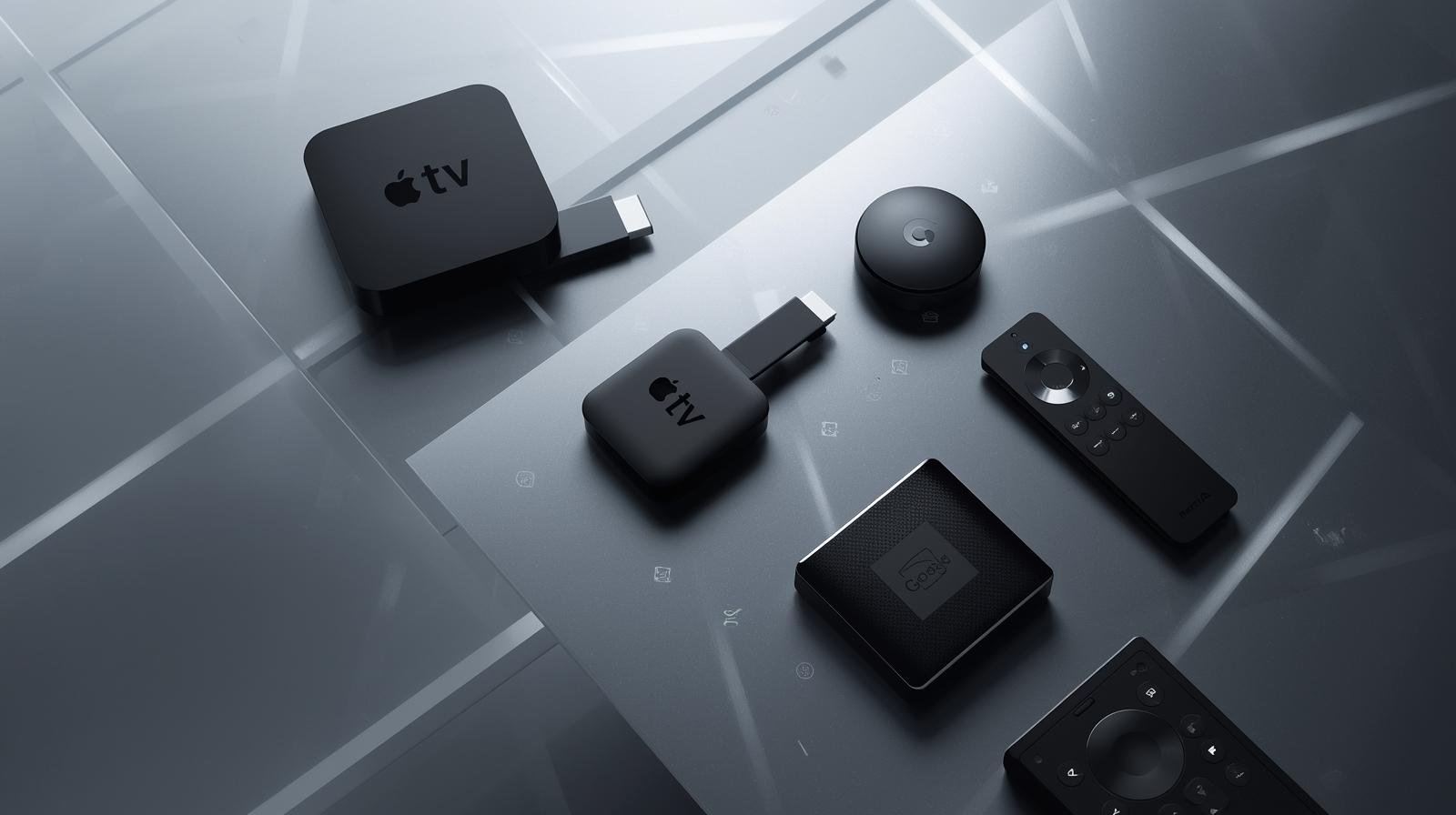
  • Amazon Fire TV Stick 4K Max, NVIDIA Shield (older but very capable), or Android TV boxes handle 4K and HEVC (check model specifics).
  • Cheaper generic Android boxes can work but may lack HEVC or stable networking.

Dedicated IPTV set-top boxes

  • MAG, Formuler and other set-top boxes are popular in IPTV circles; choose models with HEVC/AV1 and gigabit Ethernet.

Mobile devices and tablets

  • Good for portability, but small screen makes 4K irrelevant.

Important: IPTV Smarters / IPTV Smarters Pro

  • Popular middleware/player app; many UK users use IPTV Smarters Pro or similar players to load M3U playlists or Xtream Codes portals.
  • Pros: flexible, multi-platform.
  • Cons: depends on playlist/provider quality; keep apps updated.

Cabling & HDMI

  • For 4K60 HDR, use HDMI 2.0 minimum (HDMI 2.1 for higher refresh rates, VRR, or advanced HDR settings). Premium UK IPTV Quality.

Network best practices for consistent 4K/HD streaming

  1. Use wired Ethernet where possible — gigabit Ethernet to your TV or set-top ensures the most stable experience.
  2. If using Wi-Fi, use 5 GHz and a modern router — Wi-Fi 6 is preferable for households heavy with concurrent traffic.
  3. Quality of Service (QoS) — prioritize streaming devices to reduce buffering during heavy use.
  4. Separate SSIDs for guests — isolate bandwidth-hogs.
  5. Router placement and interference — keep routers central and away from microwaves, thick walls, etc.
  6. Use adaptive bitrate but monitor bitrate ceilings — if your provider clamps bitrate, it will cap quality.
  7. Check DNS and MTU — occasional throttling can be bypassed by alternate DNS or adjusted MTU, but do this only if you know what you’re doing. Premium UK IPTV Quality.

Picture settings & TV calibration for best results

  • Set TV input to the correct HDMI mode (enable UHD/Deep Color).
  • Turn on game mode only if you need low latency (temporary) but disable features that add noise reduction for sports.
  • Disable aggressive motion smoothing for films unless you like the effect.
  • Calibrate brightness/contrast and color profile (Cinema/Natural for movies).
  • Ensure HDR is enabled for HDR streams.

Troubleshooting common issues

Buffering or stuttering

  • Check bandwidth and concurrent streams.
  • Switch to wired Ethernet.
  • Lower resolution in player settings (switch HD→SD temporarily).
  • Try a different DNS.

Blocky or washed-out picture

  • Provider bitrate too low or wrong colour space (YUV vs RGB).
  • Player or TV not using correct HDR profile.

4K not showing even when provider claims 4K

  • Check HDMI cable spec and TV input settings.
  • Verify the player supports the codec (HEVC/AV1).
  • Confirm portal/playlist points to true 4K stream — sometimes labeled 4K but is upscaled.

Legal and safety considerations (UK)

  • Only use providers with legitimate rights to the content. Illicit IPTV services can be taken down, sold off, or fail without refund.
  • Using unauthorized streams may have legal and security risks.
  • If you want robust, legal British IPTV options, check established, licensed services and broadcasters in the United Kingdom IPTV ecosphere. Premium UK IPTV Quality.

Price vs quality: value checklists

When comparing iptv subscriptions and iptv services, use these quick checks:

  • Bandwidth & bitrate: does the provider publish sample bitrates for channels?
  • Trial policy: is there an iptv free trial or money-back window?
  • Uptime stats: do they publish or have verifiable uptime?
  • Device compat: are there apps for your devices (Android TV, Fire TV, MAG)?
  • Concurrent streams and account sharing policy.
  • Update frequency and support responsiveness.

Sometimes it’s better to pay a bit more for a trustworthy iptv provider than to save on a service that stutters during the game.

800-word step-by-step technical guide: every step explained in detail

Below is a focused, step-by-step technical walkthrough to get a 4K IPTV stream working at the best quality in a typical UK home.

  1. Choose and verify a provider (10–15 minutes)
    • Pick a provider that explicitly lists 4K channels and codec info. Sign up for an iptv uk free trial if available. During the trial, log into their portal on the device you will use (Smart TV, Fire TV, Android box, etc.). Confirm they provide a sample 4K stream file or channel. Ask support to provide the exact stream URL or sample M3U entry if you can — this helps test with network tools.
  2. Verify device codec and hardware decode capability
    • On your device, check the specs: does it list HEVC (H.265) hardware decode or AV1? For 4K60 HEVC decode is essential. Older devices only decode H.264 and will struggle. If the device lacks HEVC, you will need a newer box or streaming stick.
  3. Prepare your network: wired first
    • If possible, run a Gigabit Ethernet cable from your router to the streaming device. This eliminates Wi-Fi variability. If wiring isn’t feasible, place the device within strong 5 GHz Wi-Fi range of your router or use a Wi-Fi 6 access point/repeater set to the same SSID.
  4. Check bandwidth with sustained tests
    • Use a laptop on the same network to run a sustained speed test (e.g., 60-second download test) to confirm sustained throughput of at least 25–30 Mbps for a single 4K stream. Remember peaks aren’t enough — sustained throughput matters. For multiple streams multiply accordingly. Premium UK IPTV Quality.

Comparing top device + provider combos (practical examples)

  • Budget (reliable HD) — Fire TV Stick (non-max) + stable HD-focused provider. Good for ≤50″ TVs; cheaper.
  • Balanced (HD + occasional 4K) — Fire TV Stick 4K Max or modern Android TV box + midrange provider with selective 4K channels.
  • Enthusiast (true 4K) — NVIDIA Shield Pro or high-end Android TV box + provider that publishes HEVC/AV1 4K streams + gigabit wired network.

Buying checklist

  • Does the provider offer an iptv uk free trial?
  • Are there published bitrates and codecs (HEVC/AV1)?
  • Device supports HEVC/AV1 and HDMI 2.0/2.1?
  • Home broadband plan supports sustained 25+ Mbps per 4K stream?
  • Does the service allow required concurrent streams?
  • Are legal rights or licensing clear?

Closing — final recommendations

  1. Start with a trial. Use an iptv uk free trial to check real performance on your devices and network.
  2. Prioritize device and codec compatibility — HEVC/AV1 decode is essential for efficient 4K. If your TV or device lacks it, buy one that supports it.
  3. Use wired Ethernet for the best 4K experience. If you can’t, invest in a modern Wi-Fi 6 router or good 5 GHz coverage.
  4. Balance cost vs reliability — cheap iptv subscriptions often skimp on bitrate and support.
  5. For long-term peace of mind, prefer licensed providers in the UK to avoid interruptions and legal risk. Premium UK IPTV Quality.

IPTV for Every Household: Retirees, Students, and Families

What is IPTV? Plain-English explanation

IPTV means Internet Protocol Television: video delivered over the internet rather than by satellite dish or cable. That delivery method can carry legal, licensed services (broadcaster apps, ISP-managed TV, paid SVOD) — or illegal pirate services that resell unlicensed streams. The delivery style doesn’t determine legality; rights do. IPTV for All Homes.

Delivery vs rights: why that difference matters

  • Delivery = how the video reaches you (IP packets over broadband).
  • Rights = whether the service has permission to distribute the content in the United Kingdom.
    So, an iptv subscription from an authorised UK provider is legal; an anonymous seller on social media offering “all channels for £5” almost certainly is not. Legal services protect you from outages, malware, and legal risk.

Common IPTV formats and players

  • Native apps on Smart TVs: BBC iPlayer, ITVX, All 4, Netflix, Disney+.
  • Streaming sticks / devices: Amazon Fire Stick, Chromecast with Google TV, Roku.
  • Front-end players: TiviMate (Android TV), IPTV Smarters Pro (Android/Fire TV) — these are players that load playlists (M3U/Xtream) or provider APIs; the legality depends on the source.
  • ISP-managed IPTV: BT TV, Sky Stream, Virgin Media — these are licensed services with clear support.

Why IPTV works for different households

Retirees: simplicity and catch-up

Retirees typically want simplicity, good readability and plenty of catch-up or classic content. IPTV for All Homes. They benefit from:

  • Big-font UIs and single-device simplicity (Smart TV or one Fire Stick).
  • Catch-up apps like BBC iPlayer and BritBox for classics.
  • Minimal monthly cost.

Students: budget and portability

Students need cheap, portable solutions:

  • Use phone/tablet apps and a small Fire Stick or Chromecast.
  • Rotate subscriptions via iptv uk free trial offers and student discounts.
  • Prioritise portability — watch on the move between halls and flats.

Families: multi-room streaming and parental control

Families require:

  • Multiple simultaneous streams and robust parental controls.
  • Short-term passes (e.g., NOW Sports pass) for big events instead of long contracts.
  • Front-end EPGs (TiviMate) for easy channel navigation if using an IPTV provider.

Key benefits everyone shares

Cost, choice and device flexibility

IPTV lets you pay for what you use: keep free catch-up apps, add one or two paid pillars (Netflix, Prime, Disney+) and buy seasonal passes for sport. Devices range from low-cost sticks to full Smart TVs. IPTV for All Homes.

Content variety: local, niche and international

IPTV ecosystems offer local UK programming, international channels (useful for multicultural households), and niche content via FAST (Free Ad-Supported TV) apps like Pluto TV and Tubi.

Devices, apps and front-ends: match to needs

Smart TV vs streaming stick vs set-top box

  • Smart TV: easiest for retirees — minimal extra hardware.
  • Streaming stick (Fire Stick/Chromecast): best value and portability for students.
  • Android TV box / Shield: best for families and power users who want TiviMate/advanced EPG and stronger codec support.

Recommended apps and players

  • Official: BBC iPlayer, ITVX, All 4, Freeview Play, Netflix, Amazon Prime Video, Disney+.
  • Players: TiviMate for polished EPG-driven playlists (Android TV); IPTV Smarters Pro for flexible playlist/Xtream API support on Fire/Android (use only with licensed sources).

Step-by-step: Build your household IPTV setup

Below is a practical 800-word walkthrough you can follow end-to-end to set up a legal, safe, and optimised IPTV system tailored to retirees, students, or families. This is the core, actionable piece — follow the steps carefully.

Step 1 — Audit viewing needs and budget

Grab recent statements and list current TV and streaming spend (Sky, Netflix, Amazon, mobile data). Meanwhile, for one week, note who watches what and when: live sport, news, kids’ shows, box sets. Classify each item as Must-have (live sport, BBC news), Nice-to-have (first-run films), or Rarely-used (premium movie channels). This clarifies priorities and the likely cost savers.

Step 2 — Choose legal sources and avoid pirate iptv subscriptions

Start with legal building blocks: BBC iPlayer, ITVX, All 4, My5, Freeview Play (all free). Add one or two paid pillars depending on taste: Netflix (broad drama), Amazon Prime Video (movies + channels), Disney+ (family franchises). For sport, prefer official passes (NOW Sports, BT, DAZN) or short-term season passes. If you’re tempted by a third-party iptv subscription provider, demand company details, invoices, and proof of rights — if they can’t provide these, walk away. Never buy “pre-loaded” sticks or accept APKs from unknown sites. IPTV for All Homes.

Step 3 — Pick devices and install apps

Device choice matters by household:

  • Retiree: Smart TV or Fire Stick. When setting up, increase font size, enable “simple mode” if available, and pin core apps to the home screen. Install BBC iPlayer, Freeview Play, and maybe BritBox.
  • Student: Fire Stick or Chromecast plus phone apps. Keep credentials portable and use student offers. Install Netflix, Prime, and carry the Fire Stick between locations.
  • Family: Android TV box or Fire Sticks for each TV. For main TV, consider NVIDIA Shield or an Android TV box supporting TiviMate (gives an excellent EPG when using a legal playlist). Install parental controls and create profiles (Netflix, Disney+).

For a Fire Stick: plug into HDMI, sign into Amazon, go to the Appstore, search & install each app. For Android TV boxes: use Google Play for apps like TiviMate and official streaming apps — avoid sideloading unknown APKs.

Step 4 — Configure profiles, parental controls and accessibility

Set up user profiles for children and adults in Netflix/Disney+/Prime. In TV settings, enforce PIN locks on purchases. For young retirees, set larger text and voice control (Alexa/Google Assistant). Use routers’ parental controls or third-party tools (e.g., OpenDNS) to set time limits or site restrictions. IPTV for All Homes.

Step 5 — Optimise network for streaming

A stable network matters more than anything:

  • Prefer Ethernet for the main living-room TV; use a powerline adapter if needed.
  • If Wi-Fi, use 5GHz and a modern router (Wi-Fi 5 or Wi-Fi 6). Position the router centrally or use mesh nodes for larger homes.
  • For families with multiple concurrent streams, aim for at least 100 Mbps down if you want multiple 4K streams; for HD stacks, 25–50 Mbps is typically fine.
  • Enable Quality of Service (QoS) to prioritise TV devices during evenings.

Step 6 — Test during peak times, iterate and manage costs

Before cancelling legacy services, run a 48–72 hour test: stream live channels, watch a 4K title, and stream simultaneously to two or three devices. Time tests for evening peak hours. If using any iptv uk free trial, note the start and end date and set a calendar reminder to cancel if it’s not needed. After tests, compare quality and cost, then decide whether to fully switch. For families, trial seasonal sport passes only when tournaments are active. Every 3 months, review subscriptions to remove under-used services and rotate trials to keep costs low. IPTV for All Homes.

Sample stacks: retiree, student and family configurations

Retiree stack (simple & comfy)

  • Device: Smart TV or Fire Stick.
  • Apps: BBC iPlayer, Freeview Play, BritBox, YouTube.
  • Cost: minimal — maybe BritBox or ITV Hub+ if desired.
  • Focus: readable UI, easy remote.

Student stack (portable & cheap

  • Device: Fire Stick / Chromecast, phone apps.
  • Apps: Free apps + Netflix Basic or shared Prime, rotate trials.
  • Cost: low — prioritise discounts & trials.

Family stack (multi-room & sport-ready)

  • Devices: Fire Stick per TV or Android TV box + TiviMate on main.
  • Apps: Freeview Play, Netflix/Disney+, Prime, NOW Sports when needed.
  • Cost: moderate — use short-term sport passes to save.

Legal, safety & TV licence reminders

  • TV Licence: In the UK, watching live TV or using BBC iPlayer requires a valid TV Licence. On-demand-only users (Netflix etc.) generally do not require a licence, but mixing live streaming and iPlayer does.
  • Avoid illegal services: Don’t buy anonymous playlists, pre-loaded sticks, or pirate iptv subscrition — they risk malware, data theft and legal trouble.
  • Use official stores (Amazon Appstore, Google Play, Samsung/LG) for apps.
  • Secure payments: Pay by card or PayPal for consumer protections.

Troubleshooting common issues

  • Buffering: switch to Ethernet, 5GHz Wi-Fi, or lower quality. Check ISP speed.
  • App crashes: update app/firmware, clear cache, reinstall.
  • Login problems: reset passwords, check subscription status, region locks.
  • EPG missing: use native app guides or TiviMate with a legitimate EPG source.

Money-saving and trial strategies

  • Use iptv uk free trial offers on official sites only and set calendar reminders.
  • Rotate subscriptions by binge-watching one service at a time.
  • Use NOW-style monthly passes for sport and cancel after the season.
  • Share family plans within household limits to split costs.

Future-proofing: codecs, Wi-Fi and accessibility

  • Prefer devices with HEVC (H.265) or AV1 decoding for efficient 4K streaming.
  • Upgrade routers to Wi-Fi 6 or use mesh to support many simultaneous streams.
  • Look for devices with voice control and good accessibility features for retirees.

Conclusion: quick checklist & takeaways

Checklist before switching:

  1. Audit who watches what and tally monthly costs.
  2. Start with free legal apps (BBC iPlayer, ITVX) and one paid pillar.
  3. Use official British iptv uk free trial offers and test during peak hours.
  4. Choose devices from official retailers (Fire Stick, Chromecast, Android TV).
  5. Avoid pirate iptv subscriptions, pre-loaded sticks and sideloaded APKs.
  6. Secure devices, use Ethernet/5GHz Wi-Fi and enable parental controls.
  7. Keep a calendar reminder for trial ends and quarterly subscription reviews.

IPTV can serve retirees, students, and families well — when done legally and thoughtfully. Pick devices and subscriptions that match needs, secure your network, and use trials smartly. Enjoy more choice, better budgets, and modern convenience. IPTV for All Homes.

FAQs

Q1 — Do I need a TV Licence to use IPTV in the UK?
A: Yes — if you watch live TV (including via IPTV) or use BBC iPlayer you need a TV Licence. On-demand-only services like Netflix generally do not require a licence.

Q2 — Are apps like TiviMate and IPTV Smarters Pro illegal?
A: No — they are legal front-end players. Legality depends on the streams you load; use them only with licensed providers.

Q3 — What’s the cheapest legal setup for students?
A: A cheap Fire Stick + free apps (iPlayer, Freeview Play) + one paid pillar on rotation (use official iptv uk free trial offers) is often cheapest.

Q4 — Should retirees avoid streaming sticks?
A: Not necessarily — retirees benefit from Smart TVs for simplicity, but a Fire Stick with a simplified launcher works too. Provide a short cheat sheet and set large fonts.

Q5 — How can families manage sport without a Sky contract?
A: Use modular passes like NOW Sports for the season or event-specific passes offered by rights holders — buy only when you need them.

IPTV Entertainment Revolution: The End of Traditional TV

1. What IPTV means (and what it doesn’t)

IPTV stands for Internet Protocol Television — that is, delivering television content over IP networks (your broadband) rather than by satellite or traditional cable. That alone doesn’t make a service legal or illegal. The crucial factor is content rights: a legitimate iptv subscription sold in the United Kingdom will have rights to provide channels and catch-up programming; pirate playlists do not. IPTV Revolution Reshapes TV.

Common forms of iptv you’ll see in the UK:

  • Broadcaster apps (BBC iPlayer, ITVX, All 4) — IP-delivered and legal.
  • OTT SVOD platforms (Netflix, Amazon Prime Video, Disney+) — IP-delivered shows and movies under license.
  • ISP-managed IPTV (BT TV, Sky Stream, Virgin) — formal IPTV services by broadband providers.
  • Licensed IPTV providers — companies that resell licensed feeds or curate channel bundles.
  • Front-end players (IPTV Smarters Pro, TiviMate, IPTV Pro) — apps that play the streams you feed them (M3U, Xtream). These players are neutral tools; their legality depends on the content source.

So, IPTV is a delivery method plus an ecosystem of services and players. It’s not inherently “pirate” — but the open nature of the internet makes piracy a temptation for some sellers and buyers. We’ll cover how to avoid that later. IPTV Revolution Reshapes TV.

2. Why traditional TV models are under pressure

Several long-term trends have made linear cable and satellite bundles increasingly unattractive:

  • Cost creep — bundles grew, prices rose, and many households ended up paying for hundreds of channels they never watched.
  • Consumer control — viewers want to choose shows and watch on their terms: on-demand, on mobile, across devices.
  • Better broadband — fibre and full-fibre upgrades provide the bandwidth needed for stable HD and 4K streaming.
  • Device ubiquity — Smart TVs, Fire Sticks, Chromecast, and Android TV boxes are cheap and intuitive.
  • Modularity — services such as NOW allow buying month-by-month passes for sports or entertainment, avoiding year-long contracts.
  • Advertising & FAST channels — Free Ad-supported streaming TV (FAST) fills gaps with themed channels people like, without subscription costs.

Consequently, paying a single large monthly fee for an entire bundle increasingly feels inefficient compared with targeted iptv subscriptions and a mix of free/paid apps.

3. The technical foundations of IPTV

IPTV’s user experience depends on several key technologies:

  • Adaptive Bitrate Streaming (ABR): automatically adjusts video quality to your current bandwidth to minimise buffering.
  • Codecs (HEVC, H.265; AV1 emerging): more efficient codecs let providers deliver high-quality 4K at lower bitrates.
  • DRM (Widevine, PlayReady): required for high-quality/4K playback in many official apps.
  • CDNs (Content Delivery Networks): deliver streams from nearby servers to reduce latency and packet loss.
  • Front-ends & EPGs: TiviMate and IPTV Smarters Pro provide a traditional TV-like guide for playlists and provider feeds.
  • Network essentials: good router, QoS, Ethernet/5GHz Wi-Fi, and adequate broadband (25–50 Mbps per 4K stream recommended).

If these technical pieces are in place, IPTV can match or exceed the reliability and quality of traditional broadcast systems. IPTV Revolution Reshapes TV.

4. What UK viewers actually gain — benefits explained

Choice & customisation
Rather than paying for a hundred unused channels, you can pick a few iptv subscriptions and free apps that match your tastes. Need sport only for six months a year? Buy a NOW Sports pass when the season starts.

Cost control
By rotating subscriptions and using free services (BBC iPlayer, ITVX, All 4), many UK households cut annual TV costs significantly.

Portability
Watch on a Smart TV at home, then continue on your phone or tablet — ideal for commuters and students.

Better discovery & UX
Modern players and recommendation engines surface relevant shows quickly; front-ends allow favourites and custom EPGs.

Future-proofing
With codec support like AV1 and HEVC, modern devices will handle higher-quality streams for years to come.

Multi-device & multi-user
Most services offer multiple profiles and parallel streams, letting families watch different content at the same time.

5. Devices, apps and the modern IP stack

Devices that matter

  • Amazon Fire TV Stick 4K Max — best value with broad app support.
  • Chromecast with Google TV — clean UI, great for Android users.
  • NVIDIA Shield TV — power user choice: AV1/HEVC support, Plex server features.
  • Smart TVs (Samsung, LG, Sony) — convenience, built-in apps.

Apps & players

  • Native apps: Netflix, BBC iPlayer, Amazon Prime, Disney+, NOW — preferred for DRM and 4K.
  • Front-ends: IPTV Smarters Pro, TiviMate, Perfect Player — used with licensed M3U/Xtream providers.
  • Media servers: Plex or Jellyfin for local libraries and enhanced streaming.

Network setup

  • Use Ethernet for the main living room TV when possible.
  • For Wi-Fi, prefer 5GHz bands and Wi-Fi 6 routers for multiple concurrent streams.
  • Configure router QoS to prioritise streaming device traffic in busy households.

6. Legal and safety essentials (TV Licence, piracy risks)

TV Licence basics (UK)
If you watch or record live TV on any channel or device, including via IPTV UK , you need a valid TV Licence. Using BBC iPlayer (live or catch-up) also requires a licence. If you only watch on-demand subscription services (Netflix, Amazon Prime) and never watch live or iPlayer, you may not need a licence — but many households blend services and need to check.

Piracy risks
“Cheap” iptv subscriptions sold via social media often redistribute copyrighted channels without permission. Risks for buyers include:

  • Malware and compromised devices (pre-loaded “jailbroken” sticks).
  • Sudden service shutdowns and no refunds.
  • Possible legal exposure and financial fraud.

How to stay safe

  • Use apps from official app stores.
  • Prefer reputable providers (company details, invoices, card payments).
  • Avoid pre-loaded devices and anonymous social-media sellers.
  • Keep device firmware up-to-date and use strong payment methods (card/PayPal).

7. Business models: subscriptions, FAST, and modular passes

The IPTV ecosystem supports multiple monetisation strategies:

  • SVOD (Subscription Video on Demand) — Netflix-style monthly plans.
  • AVOD (Ad-supported Video on Demand)/FAST — Pluto TV, Tubi: free to watch, ad-supported channels.
  • TVOD (Transactional VOD) — pay-per-view or rental of new releases.
  • Modular passes — NOW-style temporary passes for specific content (sports, cinema).
  • Licensed IPTV resellers — curate licensed bundles for niche audiences (regional channels, foreign language content).

This model diversity is core to the “end” of one-size-fits-all cable: consumers mix and match to their needs. IPTV Revolution Reshapes TV.

8. How to evaluate iptv providers — a practical checklist

When you evaluate a potential iptv subscription or provider, use this checklist:

  1. Company transparency — registered UK/EU company details, postal address and contact.
  2. Payment options — card or PayPal (not crypto/gift cards only).
  3. Proof of rights — can they demonstrate distributor agreements or reseller contracts?
  4. Trial availability — legitimate iptv uk free trial with clear cancellation.
  5. App distribution — presence on official app stores or support for mainstream players (TiviMate, IPTV Smarters).
  6. Refund & terms — clear cancellation/refund policies.
  7. Independent reviews — look for reviews outside vendor channels.
  8. No forced sideloading — avoid providers pushing unknown APKs.

If any of these raise concerns, step away.

9. Step-by-step migration guide

Below is a practical weekend plan to transition from traditional TV to a modern, legal IPTV-first setup. Follow step-by-step to minimise disruption and keep everything legal. IPTV Revolution Reshapes TV.

Step 1 — Audit your viewing

Write down your must-watch shows: live sport, morning news, kids’ channels, favourite drama series. Note who watches what and when. This tells you which services are essential.

Step 2 — Map rights and services

Research where your must-watch content lives: Premier League may be split across Sky/Now/Peacock or Amazon; some tournaments are DAZN or BT. Create a simple table: Content → Rights Holder → App needed.

Step 3 — Check your network & device readiness

Run a speed test at your TV location. Target: 20–30 Mbps for HD streams or 25–50 Mbps for reliable 4K. Check if your TV supports needed apps. If not, buy an affordable Fire TV Stick 4K Max or Chromecast with Google TV.

Step 4 — Install legal free apps

Install BBC iPlayer, ITVX, All 4, My5 and Freeview Play. These free catch-up apps cover a lot of ground. Log in and test live/catch-up playback.

Step 5 — Try paid pillars with trials

Use iptv uk free trial offers or short monthly plans for Netflix, Prime Video, Disney+ depending on your needs. Create profiles, set parental controls, test device compatibility.

Step 6 — Choose a sport strategy

If you’re a seasonal sports fan, use NOW passes or rights-holder event passes. If you need constant Sky Sports access, evaluate Sky Stream or Sky subscription packages.

Step 7 — Add a front-end if you need centralisation

If you want a single guide across sources and a centralised EPG, install TiviMate (Android TV) or IPTV Smarters Pro (Fire/Android). Only add content from licensed providers or official portals — do not import unknown M3U files from social ads.

Step 8 — Improve reliability

Prefer Ethernet for the main TV; if impossible, use a Wi-Fi 6 router or mesh. Set QoS for streaming devices and reduce heavy background downloads during peak viewing.

Step 9 — Test under real conditions

Watch live programs and sports during evening peak hours to ensure streams remain stable. If you encounter buffering, increase buffer size (in players), or move to Ethernet.

Step 10 — Cancel legacy services cautiously

Only cancel satellite/cable once you confirm your new setup reliably meets needs. Keep a short overlap of services to avoid loss of access during fine-tuning.

Ongoing maintenance

  • Monthly: update apps, clear caches.
  • Quarterly: re-evaluate subscriptions and rotate trials to save money.
  • Annually: check codec/DRM requirements if upgrading to 4K.

This approach minimises surprises and keeps your household streaming legally and with confidence. IPTV Revolution Reshapes TV.

10. Troubleshooting & optimisation tips

Buffering — use Ethernet, 5GHz Wi-Fi, and close background downloads. Enable ABR and moderate buffer values in players.
App crashes — clear cache, update app/firmware, reinstall.
No 4K / DRM issues — ensure device supports Widevine L1 or other DRM the service requires; use native apps for 4K where possible.
IPTV playlist problems — if a channel drops often, ask provider for alternate endpoints or test during off-peak.
Slow remote control or UI lag — reboot device, disable background apps, or use a faster device (Shield vs budget stick).

11. The future: where IPTV is heading by 2025 and beyond

Expect these trends:

  • More modular rights — short-term passes and event-based pricing become the norm.
  • Improved codecs — AV1 adoption reduces bandwidth needs for 4K and HDR.
  • Smarter aggregation — universal search and payment in a single UI, combined billing for multiple services.
  • FAST expansion — ad-supported channels grow as an alternative for cost-sensitive viewers.
  • AI-powered discovery — personalised bundles and recommendations made by smarter systems.

Together, these shifts deepen the disruption to traditional TV models.

12. Conclusion: what households should do now

IPTV is not an experiment — it’s a mature ecosystem ready for most UK homes. To benefit:

  1. Audit what you watch.
  2. Test with iptv uk free trial offers and free catch-up apps.
  3. Use devices that support modern codecs and DRM for 4K if you want the best picture.
  4. Choose licensed providers and avoid pre-loaded sticks and anonymous sellers.
  5. Prioritise network reliability (Ethernet, Wi-Fi 6, QoS).
  6. Rotate subscriptions and use short passes to lower annual costs.

If you follow a careful plan, you’ll likely pay less and enjoy more — and you’ll be prepared for the next phase of streaming innovation. IPTV Revolution Reshapes TV.

13. FAQs

Q1 — Is IPTV legal in the UK?
Yes — legal when the provider has distribution rights. Use official apps (iPlayer, Netflix) or licensed iptv subscriptions.

Q2 — Do I need a TV Licence to use IPTV?
If you watch live TV or BBC iPlayer, yes. On-demand-only services like Netflix generally don’t require a licence — but many households mix services, so check TV Licensing guidance.

Q3 — Are IPTV players like IPTV Smarters Pro illegal?
No — they are neutral players. Legality depends on the content source you load.

Q4 — How much broadband do I need?
Plan ~8–12 Mbps per HD stream, and 25–50 Mbps per 4K stream. For multiple simultaneous streams, multiply accordingly and add headroom.

Q5 — Can I keep my Sky content without a long contract?
Yes — NOW (Sky’s passes) offers month-by-month access to many Sky channels including sports, without long contracts.

“Maximising Your IPTV UK Experience: Top Tips for Buffer-Free Streaming”

why buffering happens

When your iptv stream stutters, pixelates or stops, the root cause usually sits in one of three areas: (1) insufficient internet bandwidth or high latency, (2) local network problems (Wi-Fi congestion, poor router, interference), or (3) device/app limitations (old hardware, wrong player settings, or DRM issues). Consequently, to achieve buffer-free IPTV you must address all three systematically. Buffer-Free IPTV UK.

Moreover, different iptv providers and iptv services (including iptvuk or british iptv resellers) will behave differently under load. Therefore, choosing the best iptv service for your needs helps, but optimising your home network, hardware and app configuration usually delivers the biggest single improvement.

Top principles

  1. Start with reliable broadband — 25–50 Mbps per HD stream; 50–150 Mbps for multi-room 4K.
  2. Prefer wired connections for the main TV; use 5 GHz Wi-Fi or Wi-Fi 6 for wireless.
  3. Use modern hardware (Fire TV Stick 4K Max, Android TV boxes, or recent Smart TVs) for efficient decoding and DRM.
  4. Choose the right app (IPTV Smarters Pro, TiviMate, native apps) and configure buffering settings.
  5. Verify your iptv provider — test with an iptv uk free trial and check server reliability.
  6. Monitor & measure — run speed tests, ping tests and packet loss checks under real-world conditions.

Before you begin: basic checklist

  • Confirm your iptv subscription details, including how many simultaneous streams are allowed and what credential type you have (M3U URL, Xtream Codes API, portal).
  • Run a broadband speed test at the TV location and record evening peak speeds.
  • Update device firmware and app versions (IPTV Smarters, TiviMate, native apps).
  • If possible, connect the primary streaming device by Ethernet. If not, ensure the router and TV support 5 GHz or Wi-Fi 6.

Home network optimisation — the foundation of buffer-free IPTV

  1. Bandwidth planning. For a single HD stream, plan for 20–30 Mbps. For 4K, plan for 25–50 Mbps minimum, and more if multiple viewers use the network. If you have several devices streaming concurrently, multiply accordingly. For example, two simultaneous 4K streams may need 100 Mbps+ stable throughput. Consequently, review your ISP plan and upgrade if necessary.
  2. Wired is best. Ethernet offers consistent throughput and low latency. Therefore, use a wired connection for your primary TV or streaming box whenever possible.
  3. Use modern Wi-Fi. If you must use Wi-Fi, favour 5 GHz over 2.4 GHz and buy a router that supports Wi-Fi 5 (802.11ac) or Wi-Fi 6 (802.11ax). These modern standards reduce congestion and improve throughput for multiple devices.
  4. Mesh and extenders. For larger homes, use a quality mesh system rather than cheap extenders. Mesh provides seamless roaming and better sustained bandwidth.
  5. Quality of Service (QoS). Configure QoS on your router to prioritise streaming devices. Prioritise ports/protocols if your router supports application-level rules. This reduces buffering during heavy household usage.
  6. Channel selection & interference. Use router admin pages to select the least congested 5 GHz channel. Avoid interference from microwaves, cordless phones and baby monitors.
  7. Network hygiene. Limit heavy background downloads (cloud backups, large game updates) during prime viewing times. Schedule large updates overnight.
  8. DNS settings. Use reliable DNS servers (your ISP’s or trusted public DNS) to reduce resolution delays. Sometimes provider-recommended DNS improves performance for their streams.
  9. ISP issues & peering. If you observe consistent slowdowns from your iptv provider, the problem may be ISP-level congestion or poor peering. Contact your provider and the iptv provider — a stable iptv service will work with hosting/CDN partners to fix issues.

Choosing a device & player

  • Fire TV Stick 4K Max (or later) — widely used for uk iptv, supports Widevine/DRM where needed and offers good Wi-Fi performance.
  • Android TV boxes / NVIDIA Shield — excellent for TiviMate and advanced buffering control; best for power users.
  • Smart TVs — convenient for native apps; but some have weaker Wi-Fi or lack third-party players. Consider a small box for advanced players.
  • Phones & tablets — good for mobility, but avoid them as your primary TV device.

Use IPTV Smarters Pro or TiviMate for playlists/portal-based iptv subscriptions; these apps are optimised for large channel lists and EPGs. Where possible, use the provider’s official app for the most reliable streams and DRM support. Buffer-Free IPTV UK.

App and player settings that reduce buffering

  1. Increase buffer size where the app allows it. A larger buffer smooths brief network jitter but adds startup delay. Balance startup delay with reduced stutter.
  2. Adjust video cache and buffering thresholds in advanced settings (TiviMate and some smarters builds allow these).
  3. Use hardware acceleration in app settings if available — this offloads decoding to the device and reduces CPU load.
  4. Disable background refresh or heavy EPG polling if the app performs frequent network requests. Some players let you reduce EPG refresh frequency.
  5. Enable adaptive bitrate streaming (ABR) options if supported; ABR lets the player downshift quality smoothly when bandwidth fluctuates.
  6. Prefer provider apps for 4K/DRM content — native apps handle Widevine/PlayReady better than third-party players.

Server & provider considerations — pick the right iptv provider

Even with perfect home setup, a poor iptv provider causes buffering. Therefore, choose providers with:

  • Redundant servers and CDN coverage in or near the UK.
  • Positive uptime history and independent reviews.
  • Support for multiple concurrent streams according to your household needs.
  • Transparent trial and refund policies so you can test iptv uk free trial without risk.

If a provider’s streams buffer heavily during peak hours even on Ethernet, that provider is not the best iptv choice for you.

step-by-step setup & optimisation walkthrough

Below is an actionable, device-agnostic walkthrough you can follow now to set up and optimise for buffer-free IPTV in the UK. Follow each step carefully and test after each change. Buffer-Free IPTV UK.

Step 1 — Gather facts and run baseline tests (Preparation)
First, note your iptv subscription type and activation details (M3U URL, Xtream portal credentials, or provider app login). Next, run a speed test at the TV location during your usual viewing time (evening peak). Record download, upload and ping. If download is <25 Mbps and you want HD, plan an ISP upgrade. Also, perform a traceroute or ping to your provider’s streaming endpoint if they supply it; packet loss here is a red flag.

Step 2 — Connect via Ethernet where possible (Immediate Improvement)
Plug the streaming device into the router with a CAT5e or CAT6 cable. Reboot the streaming device. Ethernet reduces latency, jitter and packet loss. If Ethernet isn’t possible, ensure your device is connected to the 5 GHz Wi-Fi band and sits close to the router.

Step 3 — Update firmware & apps (Foundation)
Update router firmware, streaming device OS, and your IPTV player app (IPTV Smarters Pro, TiviMate, provider app). Improvements to Wi-Fi drivers or DRM often land in firmware updates.

Step 4 — Configure router for streaming (QoS & channels)
Log into your router and enable QoS, prioritising the streaming device’s MAC address and common streaming ports. Switch to a quieter 5 GHz channel (36/40/44 or 149/153/157 depending on local congestion). If your router supports it, enable MU-MIMO or Airtime Fairness which helps with multiple clients.

Step 5 — Install and configure your IPTV player (Player setup)
Install TiviMate or IPTV Smarters on a Fire Stick, Android TV, or Smart TV. Add your M3U URL or Xtream Codes API info. Set EPG timezone to Europe/London. In advanced settings, increase the buffer/caching value by one increment (e.g., from default to medium). If you have 4K streams, enable hardware acceleration.

Advanced tweaks & diagnostics

  • Packet capture & analysis. For power users, use Wireshark or router logs to check for retransmissions or high packet loss.
  • MTU tuning. Rarely, incorrect MTU causes fragmentation and stuttering. Adjust MTU if you suspect fragmentation.
  • Change player/codec. Some streams use HEVC/AV1; older sticks may struggle. Use a device with hardware AV1/H.265 support for best efficiency (important for best iptv 2025 setups).
  • Split DNS or local caching. Advanced routers can use local DNS resolution to speed up EPG or provider API lookups.
  • Secondary provider for redundancy. For critical events (big sports matches), have a backup iptv provider or provider app tested under the same conditions.

Troubleshooting quick guide

  • Buffering on all channels → check broadband speed, Ethernet, router QoS.
  • Buffering only on some channels → provider endpoint issue; contact provider.
  • Startup slow → increase initial buffer, check DNS.
  • 4K fails but HD works → device DRM/codec problem (Widevine L1 required) or insufficient bandwidth.
  • Frequent disconnects → check packet loss with ping/traceroute, replace faulty cables.

Choosing the best iptv provider for buffer-free streaming

When selecting an iptv provider in the united kingdom, prefer services that show: UK/European CDN presence, transparent uptime claims, traceable payment methods (card/PayPal), and a clear iptv uk free trial. Test during peak hours and ensure support responsiveness. The best iptv service is the one that consistently delivers HD/4K streams to your household at your peak times. Buffer-Free IPTV UK.

Final checklist — ready for a buffer-free evening

  • Run evening speed test.
  • Connect main device via Ethernet if possible.
  • Update router and device firmware.
  • Prioritise streaming device via QoS.
  • Use 5 GHz Wi-Fi / Wi-Fi 6 or mesh system.
  • Use modern player (IPTV Smarters Pro, TiviMate) with tuned buffer.
  • Test via iptv uk free trial before committing.
  • Keep backups (alternate provider or app) for major live events.

Conclusion

Buffer-free IPTV in the UK is achievable with a combination of the right iptv subscription, a reliable home network, modern devices, correct app settings and careful provider selection. Whether you’re testing an iptv uk free trial or settling on a long-term iptv subscription, follow the steps above: prepare your network, pick the right hardware, configure your player, test during peak hours, and escalate to your provider or ISP if problems persist.

IPTV FREE TRIAL

Real UK Families Share How They Cut the Cord with IPTV

Imagine this: it’s Saturday evening, the whole family — kids, grandparents, maybe a couple of friends — are sprawled on the sofa, snacks at the ready. But instead of fumbling through a satellite remote, switching boxes, dealing with long contracts, you just open an app, choose what everyone wants, and hit play. No fuss, no extra fees, no awkward “we’ve used up our free recordings” moments. UK Families Embrace IPTV. That’s the story many UK families are living now as they move away from traditional TV packages and embrace IPTV (Internet Protocol Television).

Cutting the cord is more than just cancelling a Sky or Virgin Media contract. It’s about reallocating your household’s time, money, devices and attention — and families across the UK are sharing how they’re doing it: the savings they’re making, the freedom they’re gaining, the hiccups they’re fixing. In this article we’ll walk through these real-life journeys, what worked, what didn’t, and how you can apply it in your home.

The Traditional UK TV Landscape

For decades, UK households have relied on one or more of the traditional TV delivery methods: satellite (like Sky), cable (Virgin Media in many areas), or Freeview (terrestrial) and FreeSat (satellite free). These services generally involved:

  • A contract (often 12-24 months) and monthly fee.
  • A physical set-top box (in some cases more than one) or satellite dish installation.
  • Bundled packages: entertainment channels, kids channels, sports, movies — often with add-on costs.
  • Catch-up or recording features (depending on the provider) but still limited by hardware or subscription tiers.

Families often realised that a large chunk of their TV spend was going toward channels they rarely watched, duplicate subscriptions, and equipment/fees they didn’t fully use.

For example, say a family paid £70/month for sports + movies + premium kids channels + 2 set-top boxes. Over a year that’s £840 — before any add-ons or increases. Many UK households began asking: Is this still good value? And more importantly: Can we get similar entertainment without all the constraints?

What Is IPTV – and How It Enables Cord-Cutting

In the simplest terms: IPTV = watching television delivered via your broadband internet connection rather than via a satellite dish or cable line. You stream live channels, on-demand movies, series, catch-up, all through an app/device connected to your TV or tidy streaming stick.

The advantages for families are clear:

  • No bulky dish installation (especially helpful for flats or rented homes).
  • No long contracts (many services are month-to-month).
  • Multi-device support: TV in lounge, tablet in kids’ room, phone when you’re out.
  • Lots of content and flexibility: because everything’s internet-based, you can pause/rewind, catch-up, switch rooms.
  • Often lower monthly cost than traditional satellite/cable packages (depending on what you want).

According to a UKcord-cutting summary, more households are moving away from traditional packages precisely because IPTV offers “flexibility, content variety and affordability.” UK Families Embrace IPTV.

UK Families Speak Out: Why They Decided to Cut the Cord

Let’s hear in their own (online) words what prompted families to make the change:

“My Virgin bill kept creeping higher but we only watched a handful of channels. Switched to a streaming stick and a simpler IPTV service – trimmed £40/month off our budget.”

“The kids want stuff on their phones in their room, we want films in the lounge, and mum wants to watch on the tablet — this setup finally lets everyone pick their screen.”

“I’m retired now, don’t need 100 channels. A simpler, on-demand setup works better and costs less.”

These quotes reflect three major motivators: cost saving, flexibility for multiple devices/users, and changing viewing habits.

Cost-saving is often the first hit. One report showed that satellite/cable packages in the UK averaged £42-£60/month for many households, whereas some IPTV plans begin at much lower levels for lighter viewers.

Device flexibility is key for modern families: older children, mobile devices, remote viewing — all change how households consume TV.

Setting the Scene: What a Typical UK Family Setup Looks Like

The Household

Imagine: a UK four-person family in a suburban home: two working parents, two school-age children. Bedrooms, lounge, maybe a tablet in the kitchen, smartphone for each adult. Grandparents occasionally join in via video call or streaming.

Hidden TV Costs & Friction

Before switching:

  • Main TV with set-top box; second box in kids’ room.
  • Contract locked for 18 months.
  • Extra fee for kids channels, sports, movies.
  • Many channels go unwatched; kids drift to YouTube or mobile anyway.
  • Remote controls multiply, subscription management is complex.

The After

After cord-cutting:

  • Smart TV or streaming stick in lounge; perhaps a budget stick in kids’ room.
  • Use of IPTV /live streaming apps, on-demand services.
  • Subscription fees lower, no contract renewal anxiety.
  • Tablets/phones capture secondary viewing; mobile viewing possible.
  • Unified experience: one remote, one or two devices, simplified payment.

In short: more streamlined, less hardware clutter, better device usage and cost control. UK Families Embrace IPTV.

Case Study A – The Budget-Conscious Family

Background: Family of four, living in a mid-UK town. Original package: satellite with sports, kids, movies. Cost ~£70/month.
Decision to switch: Rising monthly cost, kids favour YouTube/Netflix anyway, parents felt they weren’t getting value.
Transition plan:

  • Cancelled satellite contract at end of term (avoiding penalty).
  • Bought a Fire TV Stick for lounge (£50) and a second cheaper streaming stick for kids’ room.
  • Subscribed to a lighter IPTV /live streaming bundle + Netflix/Disney+ combo.
  • Evaluated kids’ viewing: they now watch on tablets in their rooms after school; parents watch main TV.
    Results: Monthly spend reduced to ~£25–£30 total. No new set-top box fees, no dish service calls.
    Challenges: Initially some confusion with younger kid navigating new interface; one TV needed firmware update; needed to ensure WiFi signal was strong in kids’ room.
    Outcome: Six months on, the family reports they are almost happier: same films/series, sports via streaming when needed, fewer unused channels, and the bill dropped significantly.

Case Study B – The Tech-Savvy Family

Background: Two professionals working from home, teenager gamer, younger child. Broadband already ~500 Mbps. Traditional TV + gaming rig + kids consoles everywhere.
Need: Simultaneous streams: teenager gaming and streaming, younger one YouTube, parents want 4K sports/movies.
Transition plan:

  • Invested in a mesh WiFi 6 system (backhaul wired) to ensure strong signal everywhere.
  • Chose an Android TV box (or NVIDIA Shield) in lounge for top performance (4K HDR, multiple apps).
  • Kids’ room got a Fire TV 4K Max stick.
  • Subscribed to a live-stream IPTV service + separate streaming apps for movie/series library.
    Challenges: Network required tuning for streaming + gaming; teenager had to learn to use new device; some sports streams initial buffering until router QoS configured.
    Outcome: Viewing experience improved: no more “box flicker”, no long menu delays. Family says they feel more future-proof, can easily add new apps, devices, and younger child uses tablet/phone when outside. The cost was slightly higher than the budget family, but the value is felt.

Case Study C – The Later-Life Couple

Background: Retired couple, enjoy a couple of shows each evening, occasional film, like news and documentaries. Less tech-savvy.
Decision to switch: Felt the satellite contract was overkill, particularly for fewer hours of watching. Wanted a simpler setup.
Transition plan:

  • Bought a basic Smart TV (or used their existing Smart TV) with built-in apps.
  • Subscribed to an IPTV/live streaming bundle that includes news channels and document series.
  • Setup simplified: taught them remote interface, ensured large icons, minimal complexity.
    Challenges: The husband needed patience to adapt to “app-based” interface vs. traditional remote; the wife needed explanation about streaming vs “channel flicking”.
    Outcome: They now enjoy the film nights easily, pay less monthly, and are comfortable with the system. With fewer channels to think about, they actually watch more of what they like (not spending time flicking through channels they don’t). UK Families Embrace IPTV.

Key Steps Families Took to Cut the Cord Successfully

  1. Evaluate Current Costs – Look at what you pay monthly, how many boxes/devices, how many channels you actually use.
  2. Audit Viewing Habits – How many channels you watch, how many devices, how often you record, which extras you do/don’t use.
  3. Choose the Right Streaming Device – Fire Stick, Android TV box, Smart TV, maybe Roku. Device choice depends on household complexity.
  4. Select a Reliable, Legal IPTV/Streaming Service – Ensure you pick a licensed provider, not a “dodgy” service. Watch out for red flags (see legal risks section)
  5. Set Up Network & Devices – Ensure your broadband is up to the job, WiFi strong, devices configured, streaming apps installed, teach household members how to use them.
  6. Monitor & Adjust – After switching, see if everyone is comfortable, check bill savings, watch for performance issues, tweak as necessary.

The Challenges Families Encountered – And How They Solved Them

  • Internet Speed / WiFi Weakness: Families found that streaming multiple devices or using older WiFi equipment caused buffering or dropouts. Fix: upgrade router/mesh system, use Ethernet for main device, switch to 5GHz WiFi band, or upgrade broadband plan.
  • Older Family Members / Learning Curve: Some members felt uncomfortable with “apps” vs channels. Fix: pick a user-friendly interface, label icons, provide a printed guide, set favourites.
  • Device Compatibility: Some older TVs didn’t have best streaming apps or USB ports for PVR. Fix: buy a streaming stick or box for lounge; reuse TV as monitor.
  • Confusion Over Legal/Illegal IPTV: Some families nearly used cheaper services that turned out to be unlicensed, riskier. Information sources stressed the risks. Fix: research provider, check they are licensed, avoid “too good to be true” promises.
  • Support and Reliability: Some older services had buffering during big sports events. Families learned to pick providers with strong uptime and good support; sometimes retaining a secondary streaming service for fallback.
  • Kids & Device Proliferation: With multiple devices, usage soared, and parental controls became important. Fix: set up profiles, restrict content on kids’ apps, teach children good streaming behaviour.

The Big Benefits – Beyond Cost Savings

Freedom & Flexibility
Families report that getting rid of rigid channel schedules and box constraints gave them more control: watching on tablet in another room, streaming on phone while travelling, selecting catch-up shows rather than missing them.

Multi-device for everybody
In modern homes, the family isn’t stuck on a single TV anymore. Parents, kids, phones, tablets — all need access. Cord-cutting via IPTV made that practical and affordable.

Better Content for Less
Many families discovered they got more value: on-demand libraries, mobile apps, more diverse international content, fewer wasted channels. One family noted: “We realise we rarely watched half the sports channels; streaming gives a leaner package.”

Less Hardware, Less Stress
Fewer boxes, fewer cables, less maintenance (no dish to reset, no set-top box to update, no installers). For renters especially, this is a big relief.

Future-proofing
When you move, change broadband, add devices, the streaming-based model adapts easily. Families feel the switch gave them more agility.

Legal & Safety Considerations Families Must Know

While the benefits are compelling, UK families must stay within legal boundaries. UK Families Embrace IPTV. Here are key points:

  • Licensed vs Unlicensed IPTV: Many services offering “all channels for £10/month” turn out to be illegal. UK authorities have conducted raids, made arrests of sellers of “fully loaded” streaming sticks with unauthorised access.
  • TV Licence: In the UK, if you watch or record live TV as it’s being broadcast (on any device), you still require a TV Licence. Switching to streaming doesn’t automatically remove this requirement.
  • Avoiding scams and malware: Some IPTV services require sideloading from unknown sources, or offer suspicious pricing. These can expose your devices and home network to security threats.
  • Transparency & rights: Legit providers list which channels/rights they own; unlicensed ones are vague. If lifetime deals at extremely low price, red flag.
  • Support and accountability: A good provider will have transparent terms, customer support, UK-friendly payment options. Unlicensed ones often vanish overnight.

Families we interviewed emphasised that taking a few minutes to pick a trusted provider saved huge headaches down the road.

Tips for UK Families Planning to Cut the Cord

Here are practical tips distilled from real families who did it successfully:

  • Check your broadband: Run a speed test in the evening when the whole family is using the internet. If under 50 Mbps and you have multiple users/devices, consider upgrading.
  • Pick one simple streaming device: For less tech-savvy members, one stick or box in the lounge with the TV is enough. Keep kids rooms simple.
  • Know what channels/services you actually use: Cancel what you don’t need. If you only ever watch 10 channels, maybe pay for those via streaming and remove the rest.
  • Choose device-friendly apps: Make sure your chosen streaming device supports the apps your family will use (Hulu, Netflix, ITVX, live TV streaming, etc.).
  • Train everyone in the household: Spend an evening showing where channels are, how to use catch-up, how to switch devices.
  • Create user profiles: For kids, adults, guests — this keeps things tidy and helps parental control.
  • Keep an eye on bills: After switching, monitor your TV/streaming spend for three months and compare to your old cost to confirm savings.
  • Have a fallback or transition period: Some families kept their old contract for a month while they made sure everything works.
  • Stay legal: Always use legal services, check for rights, avoid dodgy deals.
  • Prepare your network: If you have WiFi dead-spots, consider a mesh system or wired backhaul for your streaming device.

How Cord-Cutting Affects Family Habits and Viewing Culture

Switching from traditional TV to IPTV doesn’t just change the hardware and bills — it changes how families watch TV and spend time together.

  • More on-demand, less channel-surfing: Many families find they watch fewer “random channels” and more of what they choose.
  • Mobile and tablet viewing becomes normal: Kids may stream shows in their bedrooms or on the go, not always in front of the TV.
  • Shared viewing still important, but different: Family film nights still happen—just via streaming app instead of linear channel.
  • Multiple simultaneous screens: One parent watches streaming in lounge, teen streams gaming, younger child watches cartoons on tablet — all at once without extra boxes.
  • Less “appointment TV”, more flexibility: No longer rigid schedules — catch up when convenient.
  • Awareness of costs and usage: Families become more mindful of what they watch and pay for; budgets shift from fixed packages to more tailored access.

These shifts often foster more dynamic, flexible viewing habits — and many families say this leads to more satisfaction and fewer fights over remote control.

The Future for UK Families with IPTV

For UK families, the cord-cutting trend is not just a phase — it’s becoming the new normal. Here’s what the future looks like:

  • Even better broadband everywhere: As FTTP (full fibre) and 5G improve, streaming will become seamless in more homes and locations.
  • Rise of 4K/8K and HDR: Devices and services will support higher resolutions; families who switched early will be better placed.
  • Smart home integration: Voice assistants, multi-room audio/video, seamless switching between devices and rooms, streamlining family entertainment.
  • Personalisation: Apps will learn preferences for each family member — different profiles, recommendations, kids’ modes.
  • Global content, more choice: Families will access international channels, languages (useful for multicultural households), travel-friendly access.
  • Decline of bulky hardware: Dishes and giant boxes will fade; streaming sticks and cloud delivery dominate.
  • Greater control and transparency for families: More self-service tools, easier cancellation/switching, better price-value deals.

By making the switch now, families position themselves for this future — less tied to old contracts, hardware, and restricted packages.

Conclusion

Cutting the cord with IPTV isn’t just about saving money (though that’s a big bonus). UK Families Embrace IPTV. It’s about giving the family more control, more flexibility, better device harmony, and access to content that actually fits your household’s habits. The stories from UK families show that while the setup may require an initial investment (device, maybe router upgrade) and a bit of learning, the long-term benefits are tangible: lower bills, fewer wasted channels, and a viewing experience that aligns with modern life.

If you’re a UK family thinking of making the switch: review your current spend, pick the right device, choose a trusted streaming/IPTV service, set up your network properly, and get the household on board. Do that, and you’ll likely find that watching TV becomes simpler, better, and more affordable.

FAQs

  1. How much can a typical UK family save by switching to IPTV?
    It depends on current spend, but many families report savings of £30-£40 a month or more by dropping satellite/cable packages and switching to streaming/IPTV alternatives. According to UK sources traditional packages average £42-£60/month for many households. Whereas some streaming models provide equivalent or better value. UK Families Embrace IPTV.
  2. Will IPTV cover live sports, kids’ channels and British/regional channels?
    Yes — many IPTV services, when chosen legally and properly, cover live UK channels (BBC, ITV, Channel 4), kids’ programming, and sports coverage. But you must verify the provider’s rights and channel list. Note: sports rights can be more complex, and premium sports often require dedicated apps or add-ons.
  3. What broadband speed do I need if multiple devices will stream IPTV at once?
    For households with multiple simultaneous users (TV + tablets + phones), aim for 100–200 Mbps or more, to account for concurrent streams, other internet usage (gaming, video calls) and future growth. Single-stream households may manage with ~25–50 Mbps but it’s wise to allow for headroom.
  4. Is switching back to a traditional TV package possible if needed?
    Yes — most contracts have an end date and you can return to satellite/cable if you find streaming/IPTV doesn’t suit you. Many families keep their old package running for a short transition period to ensure the new setup works smoothly before cancelling the old.                                                                                                                                                                                                     IPTV FREE TRIAL

How to Use IPTV for Multiscreen & Simultaneous Viewing

Introduction

Streaming TV on one device is normal. Streaming the same live match on a TV, a tablet, and a phone at the same time — reliably, with good quality, and without breaking rules or your home network — takes a little planning. This guide walks you through everything you need to know to use IPTV for multiscreen and simultaneous viewing: the technical basics, hardware and software choices, bandwidth math, setup examples for different household sizes, optimization tips, legal considerations, and troubleshooting.

1. What “multiscreen” and “simultaneous viewing” mean

  • Multiscreen: the ability to access IPTV content on multiple device types — smart TVs, phones, tablets, laptops, and streaming boxes — using the same network or account.

  • Simultaneous viewing: actually watching IPTV on more than one device at once. This can mean different channels on different screens, or the same channel streamed to multiple screens simultaneously.

Two important distinctions:

  • Multiple devices with separate streams: each device pulls its own stream from the provider (unicast). This uses more upstream capacity on the provider side and more downstream on your network.

  • One stream redistributed locally: one device receives a stream and shares it (via local transcoding/streaming) with other devices. Useful when provider limits concurrent streams or when optimizing bandwidth.

2. Technical fundamentals (brief, practical)

  • Unicast vs Multicast

    • Unicast: one-to-one stream. Typical for most IPTV services and internet video (HLS, DASH). Easy to use but each extra device adds bandwidth.

    • Multicast: one-to-many at the network layer (IGMP, RTP). Efficient for LANs and IPTV networks that support it, but requires multicast-aware routers and provider support.

  • Transcoding: converting a video stream (resolution, codec, bitrate) in real time so other devices can play it. Useful to reduce bandwidth for devices on weak Wi-Fi or to change codec (e.g., HEVC→H.264).

  • DRM & Authentication: many IPTV services use tokens, DRM, or account limits to prevent unlimited simultaneous viewing. Respect your provider’s terms.

  • Container/Protocols: HLS (HTTP Live Streaming) and DASH are common for adaptive bitrates; RTSP/RTP or multicast is used by some IPTV providers. The streaming protocol affects how you set things up.

3. Planning: devices, how many screens, and bandwidth math

Inventory your devices

List devices you want to use simultaneously and their typical resolution:

  • Smart TV (4K or 1080p)

  • Set-top box / Android TV (1080p/4K)

  • Tablet and phone (720p/1080p)

  • Laptop (720p/1080p)

Estimate bandwidth per stream

  • 4K HDR: ~15–25 Mbps (could be more)

  • 1080p (high quality): ~5–8 Mbps

  • 720p / mobile: ~2–4 Mbps

  • Audio-only or low resolution: <1 Mbps

Example math: for a household with 1 4K TV + 2 phones at 1080p:
25 Mbps (4K) + 8 Mbps + 8 Mbps = 41 Mbps downstream required (plus headroom).

Add headroom

Always add 20–30% headroom for network overhead, adaptive bitrate switching, other internet use (browsing, gaming). So in the example above, aim for ~50 Mbps.

Provider limits

Check your IPTV provider’s concurrent-stream policy. Some allow multiple simultaneous streams per account; others limit you to 1–3. If your provider limits streams, plan for local redistribution or buy additional subscriptions.

4. Network setup for reliable multiscreen viewing

Prefer wired connections for primary screens

Ethernet is reliable, low-latency, and stable. Use it for the main TV or home media server.

Wi-Fi planning

  • Use dual-band (2.4 GHz + 5 GHz) or tri-band routers.

  • Place access points to minimize dead zones.

  • Use 5 GHz for video-capable devices to reduce interference.

  • Consider Wi-Fi 6 (802.11ax) if several devices will stream simultaneously.

Mesh systems and access points

Large homes benefit from mesh Wi-Fi systems or additional access points to spread capacity and avoid single-point congestion.

Quality of Service (QoS)

Set up QoS on routers to prioritize IPTV traffic or the devices used for video. Prioritize upstream/downstream ports or specific devices (smart TV / set-top box). QoS helps in congested networks, but it’s not a substitute for adequate bandwidth.

VLANs and multicast

If using multicast-based IPTV on LAN, enable IGMP Snooping on switches to prevent multicast from flooding the network. Put IPTV devices on a dedicated VLAN to separate traffic and reduce interference with other services.

5. Choosing hardware for multiscreen IPTV

Consumer-grade options

  • Smart TVs with built-in IPTV apps (Kodi, IPTV Smarters, Smart IPTV, native apps).

  • Streaming devices: Amazon Fire TV, Android TV / Google TV (Nvidia Shield, Chromecast), Apple TV.

  • Set-top boxes / Android boxes: flexible, support many players and can run servers (e.g., Plex).

  • Network-attached storage (NAS): many NAS devices support media server apps and can host local caches or transcoders.

More advanced / tech-savvy options

  • Mini-PC or dedicated server (Raspberry Pi 4, Intel NUC) used as a local proxy/transcoder.

  • Hardware transcoding (Intel Quick Sync, NVENC/NVDEC on GPUs) for efficient re-encoding of streams.

  • Managed switches and business routers for multicast/IGMP support and VLAN segmentation.

6. Software & apps: how to connect multiple devices

Popular IPTV clients

  • VLC (desktop/mobile) — play m3u playlists.

  • Kodi with PVR add-ons — powerful and customizable.

  • IPTV Smarters / TiviMate / Perfect Player — user-friendly EPG support and playlists.

  • Native apps from the IPTV provider — often the simplest for DRM-protected content.

Local streaming/redistribution software

  • Plex: can act as a central server that streams content to many client devices and transcodes when needed. Not ideal for live IPTV unless using IPTV plugins or live TV tuner setup.

  • Emby/Jellyfin: similar to Plex; Jellyfin is open-source and can accept IPTV inputs via plugins.

  • ffmpeg: powerful command-line tool for custom transcoding, streaming and piping streams between devices.

  • NGINX with RTMP module: for advanced users who want to re-stream or relay streams on LAN.

How to let multiple devices use a single subscription

  • Parallel logins: if your provider allows simultaneous logins, simply log in on each device.

  • Local proxy/relay: run a local server (Plex/Jellyfin or custom ffmpeg/NGINX) that fetches the provider stream and serves it to local devices. Useful if provider allows only one stream per account — you can present a single active stream and then transcode/relay locally.

  • Device casting/Screen mirroring: cast from one device to another (Chromecast, AirPlay) — this is simple but ties devices together (tablet acts as source) and can produce extra latency.

7. Step-by-step: Basic two-screen setup (practical)

Goal: Watch the same live channel on a living-room TV (Ethernet) and a tablet (Wi-Fi) simultaneously.

  1. Check your ISP speed: ensure you have enough downstream for both streams (e.g., 8 Mbps + 4 Mbps + 30% headroom → ~16 Mbps).

  2. Install IPTV app on TV and tablet: use the provider’s official app or a client like IPTV Smarters.

  3. Log in on both devices: if the provider allows two streams, you’re ready.

  4. If provider limits to one stream: pick one device to receive the stream (TV). On a local PC or Raspberry Pi, run a small streaming app (ffmpeg → HLS or RTMP) that pulls from the provider and serves an accessible local stream URL. On the tablet, open that local URL in VLC.

  5. Optimize: set the TV to prioritize Ethernet in its network settings; ensure tablet is on 5 GHz Wi-Fi and near the access point.

8. Advanced setups & examples

Home with multiple active viewers (4–6 devices)

  • Use a robust router (Wi-Fi 6 or wired backbone), dedicated NAS or small server (Intel NUC) running Jellyfin/Plex for IP input/relay.

  • Run hardware transcoding to create adaptive bitrates (4K→1080p/720p) depending on each client.

  • Prioritize video devices with QoS. Place streaming devices on a separate VLAN.

Small dorm or office (shared lounge, multiple simultaneous watchers)

  • If multicast IPTV is provided, configure a multicast-enabled switch and set IGMP snooping to limit traffic to ports with clients.

  • Consider a caching proxy or local relay to reduce repeated upstream requests.

  • Clearly state acceptable use and abide by licensing or provider rules.

Mobile roaming (watching at home and on phone away from home)

  • If provider allows remote streaming, use the provider’s app with secure login.

  • If remote streaming is blocked, IPTV for Multiscreen Viewing consider a secure VPN connecting back to a home server that relays the stream (this can be complex and may violate terms).

9. Legal and provider-policy considerations

  • Check your service terms: many IPTV providers restrict concurrent streams, device sharing, or geographical viewing.

  • Respect copyright: do not redistribute paid content beyond what your license permits.

  • DRM: some content is protected and won’t play when relayed or transcoded; official apps often handle DRM correctly.

  • Avoid shady IPTV services: illegal IPTV services that rebroadcast pirated content expose you to legal and security risks.

10. Security and privacy

  • Use strong passwords for provider accounts. Avoid sharing login details widely.

  • Keep your router and devices updated.

  • If you set up remote access to a local relay server, IPTV for Multiscreen Viewing secure it with HTTPS and strong authentication. Exposing insecure streams to the internet is risky.

  • VPNs can help privacy but can also reduce available bandwidth and add latency. They’re not a fix for provider concurrency rules.

11. Performance tuning and troubleshooting

Common problems and fixes

  • Buffering / stuttering

    • Check ISP speed and run a speed test.

    • Move device to 5 GHz band or use Ethernet.

    • Reduce stream quality (switch to 720p).

    • Enable hardware acceleration in your player.

  • App won’t authenticate

    • Check credentials and subscription status.

    • Ensure device time/date is correct (DRM relies on valid time).

  • One device can’t play local relay

    • Confirm local server stream URL, CORS policy, IPTV for Multiscreen Viewing and that the player supports the container/protocol.

  • Multicast not working

    • Enable IGMP Snooping on switches and ensure router supports multicast routing.

  • Provider limits

    • Contact provider support; consider additional subscriptions or local relay strategies (if permitted).

Monitoring tools

  • Use the router’s activity monitor to see per-device bandwidth.

  • For advanced monitoring, IPTV for Multiscreen Viewing use network tools (iftop, nload on Linux) on your local server.

12. Tips & best practices

  • Plan for future growth: if you’ll add devices, get a bit more bandwidth than you need now.

  • Prefer wired for main displays to free Wi-Fi capacity for mobile devices.

  • Use adaptive bitrate (ABR) capable clients (HLS/DASH) so quality adjusts with network conditions.

  • Label devices and limit access: give fixed IPs or reserve DHCP addresses for TVs and servers to set consistent QoS rules.

  • Use parental controls available in many apps and routers to limit content for kids or to schedule viewing windows.

  • Automate updates: keep your media server and apps updated to maintain compatibility and security.

13. Example configurations (quick reference)

Small home (2–3 concurrent viewers)

  • ISP: 80–100 Mbps

  • Router: dual-band Wi-Fi 5 or 6

  • Devices: 1 smart TV (Ethernet), 2 phones (5 GHz)

  • Strategy: log in each device with provider; no local relay needed

Power-user home (4–6 concurrent viewers, mixed 4K + HD)

  • ISP: 200–500 Mbps

  • Router: Wi-Fi 6, wired backbone, managed switch

  • Server: NUC with Plex/Jellyfin and hardware transcoding

  • Devices: mix of 4K TVs (Ethernet), IPTV for Multiscreen Viewing tablets/phones (mesh Wi-Fi)

  • Strategy: provider streams directly where allowed; server transcodes for mobile clients and acts as local relay when provider limits concurrent streams.

Dorm or communal lounge (multicast-capable provider)

  • ISP: depends, but plan per-maximum concurrent streams

  • Networking: multicast-enabled switches, IGMP snooping, VLAN for IPTV

  • Devices: multiple Smart TVs and set-top boxes

  • Strategy: configure multicast routing; IGMP snooping limits flooding

14. Final checklist before you go live

  1. Confirm ISP speed covers peak simultaneous stream requirements + headroom.

  2. Verify provider concurrent-stream policy (and DRM restrictions).

  3. Connect primary screens via Ethernet where possible.

  4. Ensure Wi-Fi access points are positioned for coverage and on 5 GHz when possible.

  5. Choose apps/clients that support your playlists, EPG (electronic program guide), and codecs.

  6. If relaying/transcoding, confirm hardware acceleration is enabled for efficiency.

  7. Set QoS rules to prioritize IPTV traffic/devices.

  8. Test a real-world scenario: play multiple streams at once and monitor error rates, IPTV for Multiscreen Viewing buffering, and latency.

15. Conclusion

Multiscreen, simultaneous IPTV viewing is perfectly achievable with the right mix of planning, hardware, and network tuning. Whether you’re a student sharing TV with roommates, a family wanting different channels on separate devices, or a small communal lounge offering IPTV to users, the keys are: understand your bandwidth needs, choose the right client and server software, use wired connections for main displays, and respect your provider’s terms. With a modest investment in network hardware and a little setup time, you can enjoy flexible, high-quality IPTV across all your screens.

IPTV FREE TRIAL

Best Devices for IPTV in the UK: Fire Stick, Roku, and Smart TVs

Introduction:

If you’re reading this, chances are you’re already using or thinking about using IPTV (Internet Protocol Television) in the UK — maybe for live channels, catch-up shows, international content, or simply cutting down on expensive cable/satellite bills. Top UK IPTV Devices. But one key question often comes up: Which device will give me the best experience?

It’s no longer just about “a box” under the TV. Today’s best IPTV experience depends on the device you choose, how it connects to your network, what apps it supports, how future-proof it is, and how well it handles what you watch in your household. In this article I’ll walk you through the top device categories — streaming sticks, streaming boxes, smart TVs — test them against UK use-cases, and help you pick the right one for your living room, spare room or bedroom.

What Makes a Great IPTV Device?

Key specs to look for: HDMI, codec support, Wi-Fi version

When choosing a device for IPTV, here are the technical details you should check:

  • HDMI output: Ensure the device supports HDMI 2.0+ if you plan 4K/HDR playback.
  • Codec support: H.265/HEVC is standard now; AV1 (emerging) is a bonus for future streams.
  • Wi-Fi version: Wi-Fi 5 (802.11ac) is baseline; Wi-Fi 6 (802.11ax) offers better multi-device performance — key in UK homes sharing internet with multiple users.
  • Processor & memory: A quicker interface and smoother navigation matter more than raw specs for everyday use.
  • Remote and OS support: A responsive OS and a good remote (voice, shortcuts) improve the experience.

Platform & App support: UK streaming ecosystem

In the UK you’ll want a device that supports: BBC iPlayer, ITVX, All 4, My5, Netflix, Amazon Prime Video, Disney+, and ideally other niche apps. Some devices may lag in updates or have limited app libraries. Also check whether they support live IPTV services or overlay apps. For example, Amazon press notes show the UK Fire TV Stick includes voice remote and wide app compatibility.

Device Category 1: Streaming Sticks

Amazon Fire TV Stick 4K (and variants)

The Fire TV Stick line from Amazon is widely used in the UK and offers very strong value for IPTV users. For instance, Amazon’s UK press centre mentions the “most affordable 4K streaming device” with Wi-Fi 6 support and smoother performance. Some key features: 4K HDR playback, voice-remote with Alexa, wide app ecosystem, easy setup (plug into HDMI, connect Wi-Fi).

Pros:

  • Relatively low cost compared to full set-top boxes.
  • Wide app support including UK catch-up services.
  • Voice remote and integrated smart-home features (if you use Alexa).
  • Good for living rooms and secondary rooms alike.

Cons:

  • Some models may be outdated — e.g., first-gen versions may lose app support.
  • Slight bias toward Amazon’s ecosystem (though you can still install other apps).
  • For very high-end home cinema (Dolby Atmos, highest HDR formats) you may want a more premium box.

Setup tip: Plug the stick into an HDMI port with good clearance (some TVs have cramped rear ports), connect to your Wi-Fi (preferably 5GHz band), sign in to your Amazon account, install or update apps (BBC iPlayer, ITVX etc), and test streaming quality. Setup can be done in minutes.

Device Category 2: Dedicated Streaming Boxes

Roku Streaming Stick Plus

While Roku is less ubiquitous in the UK than Amazon, the Roku Streaming Stick Plus (2025 version) is worth considering. A UK review notes it delivers 4K HDR, supports all major UK streaming services, and offers a clean, simple interface.

Pros:

  • Excellent simplicity and ease of navigation — ideal if you don’t want to mess with settings.
  • Broad app coverage (Netflix, Prime, Disney+, BBC iPlayer, ITVX).
  • Compact form factor, easy to move between rooms or TVs

Cons:

  • Some reviews cite issues with customer support and UK-specific app updates.
  • Slightly fewer advanced features than premium boxes (e.g., Dolby Atmos or advanced codecs may be limited).
  • Stock availability may vary in the UK.

Who it’s good for: Families wanting a simple streaming device in a bedroom or secondary TV, users who prefer minimal interface clutter and straightforward operation. Top UK IPTV Devices.

Device Category 3: Smart TVs with Built-in IPTV Support

If you’re buying a new TV anyway, choosing a Smart TV with strong streaming/app support can be the most seamless option — no extra stick or box required.

What to look for in Smart TV hardware for streaming

Key features:

  • Latest Smart TV OS (Tizen for Samsung, webOS for LG, Android TV/Google TV for other brands).
  • HDMI-CEC support and multiple HDMI ports (for future expansion).
  • Good remote (voice, dedicated streaming app buttons).
  • Adequate refresh rate, HDR support and codec support if you stream 4K/HDR content.
  • Built-in Wi-Fi (preferably Wi-Fi 5 or 6) and/or Ethernet port for stable connection.

Brands and models popular in the UK for IPTV use

Amazon’s UK press details mention new Fire TV styled TVs (2-Series, 4-Series). Samsung, LG and Sony also offer smart-TVs with built-in app stores and frequently push streaming updates. Top UK IPTV Devices.
Smart TVs are especially good if you want minimal hardware in your living room setup. The downside: if the TV’s OS becomes old or unsupported, you may end up with fewer updates than a standalone box.

Comparison: Fire Stick vs Roku vs Smart TV

Performance and usability comparison

Device Type Strengths Trade-offs
Fire TV Stick Strong app ecosystem, voice remote, frequent updates Requires HDMI port and some setup
Roku Streaming Stick Simplicity, broad app support, easy to share across rooms Slightly less advanced features in some models
Smart TV built-in All-in-one solution, no extra device required TV age may limit future app updates; higher initial cost

Cost comparison and hidden costs

  • A Fire TV Stick may cost £35–£50 in the UK.
  • A Roku Stick may cost around £30–£40 for HD models (or more for 4K versions).
  • Smart TVs can cost hundreds of pounds more initially, though they replace the TV itself.

Hidden costs: consider whether extra HDMI ports, remote replacements, or network upgrades will be needed.

Multi-Room and Household Use: What to Buy for Each Room

In a family household you might want different devices for different rooms:

  • Living Room (main TV): Use the Fire TV Stick 4K or a Smart TV if you’re buying new.
  • Kids’ Room: A cheaper stick (Fire TV Stick Lite or Roku HD) works fine; add parental controls.
  • Guest Room or Bedroom: Consider a compact streaming stick with fewer features, just enough for catch-up and light streaming.
  • Portable/Travel Use: A stick is easy to unplug and take to a second home or holiday.

Ensure your setup supports multiple concurrent streams, and check whether your subscriptions allow multiple devices simultaneously.

Network Considerations: Wi-Fi, Ethernet & Performance

Good devices need good network conditions. Here are key network tips for UK households:

  • Use the 5GHz Wi-Fi band rather than 2.4GHz if possible (better speed, less interference).
  • If your TV or streaming device is near the router: consider Ethernet cable for best stability.
  • If you share the broadband with other heavy users in the house (students, gamers, multiple TVs): aim for at least 100 Mbps broadband to handle multiple streams.
  • If using a Smart TV in an older home with weak Wi-Fi: consider a mesh Wi-Fi system or a Wi-Fi extender.

Device Longevity & Future-Proofing

Codec support (H.265/HEVC, AV1) and future streaming formats

Streaming services increasingly use efficient codecs like HEVC or AV1 to reduce bandwidth for 4K/HDR content. Devices that support these will last longer. Top UK IPTV Devices.
For example, Amazon’s recent Fire TV Stick 4K Max supports Wi-Fi 6E and faster processors, making it more future-ready.
When buying, ask: will this device support the next generation of streaming formats? Will it receive firmware updates for 3–4 years?

Practical Buying Tips in the UK

Where to buy, what deals to look for

  • Amazon UK often has deals on Fire TV devices (especially around Prime Day, Black Friday).
  • Major UK retailers (Currys, Argos, John Lewis) stock streaming sticks and smart TVs.
  • Look for bundle deals: some ISPs may include streaming sticks or smart TV credits when you sign up for full-fibre.
  • Warranty & updates: ensure the device has at least a one-year warranty and check whether the manufacturer frequently updates its software.

Check stock and firmware status

For instance, Reddit users have noted stock shortages for some Roku models in the UK.
Before buying, search for the generation of the device, read recent reviews (especially UK-specific app support), and ensure the device meets your uses (4K, HDMI port, voice remote, etc). Top UK IPTV Devices.

Troubleshooting Common Issues

  • Buffering or poor quality: Check your Wi-Fi or Ethernet connection, ensure other heavy devices aren’t hogging bandwidth, and try lowering stream quality.
  • Apps missing or not working: Ensure your device is within support window; older devices may stop receiving updates (example: older Fire Stick models losing Netflix support).
  • Remote issues or slow navigation: Clear cache/apps if possible, or upgrade to a newer model if your device is lagging.
  • HDMI port limitations: Older TVs may only have HDMI 1.4 or limited ports; ensure the stick/box is connected to an HDMI port capable of 4K if needed.

Accessibility, Profiles & Family Use

  • Most modern devices support multiple user profiles (Netflix, Disney+) so each family member can have their own settings.
  • Check device accessibility features: subtitles, audio description, voice remote/microphone navigation. Fire TV remote with voice (Alexa) offers easy control.
  • For children’s rooms: use parental controls either via the streaming service or via the TV/device settings (time limits, age filters).

Conclusion: Make the Device Work for Your Viewing Habits

There’s no one-size-fits-all best device for IPTV in the UK — it depends on your room, budget, streaming habits, and whether you’re upgrading a TV or just buying a stick. Top UK IPTV Devices. But here’s a practical takeaway:

  • If you watch serious streaming (4K/HDR, family profiles, multiple rooms), aim for a Fire TV Stick 4K or better.
  • If you value simplicity and reliable app support, consider the Roku Streaming Stick Plus.
  • If you’re buying a new TV anyway and want the cleanest solution, go for a Smart TV with strong app support.

Pair your device with a stable broadband connection, the streaming services you use most, and buy a stick or box that’s current (not a legacy model). That way, your IPTV setup will serve you well for years — and you’ll avoid paying for boxes or devices that become obsolete.

Happy streaming!

FAQs

  1. Can I use any streaming stick for UK-based IPTV services?
    Yes — but you should check if the stick supports the apps you use (BBC iPlayer, ITVX, All 4) and if the UK app store is fully supported by the manufacturer.
  2. Is it worth upgrading to a smart TV instead of buying a streaming stick?
    If your TV is older and you’re planning an upgrade anyway, a smart TV may simplify your setup. But if your current TV works fine and you just need better app/access, a streaming stick is much more cost-effective.
  3. Will my streaming device need to be replaced soon?
    If it supports current codecs (H.265/HEVC) and receives firmware updates, it should last 3-5 years. Avoid buying very old sticks — some have already lost app support.
  4. Do I need Ethernet for best performance?
    Not necessarily — Wi-Fi 5 or better is fine for many. But for stability in multi-device families or for 4K streaming with heavy usage, a wired connection is ideal.
  5. How many devices can I stream simultaneously with these sticks/boxes?
    It depends on your streaming service’s plan (Netflix, Disney+, Prime) and your broadband capacity. Many devices can support multiple concurrent streams if your network and subscription plan allow it.                                                                                                                                                                                                                                                IPTV FREE TRIAL

Best IPTV Devices for UK Streaming in 2025—Fire Stick, Apple TV & More Compared

 1. Introduction — why device choice still matters

Streaming is software-heavy, but the device you run that software on still matters. UK IPTV Devices Compared. Why?

  • Hardware decode for modern codecs (AV1/HEVC) dramatically reduces CPU load and bandwidth.
  • Network interfaces (Ethernet vs Wi-Fi 6/6E) affect buffering and 4K stability.
  • HDR/DRM and audio passthrough differences change whether you actually get Dolby Vision, HDR10+, or Dolby Atmos at home.
  • App performance, navigation speed and firmware update longevity determine user experience.

A well-chosen device will make your IPTV subscription feel premium; the wrong one will make it feel clunky and unreliable. This guide helps you pick the right hardware for UK IPTV streaming in 2025. UK IPTV Devices Compared.

2. How to evaluate a streaming device in 2025 — quick checklist

Before diving into models, use this short evaluation checklist:

  • AV1 hardware decode? (essential for efficient 4K streaming).
  • Network connectivity: Ethernet port or USB-to-Ethernet, Wi-Fi 6 or 6E support.
  • HDR & audio support: Dolby Vision, HDR10+, Dolby Atmos, eARC passthrough.
  • App availability: BBC iPlayer, ITVX, Netflix, discovery+, NOW, DAZN, Prime Video.
  • OS updates & app ecosystem longevity.
  • Local media friendliness: Plex/Jellyfin support, USB or NAS compatibility (for enthusiasts).
  • Price & value: hardware cost vs features required.

If a device ticks the first three boxes — AV1, modern Wi-Fi/Ethernet, and HDR/audio — you’re in good shape for 2025-era IPTV.

3. Amazon Fire TV family — best value and wide UK app support

Why Fire TV still leads value

Amazon’s Fire TV platform remains one of the most popular streaming ecosystems in the UK. The Fire TV Stick 4K Max offers a compact form, solid performance and broad app availability across UK services. It supports Dolby Vision, HDR10+, Dolby Atmos, and recent Fire TV models include hardware AV1 decode and Wi-Fi 6/6E on some SKUs — a meaningful future-proofing improvement for 4K IPTV streams.

Pros

  • Excellent value for money.
  • Broad app support (iPlayer, ITVX, NOW, discovery+, Netflix, Prime Video, etc.).
  • Small, unobtrusive form factor for bedrooms or secondary rooms.
  • AV1 hardware in recent models reduces bandwidth needs for 4K.

Cons

  • Fire OS homescreen prioritises Amazon content (tweakable but sometimes intrusive).
  • Some models vary — check the SKU for AV1/Wi-Fi 6E support before buying.

Best for: Value-conscious UK viewers who want 4K HDR streaming and compatibility with major IPTV apps.

4. Apple TV 4K — premium polish, excellent HDR/audio handling

Apple’s Apple TV 4K remains the premium streamer for users who favour polished system integration, consistent updates, and best-in-class HDR/Audio implementation.  Hardware and tvOS deliver excellent Dolby Vision and Atmos support, strong app performance, and deep integration if you’re invested in the Apple ecosystem (iCloud, AirPlay, HomeKit). Apple’s product pages emphasise 4K 60-fps HDR output, eARC support and a focus on crisp AV performance.

Pros

  • Polished UI and reliable app behaviour.
  • Strong HDR/DRM handling for premium VOD and IPTV providers.
  • Great audio features and spatial audio on compatible setups.

Cons

  • Price is higher than sticks.
  • AV1 support can vary by generation/firmware; confirm before purchasing if AV1 is crucial.

Best for: Apple-centric homes, cinephiles, and anyone wanting the smoothest, most consistent 4K/HDR/IPTV experience.

5. Google Chromecast with Google TV — clean UI and wide compatibility

Google’s Chromecast with Google TV (newer models) have matured into strong streamers with attractive UIs, Google search integration, and consistent OS updates. Newer Google TV streamers coming into 2024–25 include AV1 hardware decode on certain SKUs, making them competitive alternatives to Fire and Apple for efficient 4K streaming. They also offer tight Google Assistant integration and Chromecast casting convenience. UK IPTV Devices Compared.

Pros

  • Integrated Google search and watchlist.
  • Clean UI and reliable app support.
  • AV1 support on recent SKUs helps with bandwidth efficiency.

Cons

  • Hardware specs vary by SKU; check for AV1 & Wi-Fi 6.
  • Google’s update cadence is good, but some app behaviour differences exist across platforms.

Best for: Android/Google users who want strong discovery features and broad app compatibility.

6. Roku’s 2025 lineup and the UK launch — a new contender

Roku expanded into the UK market more aggressively in 2025, releasing refreshed streaming sticks with a focus on a neutral, user-friendly UI and lots of free FAST channels. Roku’s official press release confirms new Roku Streaming Stick availability in the UK in June 2025. Roku’s devices are strong on channel breadth, low cost, and a simple remote experience. 

Pros

  • Extremely user-friendly interface and excellent channel discovery.
  • Good price-to-performance (UK deals in 2025 made Roku more competitive).

Cons

  • Hardware features (AV1, Wi-Fi 6E) vary by model; check spec sheets.
  • App availability is good for mainstream apps but sometimes lags in niche app releases compared to Android/Fire.

Best for: UK buyers who want a straightforward, neutral UI with lots of free/FAST channels and good value.

7. NVIDIA Shield — the power user’s classic (still relevant in 2025)

For enthusiasts who run local media servers (Plex, Jellyfin), want advanced features and occasional gaming, NVIDIA Shield TV Pro has been the enthusiast favourite. As of 2025 the Shield remains noted for its local media capabilities and flexibility. Recent community discussion shows expectation for a refreshed Shield, but the existing Shield Pro continues to serve power users well. If AV1 hardware decode is a must for you, check current Shield firmware/spec notes as AV1 support status has been evolving. UK IPTV Devices Compared.

Pros

  • Excellent Plex/Jellyfin and local media performance.
  • Strong remote and ecosystem for tinkerers.
  • Robust hardware for transcoding tasks in home servers.

Cons

  • Older Shield generations may lack AV1 hardware decode (verify model).
  • Pricier than consumer sticks and may feel like overkill for casual streaming.

Best for: Media server enthusiasts, Plex users and people who want a highly configurable streamer.

8. Smart TVs vs external devices — when the TV is enough

Modern smart TVs from LG (webOS), Samsung (Tizen) and Sony (Google TV) include native apps for most IPTV services. For a living room TV bought in the last 2–3 years, the TV’s built-in app may be perfectly adequate. But there are reasons to pick an external device:

  • External devices get more frequent app updates and faster SoCs.
  • Sticks/boxes offer easier migration between TVs and better support for advanced codecs and audio passthrough.
  • If you value cutting-edge features (AV1, Wi-Fi 6E, or latest HDR), a separate streamer is often safer.

Rule of thumb: Use the TV’s native apps for convenience, but add a Fire/Apple/Chromecast stick for the best experience and future-proofing. UK IPTV Devices Compared.

9. Cheap sticks and budget picks that punch above their weight

Not everyone needs premium hardware. Budget sticks like the Fire TV Stick (non-Max) and lower-tier Roku sticks still deliver solid HD/4K experiences for most viewers, especially in secondary rooms. They may lack AV1 or Wi-Fi 6, but if you’re on a stable wired connection or 100+ Mbps fibre, they perform well for mainstream IPTV usage. Always check whether a cheap stick supports the particular IPTV app and required video DRM for 4K. 

Best cheap picks: Fire TV Stick 4K (standard), Roku Streaming Stick 4K (discounts often make these excellent buys).

10. AV1, HDR, Dolby Atmos and other tech you must care about in 2025

AV1: This codec gives better compression than H.264/H.265, reducing bandwidth for equivalent quality. Devices with hardware AV1 decode are preferable for 4K streaming on constrained connections. Amazon’s newer Fire TV models and many Google/Chromecast SKUs list AV1 support and the AV1 device matrix has been evolving.

HDR formats: Dolby Vision and HDR10+ deliver dynamic metadata and better picture on compatible TVs. Apple TV, many Fire TV devices, Roku, and modern TVs support Dolby Vision; confirm on the specific device page.

Audio: Dolby Atmos passthrough and eARC support matter if you use a soundbar or AVR. Apple TV and many premium devices provide mature Atmos handling.

Takeaway: Combine a device with AV1 and HDR/Atmos support, plus a TV that supports those HDR formats, to unlock the best IPTV picture and sound in 2025.

11. Network & router tips tied to device choice (Wi-Fi 6/6E, Ethernet, mesh)

Your device choice interacts with your home network:

  • If you pick a stick with Wi-Fi 6/6E, use a matching router to reduce congestion and latency. Fire TV Stick 4K Max and other new SKUs advertise Wi-Fi 6/6E.
  • Prefer Ethernet for the primary TV to ensure stable 4K streaming. Many sticks support USB-to-Ethernet adapters.
  • Mesh Wi-Fi: For large UK homes, a mesh with wired backhaul gives the best multi-room IPTV experience.
  • QoS on your router helps prioritise a main streaming device during match night.

These network steps—paired with a capable device—are the single most effective way to reduce buffering and improve stream stability. UK IPTV Devices Compared.

12. Device-specific configuration and performance tuning (practical how-tos)

Here are practical steps per device family to maximise IPTV performance.

Fire TV (stick/box)

  • Update Fire OS and apps.
  • Enable Ethernet via USB-C adapter if possible.
  • In settings, enable automatic 4K switching and HDR match where available.
  • Use developer settings sparingly for debugging.

Apple TV 4K

  • Turn on Match Frame Rate and Match Dynamic Range to avoid judder and HDR mismatches.
  • Use wired Ethernet for main TV.
  • Ensure tvOS is current.

Chromecast / Google TV

  • Keep Android TV/Google TV OS updated.
  • Use Google Home/Chromecast settings to prioritise the device on your network.
  • Confirm AV1 enabled on the specific SKU.

Roku

  • Keep apps updated via Roku OS.
  • Use the Roku remote/voice for quick content search if preferred.
  • Check explicit model support for HDR formats if 4K is needed.

NVIDIA Shield

  • Use Shield for Plex/Jellyfin server transcoding — check hardware decode options and set streaming profiles to leverage Shield’s capabilities.

13. Gaming consoles and other unexpected contenders

Consoles like PS5 and Xbox Series X/S are full-featured streamers with powerful CPUs, wide app support, and excellent HDR/4K output. If you already own a console, it’s often the easiest way to enjoy IPTV in the living room — though consoles consume more power and may not be ideal for bedrooms.

Smart Blu-ray players and some set-top boxes can also run IPTV apps; they’re niche but viable if you want fewer devices. UK IPTV Devices Compared.

14. Head-to-head comparisons & decision flowchart (which to buy)

Primary living-room — pick Apple TV 4K if:

  • You want the most polished interface, best HDR/Atmos pass-through and deep Apple ecosystem integration.

 value for most rooms — pick Fire TV Stick 4K Max if:

  • You want 4K HDR, AV1 support on newer SKUs, broad app support, and best-in-class price-to-performance.

 for Android/Google users — pick Chromecast with Google TV if:

  • You want Google’s discovery features and potential AV1 support on current models.

 for enthusiasts / local media servers — pick NVIDIA Shield if:

  • You need Plex/Jellyfin server performance, hardware transcoding, and advanced local media features.

 simple option — pick Roku if you want:

  • A neutral UI, lots of free channels, and easy setup (especially with recent UK availability).

15. Future-proofing: what to look for in 2026 and beyond

When buying, look for:

  • AV1 hardware decode — the single biggest future-proof feature for bandwidth efficiency.
  • Wi-Fi 6/6E support — helps in dense device households.
  • eARC support and Dolby Atmos passthrough — if you use a soundbar/AVR.
  • Regular firmware updates and a healthy app store ecosystem.
  • USB/Ethernet expansion options for wired reliability.

If you tick these boxes, the device will remain relevant for several years. UK IPTV Devices Compared.

16. Final recommendations for UK buyers (short & long lists)

  one solid pick for most people Buy this if you want :

  • Amazon Fire TV Stick 4K Max — best blend of price, app support, 4K/HDR and AV1 on newer SKUs.

the best overall experience buy this if you want:

  • Apple TV 4K (latest model) — premium UX, best HDR/Atmos handling and consistent updates.

if you are an enthusiast or run a local server buy this :

  • NVIDIA Shield TV Pro — powerful local media features and advanced options.

Budget/secondary-room options:

  • Roku Streaming Stick 4K, Chromecast with Google TV, or lower-tier Fire sticks depending on price and availability in the UK.

17. Appendix — Quick spec cheat-sheet & sources

Spec highlights (examples)

  • Fire TV Stick 4K Max: 4K HDR, Dolby Vision, Dolby Atmos, Wi-Fi 6/6E on newer SKUs, AV1 on newer SKUs.
  • Apple TV 4K: 4K 60fps HDR output, Dolby Vision, HDR10+, Dolby Atmos, eARC support, tvOS ecosystem.
  • Chromecast / Google TV: Google TV UI, AV1 on newer models, solid app support.
  • Roku Streaming Stick 4K: UK availability in 2025, solid 4K HDR and value.
  • NVIDIA Shield TV Pro: excellent for Plex/Jellyfin, still popular with enthusiasts; check AV1 status for your model.

Key sources (manufacturer pages & announcements)

  • Amazon Fire TV product pages and retailer listings.
  • Apple TV 4K technical specs and support pages.
  • Roku press release — UK device availability 2025.
  • AV1 device support list and reports.
  • NVIDIA community discussion and reviews on Shield in 2025.

18. FAQs

Q1 — Do I need AV1 support on my streamer right now?
A: If you plan to stream lots of 4K on constrained broadband, AV1 helps reduce data usage and maintain quality. It’s increasingly common in 2024–25 devices, so prefer a model with hardware AV1 if you want future-proofing.

Q2 — Will a cheap Fire Stick stream 4K IPTV reliably in the UK?
A: Yes for most users on decent fibre broadband. For the main living room and competitive live sports, prefer a model with AV1 and wired Ethernet where possible (or use a Fire TV Max with Ethernet adapter).

Q3 — Is Apple TV 4K worth the price premium?
A: If you care about polished UI, best HDR/Atmos handling, and long OS support, Apple TV is worth it. If you just want inexpensive 4K streaming, Fire TV or Chromecast can be better value.

Q4 — Is the NVIDIA Shield still a good buy in 2025?
A: For enthusiasts, yes — particularly for local media server usage. But check whether you need the Shield’s advanced features; for pure IPTV streaming a modern stick might be sufficient.

Q5 — Which device gives the best value for multi-room homes?
A: A mix: premium box (Apple TV or Shield) for the main living room and Fire TV/Chromecast/Roku sticks for bedrooms gives the best price-to-performance balance. Ensure your router/mesh network can handle multiple 4K streams. 

For more info….